You can switch between Bluetooth Mode and Sleep Mode via the soundcore app or by tapping the left earbud twice. The touch controls can also be
customized in the app.
• Bluetooth Mode: Connect to other third-party apps for your favorite audio content.
• Sleep Mode: Listen to the soothing sounds downloaded onto your earbuds without having to interact with apps or other devices. This ensures a sound
sleep free from disturbance by phone notifications and alert tones.
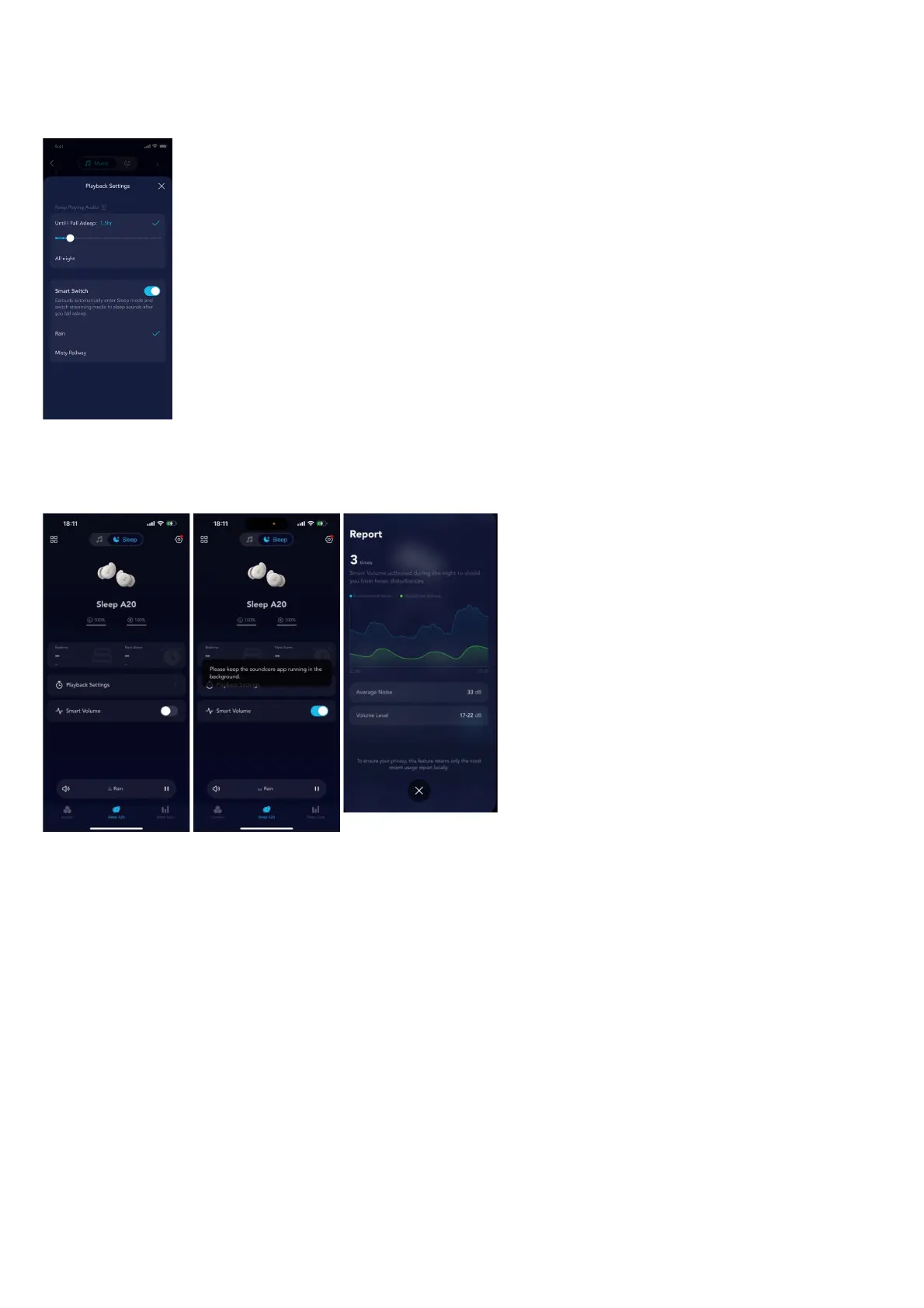
Smart Switch and Playback Settings
• Smart Switch: Enable this feature to automatically switch from Bluetooth Mode to Sleep Mode when you fall
asleep. You can also choose the audio you want to use after sleep (e.g. sleeping sounds or masking sounds).
• Playback Settings: Customize the duration of playtime.
Smart Volume
Smart Volume: In Sleep mode, the mic of your phone will detect changes in ambient noise. When there is a consistent increase or decrease in volume, the
audio volume will dynamically adjust according to external noise changes, providing a noise masking effect that is more adaptive to dynamic environments.
Notes:
1. Sleep A20 does not have an ANC feature.
2. This feature is only effective in Sleep mode.
3. It is necessary to ensure that the earbuds are connected to the smartphone, and the app must continue to be active (do not manually close the app).
4. The earbuds themselves do not have microphones; they rely on the smartphone's microphone to monitor ambient noise levels (only detecting changes in
environmental volume, without recording or recognizing the content of the sound in any form).
5. This feature requires more than half an hour of use before a corresponding report will appear (you will see a one-time monitoring result either when you
manually turn off the feature or before the next use).
6. This feature provides a maximum volume limit of 65dB. The earbud volume will not continuously change with the external environment's volume level (in
compliance with the World Health Organization's recommendations for hearing protection).
Sounds




 To Next Page