EN 02
• In the soundcore app, you can customize the controls, e.g. enable a
single tap to adjust volume.
• Controls may vary when connected via the dongle if the console's
system is incompatible.
• Adjust the volume level via the connected device or in the
soundcore app.
You need a charger that supports USB PD (Power Delivery) and has
a minimum output of 9V/2A, otherwise this function might not work
properly.
*No data transmission is supported. Don't try to link a PC to a VR
headset using a USB-C cable.
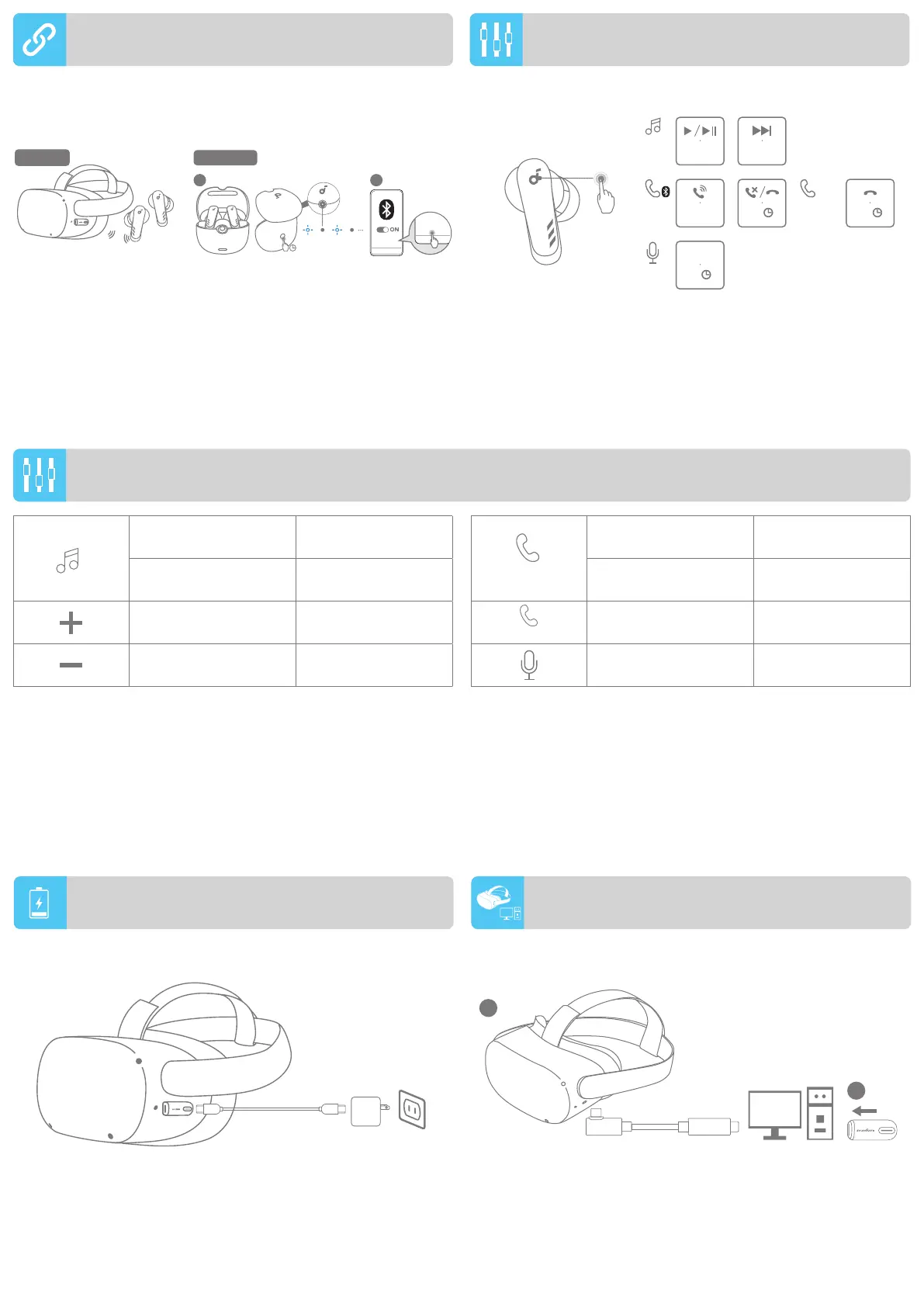
1. Connect the link cable from a USB-C port on your PC to your VR
headset.
2. Plug the dongle into another USB-C port on your PC to use your
soundcore earbuds.
Mono mode: You can use either one of the earbuds only by putting
the other one back into the charging case.
Stereo Mode: When in mono mode, take out the other earbud from
the charging case, the two earbuds will automatically switch to stereo
mode.
CONTROLS
PLAYING WHILE CHARGING
VR LINKING TO PC
The earbuds can connect with two devices (via dongle or Bluetooth) at the
same time.
You can only play music from one device at a time.
If you have an incoming call on the Bluetooth device, you can hear from
both connected devices at the same, but the volume on the dongle-
connected device will be lower than that on the Bluetooth device.
DUAL CONNECTION
Play / Pause Tap twice (R)
Next track Tap twice (L)
Volume up Tap once (R)
Volume down Tap once (L)
CONTROLS
Dongle
1 2
3s
soundcore
VR P10
soundcore
VR P10
Bluetooth
×2
R
×2
L
Voice
Assistant
L/R
2s2s
×2
L/R
2s2s
L/R
Dongle
2s2s
L/R
1
2
Answer a call Tap twice (L/R)
Reject / End a call
Tap and hold for 2
seconds (L/R)
End a call
Tap and hold for 2
seconds (L/R)
Activate Siri or other
voice assistant software
Tap and hold for 2
seconds (L/R)
(via Bluetooth)
(via Dongle)




 To Next Page