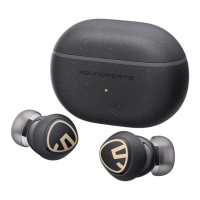
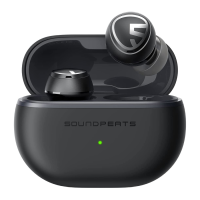
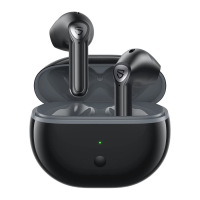
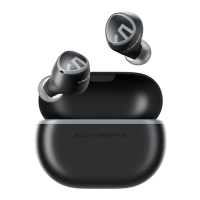
The SoundPEATS Mini HS are wireless earphones designed for a seamless audio experience, offering a range of features for connectivity, sound quality, and user convenience.
Function Description
The primary function of the SoundPEATS Mini HS is to provide high-quality audio playback and hands-free calling through a Bluetooth connection. They support multi-point connection, allowing simultaneous pairing with two devices, which is particularly useful for users who switch between a phone and a computer. The earphones are designed for easy pairing, automatically connecting to each other and then becoming discoverable by a device.
For calls, the earphones allow users to pick up phone calls directly and manage volume. They are equipped with microphones for clear communication, though specific settings may be required for optimal performance on different devices, especially PCs/laptops.
The SoundPEATS Mini HS also integrate with a dedicated mobile application, which enhances their functionality. The app allows for firmware updates, ensuring the earphones always have the latest features and improvements. It also provides access to an "Audio Equalizer" for personalized sound adjustments, catering to individual listening preferences.
Usage Features
Bluetooth Connectivity:
- Pairing: To pair, users simply open the charging case lid, remove both earphones, remove any insulating film, and place them back in the case. The earphones will automatically pair with each other, indicated by alternating red and white LED flashes on the main earphone and a solid white light on the second. Users then activate Bluetooth on their device and select "SOUNDPEATS Mini HS" from the list.
- Multi-Point Connection: This feature allows the earphones to connect to two devices simultaneously. After successfully connecting to Device A, users turn off Device A's Bluetooth, repeat the pairing steps for Device B, and then re-enable Bluetooth on Device A to reconnect.
- Troubleshooting Connection Issues: If the connection is unstable, users are advised to keep the earphones away from devices that emit radio waves (like Wi-Fi routers, microwave ovens, refrigerators, and personal computers) to avoid interference. If the Bluetooth device is in a pocket or bag, moving it to a location without obstacles can improve communication. Turning off other Bluetooth devices can also help. For issues with distance, keeping the earphones as close as possible to the Bluetooth player is recommended. Closing unused applications on the device can reduce load and improve performance.
- Reconnecting to a Device: If the earphones stop connecting, users should clear pairing records from all previous devices, clear some Bluetooth listings on their current device, restart the device, and then reset the earphones by placing them in the charging case. After resetting, reactivate Bluetooth and re-pair.
- Left and Right Earphone Synchronization: If the left and right earphones don't work together, cleaning the charging connectors and resetting them in the charging case is recommended.
- Connecting to Mac-book/Computer: If earphones connect to a phone but not a computer, users should unpair from the phone, reset the earphones in the charging case, and then open the computer's Bluetooth to connect. Updating the computer's Bluetooth driver from the manufacturer's website may also be necessary.
- Intermittent Signal Outdoors: Outdoors, Bluetooth signals can be affected by interference from subways, high-speed rails, trains, traffic lights, and car engines. The human body can also block signals. If the left earphone is the "engine earphone," placing the phone in the left pocket can improve signal stability.
Sound and Call Quality:
- Volume Reduction: If the volume reduces over time, it may be due to foreign objects blocking the sound hole. Gently cleaning it with alcohol can help. Testing with other devices can determine if the issue is device-specific.
- One Earphone Quieter: If one earphone is quieter, users can try changing songs/videos, using different devices, or resetting the earphones. Removing the silicone ear piece and gently cleaning the screen with alcohol may also help. Adjusting the "Audio Equalizer" in phone settings (e.g., [General] - [Accessibility] - [Hearing] for iPhone; [Accessibility features] - [Accessibility] - [Audio balance] for Android) can also be effective.
- Microphone Issues During Calls: If the other party cannot hear during calls, users should ensure calls are picked up via the earphones, avoid muting calls, clean the microphone holes, wear both earphones, adjust volume, and check phone settings (especially on Android) to ensure phone and media audio transmission through the earphones. Trying with other devices can help diagnose the problem.
- Microphone Issues on PC/Laptop: When connecting to a PC/laptop, users might see "SOUNDPEATS Mini HS Hands-Free AG Audio" and "SOUNDPEATS Mini HS Stereo." For media audio, "SOUNDPEATS Mini HS Stereo" should be chosen. For call audio, switching to "SOUNDPEATS Mini HS Hands-Free AG Audio" may be necessary. On Mac or Windows, specific input and output device settings (disabling Realtek(R) Audio and setting "SOUNDPEATS Mini HS Hands-Free AG Audio" as both input and output) are required for call audio.
Touch Control:
- Functionality: Touch controls are located in the middle of the earphone's control zone.
- Troubleshooting Touch Control: If touch controls don't work, ensure hands are dry, as wet hands can interfere with functionality. Users may need to practice skipping songs multiple times to find the optimal frequency for control. Discharging, charging, and resetting the earphones can also resolve issues.
App Integration:
- Account Registration: To register an account, users fill in their email address, set and confirm a password (using combinations of letters and numbers, avoiding special characters), click "get verification code," enter the code received via email, and finish registration.
- Verification Code Issues: If the verification code isn't received, users should check network connection, try sending the code again after 5 minutes, check spam/junk folders, try a different email address, uninstall/reinstall the app, restart the device, manually type the email address (paying attention to format and spaces), and temporarily turn off anti-virus or data encryption software.
- App Connection Issues: If earphones don't connect to the app, users should first ensure the SoundPEATS earphones app is updated to the newest version (checked in the "about" section of the app). The earphones' Bluetooth name must be the default "SOUNDPEATS Mini HS"; changing it can cause connection issues. The mobile phone's location function must be on, and the app must be authorized to obtain all necessary permissions. Both earphones must be paired with each other and connected to the phone before opening the app. If issues persist, users should completely close the app, unpair earphones from the phone, turn off phone Bluetooth, reset earphones in the charging case, reconnect earphones to the phone (with the app closed), and then reopen the app to search and connect.
- App Update Issues: If the app cannot update, users should reset the earphones, take them out of the charging case to allow them to pair, then connect to the phone's Bluetooth. A good network connection is essential. Closing and reopening the app, then trying the upgrade again, may help.
- App Upgrade Precautions: During an app upgrade, the earphones and mobile phone must be within 0.5 meters. The earphones should not be placed in the charging case. Users should avoid disconnecting, playing music, answering calls, or closing/shrinking the upgrade page.
Maintenance Features
Charging:
- Charging Case LED Indicators:
- Green: 100%-50% battery
- Yellow: 49%-10% battery
- Red: Less than 10% battery
- Charging Case LED (while charging):
- Red (flashing slowly): Less than 20% battery
- Yellow (flashing slowly): 20%-69% battery
- Green (flashing slowly): 70%-99% battery
- Solid Green: 100% battery
- Charging the Case: Connect the charging case to a Type-C charger. For extended idle periods, charge the earphones at least every three months to prevent battery damage.
- Troubleshooting Charging Case: If the charging case won't charge, try using another known working charging cable and charging it for over 10 hours via a computer. Avoid using fast chargers, as earphones are low-power devices.
- Earphones Connecting After Case Lid Closed: If earphones remain connected after being placed back in the case with the lid closed, it indicates the charging case has no power, preventing the earphones from turning off. Ensure earphones are correctly placed and charging contacts are clean. Cleaning the contacts with a microfiber cloth is recommended.
- Long-Term Storage and Battery Drain: If earphones are not used for a long time without charging, the battery may deep self-discharge, causing damage or rapid drain. It's recommended to charge electronics at least every three months. Moisture in storage can also cause damage. If the battery seems dead after long disuse, check if the charging case has power and if charging contacts are dirty. Clean contacts with a dry cloth or paper towel. For earphones that don't turn on or drain rapidly, repeatedly place them in the charging case for 2 hours, close the cover, and try for 1-2 days.
General Maintenance:
- Cleaning: Use light sandpaper or a microfiber cloth with rubbing alcohol to clean charging connectors. Gently clean sound holes with a little alcohol to remove dust or secretions.
- Disconnecting Headphones:
- Method 1: Place earphones back into the charging case to automatically turn them off and disconnect.
- Method 2: Turn off the phone's Bluetooth.
- Method 3: Remove both earphones from the case, press their touch keys for 6 seconds to disconnect from the current phone and enter pairing state.
Customer Support:
If problems are not addressed in the FAQ, users are encouraged to contact the Customer Service Team for solutions, potential replacements, or refunds. SoundPEATS offers a 12-month warranty for all products.

 Need help?
 General



 To Next Page