Chapter 3 Validating and Enhancing Data
Quick Start Guide - 12 - v 1.2.3
Clicking on a pin will display details of the non-conformance, such as the
associated feature IDs and the name of the rule.
As the pins are displayed as layers within the application, they can be turned
on or off just like any other layer.
Within Web AppBuilder, open the layer list.
Figure 3-7: Layer List icon
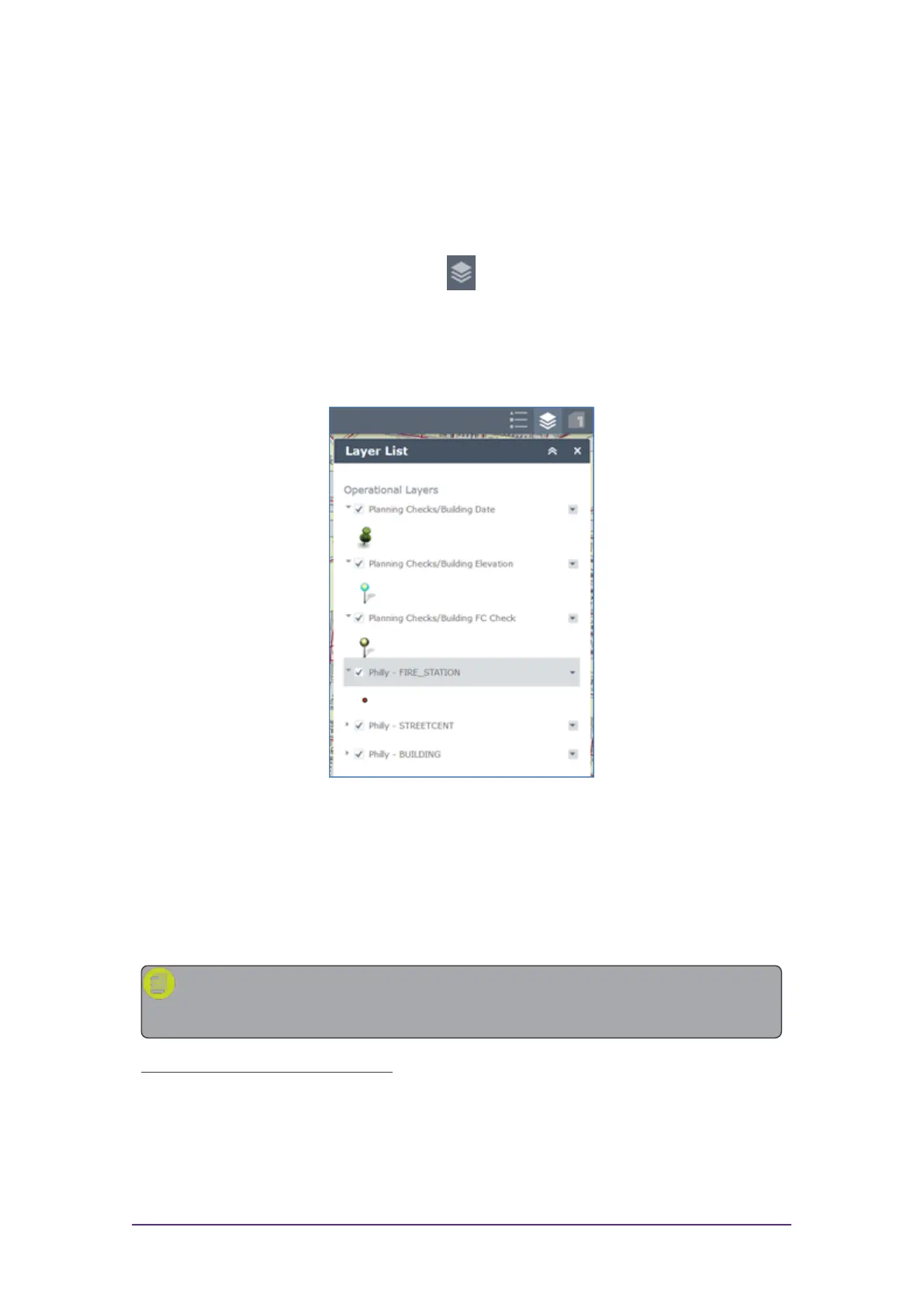
The layer list displays which pin type represents each rule. These individual
layers can then be turned on or off.
Figure 3-8: Web AppBuilder Layer List
Using the ArcMap Add-in
The following steps outline how to use 1Integrate for ArcGIS to run validation
and enhancement rules within ArcMap.
Note: For general information on using ArcMap, please refer to the
ArcGIS documentation.
Launch the ArcMap Add-in:
1. Open the ArcMap application.
2. Open your dataset.



 To Next Page