Chapter 3 Validating and Enhancing Data
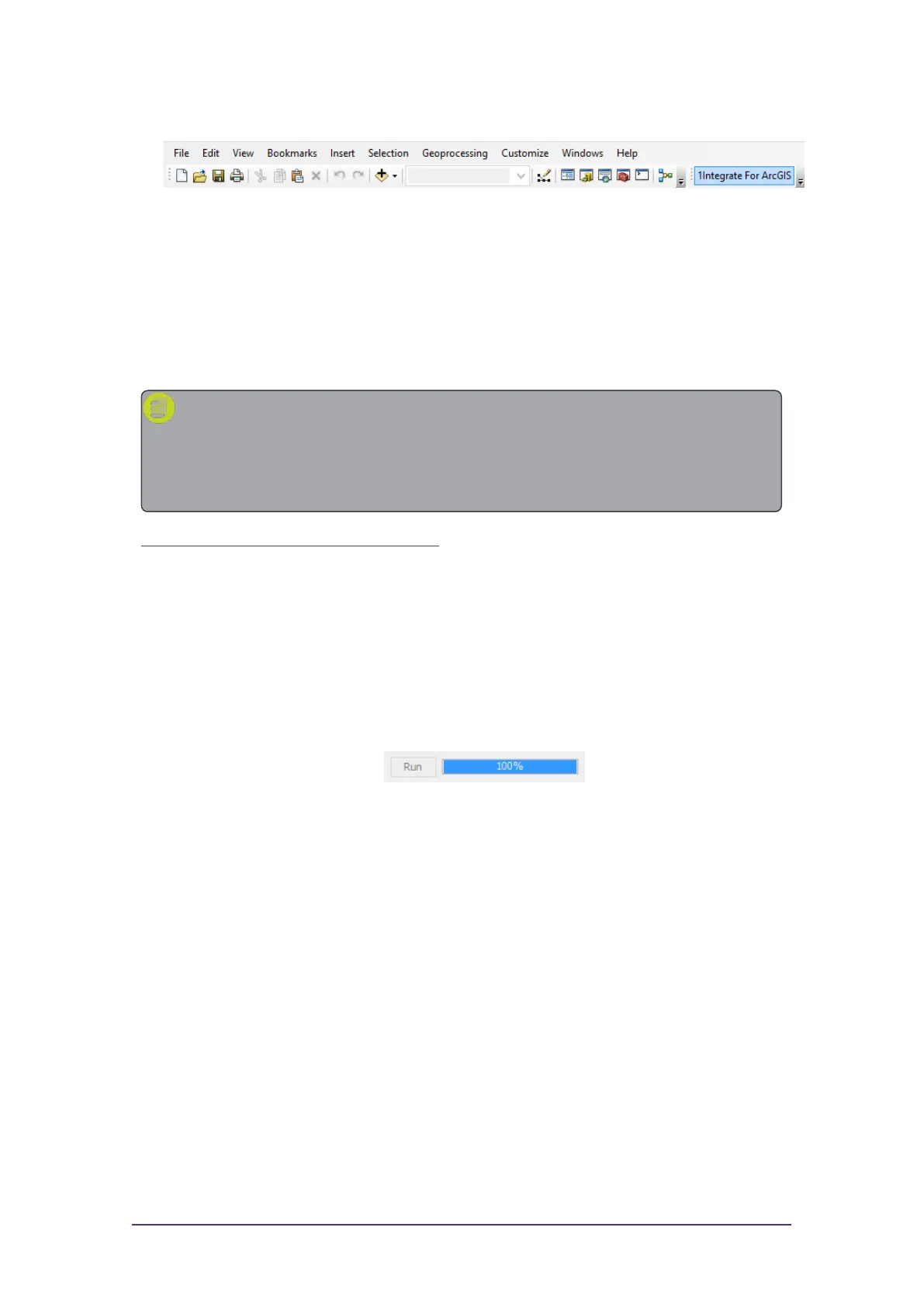
3. Open the 1Spatial Add-in via the menu button.
Figure 3-9: ArcMap menu
4. Click Fetch Rules to display the rulesets that have been published for
your dataset.
Running Rules
Validation and enhancement rules are run in the same way within ArcMap.
Note: When running rules in ArcMap, the extent to be processed is
limited to the data visible within your data frame. If you want to process
the entire dataset, make sure you are zoomed out so that the full extent
is visible.
Run rules over the visible extent:
1. Click Fetch Rules to display the rulesets that have been published for
the current dataset.
2. Select one or more rules by clicking on their checkboxes.
Packages (groups)of rules can be selected using the group checkbox.
3. Click Run to run the selected rules on the visible extent.
A progress bar will display whilst the rules are being run.
Figure 3-10: ArcMap rules progress bar
Viewing Validation Results
Once your rules have finished running, the progress bar will display 100% and
the results will be displayed.
Displayed next to each rule is a count of the number of objects processed, and
the number of features that failed the rule ("non-conformances").
A traffic light next to each rule will also indicate where large numbers of
features failed (red) or where most features passed (green).
Quick Start Guide - 13 - v 1.2.3



 To Next Page