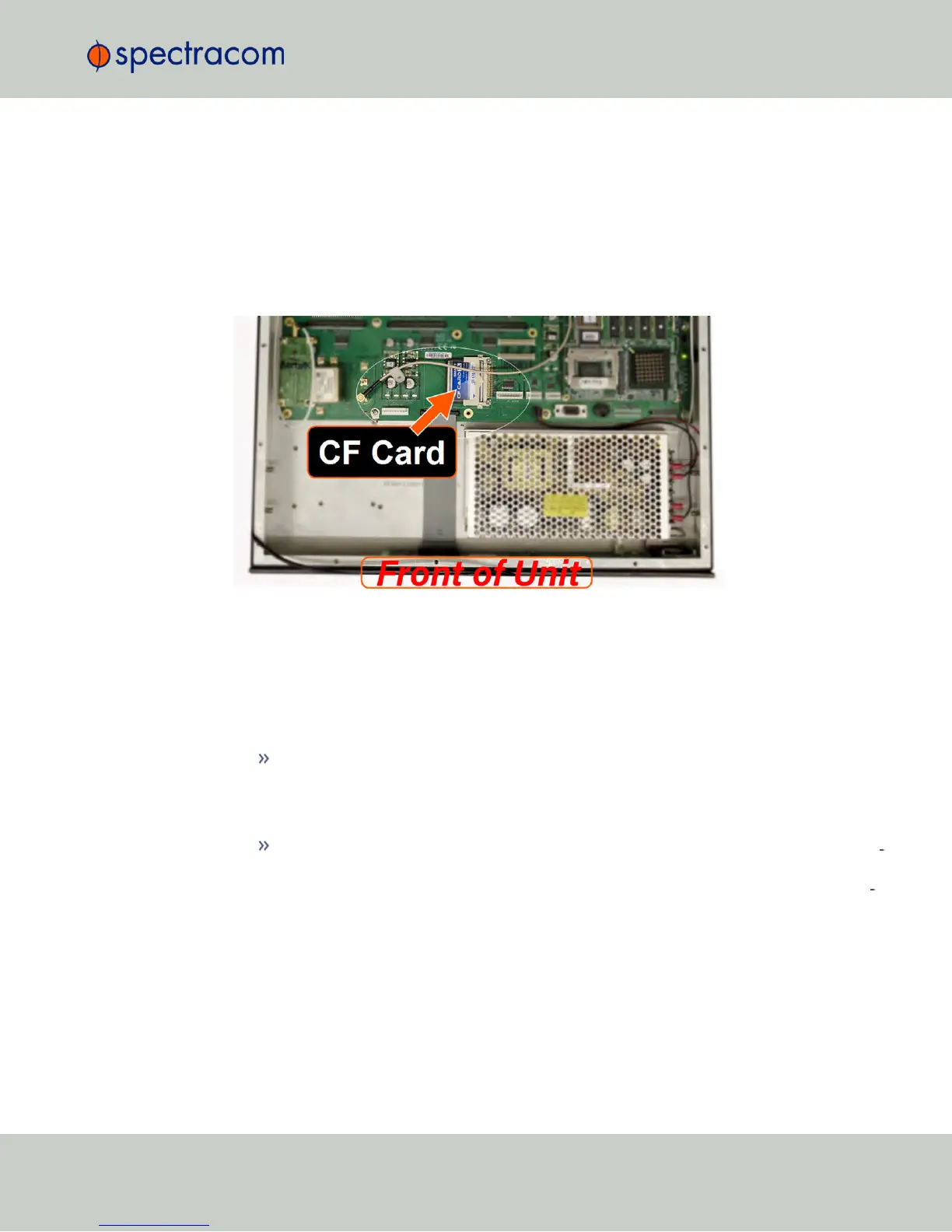
4.7.5.1 Physically Removing the CF Card
1.
Read the topic "SAFETY" on page31 and follow all applicable instructions pertaining to
safety and ESD compliance.
2.
Remove the top cover off the chassis.
3.
Locate the card socket on the main PCB.
4.
Remove the metal bar that holds the card in the socket.
4.7.5.2 Cleaning/Restoring
Starting in system software version 4.8.7 (see under TOOLS > SYSTEM: Upgrade/Backup), the
Compact Flash card can be modified in several different ways via Actions panel under TOOLS
> SYSTEM: Upgrade/Backup:
Restore Configuration: This will reset all user configurations to factory defaults with the
exception of networking settings and GPS position. Network settings can be changed, if
desired, via the Web UI, via the front panel, or the serial command line interface. The
GPS position can be deleted via INTERFACES > REFERENCES: GNSS0.
* Clean Configuration and Halt *: This will delete the network settings and the GPS pos
ition, as well as resetting all other user configurations to factory default. Alternatively,
"Clean" or "CleanHalt" can be initiated through the front panel or command line inter
face.
4.7.5.3 Removing Other Files From the CF Card
While the restore and clean functions reset the configuration parameters, they do not remove
any files that may have been uploaded via FTP. One way to delete these files, if any, is via the
Update System Software functionality under TOOLS > SYSTEM: Upgrade/Backup.
4.7 Resetting the Unit to Factory Configuration
CHAPTER 4 • NetClock User Reference Guide Rev. 16
321



 To Next Page