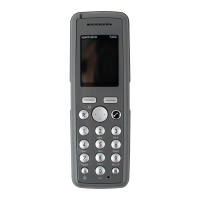
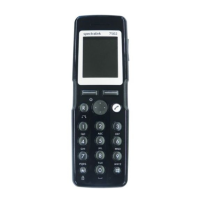
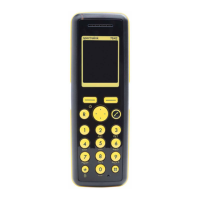
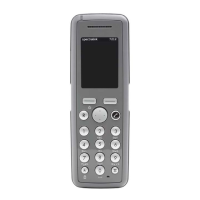
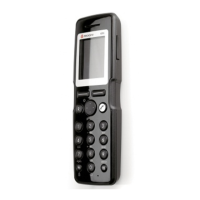
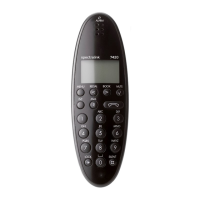
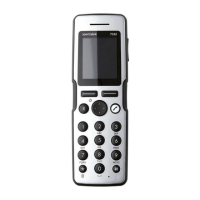
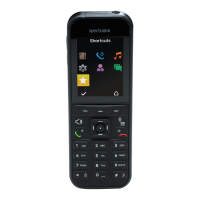
Spectralink 7710, 7720, 7740 User Guide
14184663 Version 8.0
September, 2013 31
2 Scroll to Phone Book and press Select.
3 Scroll to Add name/number and press Select.
4 Type the name of the contact using the keys 2-9.
5 Scroll to number and enter the number of the contact (max 24 digits).
6 Press Save to store name and number.
If the display shows Memory full, it is necessary to delete one or more contacts from phone book.
Editing Name/Number
You can edit name and number of a contact in phone book at any time.
1 Press Menu to enter main menu.
2 Scroll to Phone Book and press Select.
3 Scroll to Find name and press Select.
4 To find a name you can:
— Scroll until you reach the desired name. To scroll through the names quickly press the
navigation key continuously.
— Use quick search by pressing the first letter(s) (max. 5 letters) of the desired name.
5 Press Details.
6 If more than one number: scroll to the desired number and press Select.
7 Scroll to Edit name/number and press Select.
8 Edit Name using the digits 0-9.
9 Scroll to Number and edit number using the digits 0-9.
10 Press Save to store your changes.
Adding New Number
You can add a new number to a contact in phone book at any time. It is possible to add up to four
numbers to each contact.
1 Press Menu to enter main menu.
2 Scroll to Phone Book and press Select.
3 Scroll to Find name and press Select.
4 To find a name you can:
— Scroll until you reach the desired name. To scroll through the names quickly press the
navigation key continuously.
— Use quick search by pressing the first letter(s) (max. 5 letters) of the desired name.
5 Press Details.
6 If more than one number, press Select.


 To Next Page