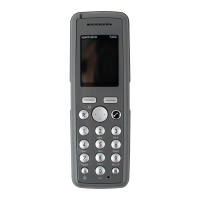
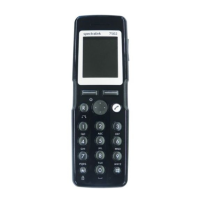
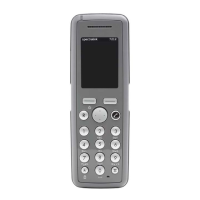
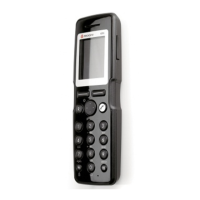
Spectralink 7710, 7720, 7740 User Guide
14184663 Version 8.0
September, 2013 50
2 Scroll to Settings and press Select.
3 Scroll to Silent mode and press Select.
4 Scroll to On or Off and press Change.
- OR -
• While on hook, press Menu followed by #.
Changing Settings of Silent Mode
When silent mode is turned on, you can select other ways of indicating incoming calls or
messages:
• Display flashing: the display flashes when an incoming call arrives.
• Vibrator (Not available on 7710): the handset vibrates when an incoming call arrives.
• Short ring: a short ring sounds when an incoming call arrives.
To Change Silent Mode Settings:
1 Press Menu to enter main menu.
2 Scroll to Settings and press Select.
3 Scroll to Silent Mode and press Select.
4 Scroll to Settings and press Change.
5 Scroll to the desired setting and press Select.
Auto Key Lock
Use auto key lock to prevent keys from being accidentally pressed.
With auto keylock turned on the handset will automatically lock keypad after 30 seconds.
To turn auto key lock on/off:
1 Press Menu to enter main menu.
2 Scroll to Settings and press Select.
3 Scroll to Auto key lock and press Select.
4 Scroll to On or Off and press Change.
- OR -
5 While on hook, press Menu followed by *.
• To answer a call when Auto key lock is on, press . When you end the call, keypad
automatically locks.


 To Next Page