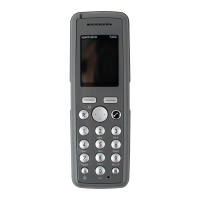
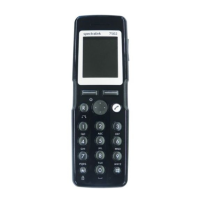
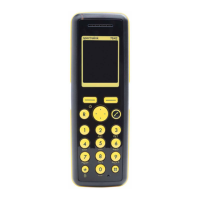
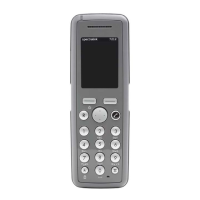
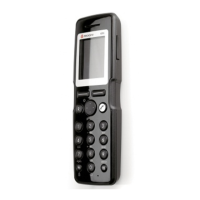
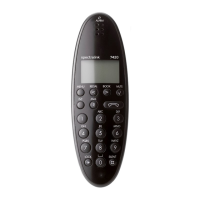
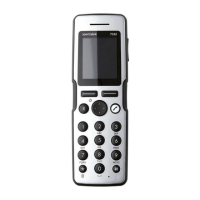
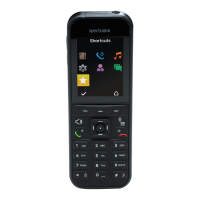
Spectralink 7710, 7720, 7740 User Guide
14184663 Version 8.0
September, 2013 39
Clearing Text Field
Use the clear text function, when you are writing a new message and want to start all over.
1 Press Options.
2 Scroll to Clear text and press Select.
Saving a New Message in Outbox
You can write a message and then save it in outbox for later handling.
1 Press Menu to enter main menu.
2 Scroll to Messages and press Select.
3 Scroll to New message and press Select.
4 Write a message and press Options.
5 Scroll to Save message and press Select.
6 Scroll to Outbox and press Select.
Edit a Message that Has not Been Sent
1 Press Menu to enter main menu.
2 Scroll to Messages and press Select.
3 Scroll to Outbox and press Select.
4 Scroll to the message you want to edit, and press Select.
5 Press Options and press Select.
6 Scroll to Resend and press Select.
7 Edit text.
8 Press Options and press Send.
Using Templates
You can create up to 10 templates. When using a template in a message you have two options:
• Use a template when you begin the process.
• Insert a template in a message when you are in the process of writing a message.
To Use a Template When You Begin a Message:
1 Press Menu to enter main menu.
2 Scroll to Messages and press Select.
3 Scroll to Templates and press Select.
4 Scroll to the desired template and press Option.


 To Next Page