English-08
Bluetooth
******
< Settings
Bluetooth
Now discoverable as “iPhone”.
MY DEVICES
OTHER DEVICES
Spedal-*****
Bluetooth Pairing Request
******
Cancel
Pair
Use CarPlay with
“NaviCam”
******
Not Now
Use CarPlay
Sign in to your iPhone
Airplane Mode
Not Connected >
On >
Settings
Wi-Fi
Bluetooth
·iPhone is running iOS 9 or higher. (such as iPhone XR and above;
iPhone 11 and above; iPhone SE (second generation) and above, etc.)
·It also requires the CarPlay system and the iPhone's voice system to
be turned on. Please check if Siri is enabled.
·When using wireless CarPlay for the first time, the connection time
may take around 30 seconds, please be patient.
Note
The iPhone version that supports wireless CarPlay requires the follow-
ing:
For more details visit: http://www.apple.com/ios/carplay
3.2 Apple CarPlay
3.2.1 Apple CarPlay Wireless Connection
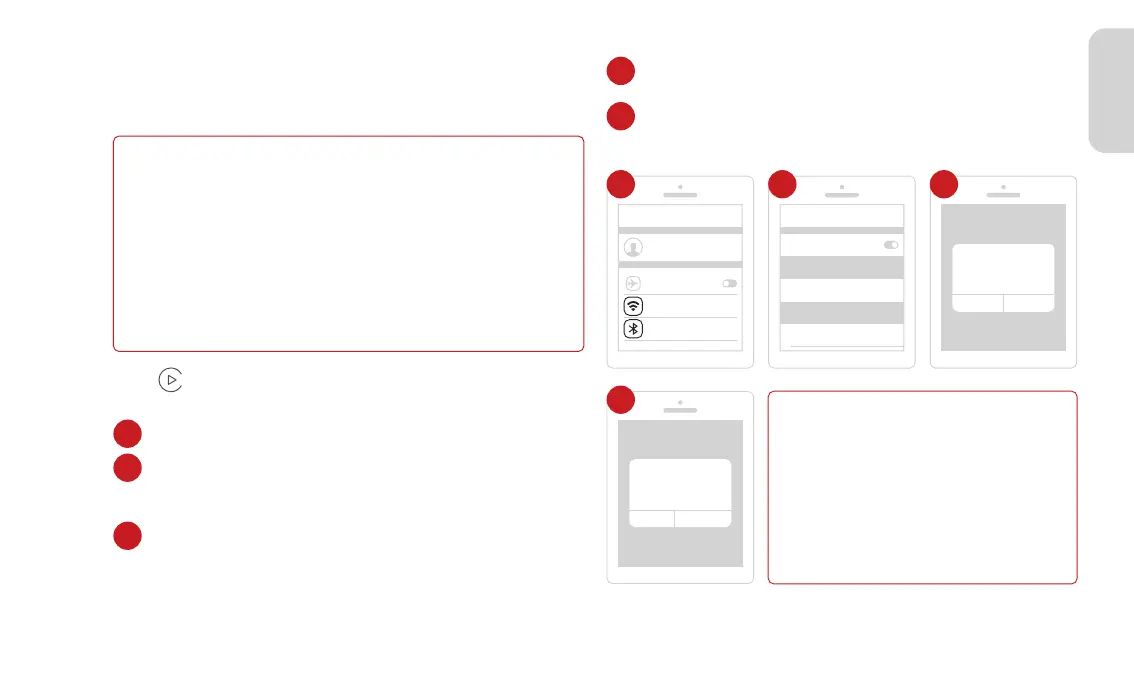
Go to Settings on your iPhone, turn on “Wi-Fi” and “Bluetooth”.
Enter the “Bluetooth ” menu and select the Bluetooth device
starting with "Spedal-*****" from the list of “OTHER DEVICES”
Bluetooth devices.
Wait for about 20-30 seconds, and a prompt "Bluetooth Pairing
Request" will pop up on your phone. Select "Pair" to successfully
pair your phone with the device.
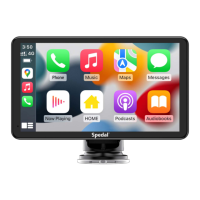
Click " " on the home screen to enter the CarPlay.
·Different versions of iOS may display
differently, please refer to the actual
situation.
·The first connection may take a longer
time, please be patient.
·If you want to switch to Android Auto or
AirPlay, you need to turn off Bluetooth and
Wi-Fi on your phone to disconnect the
Apple CarPlay connection mode.
Note
1
1
2
2
3
3
Then, a prompt "Use CarPlay with"NaviCam"?" will pop up on
your phone. Select“Use CarPlay”.
Please wait for a moment and you will enter the CarPlay mode.
4
4
5



 To Next Page