4100/4200 Router User’s Guide Operating System Configuration
Checking TCP/IP Settings (Windows 9x/ME)
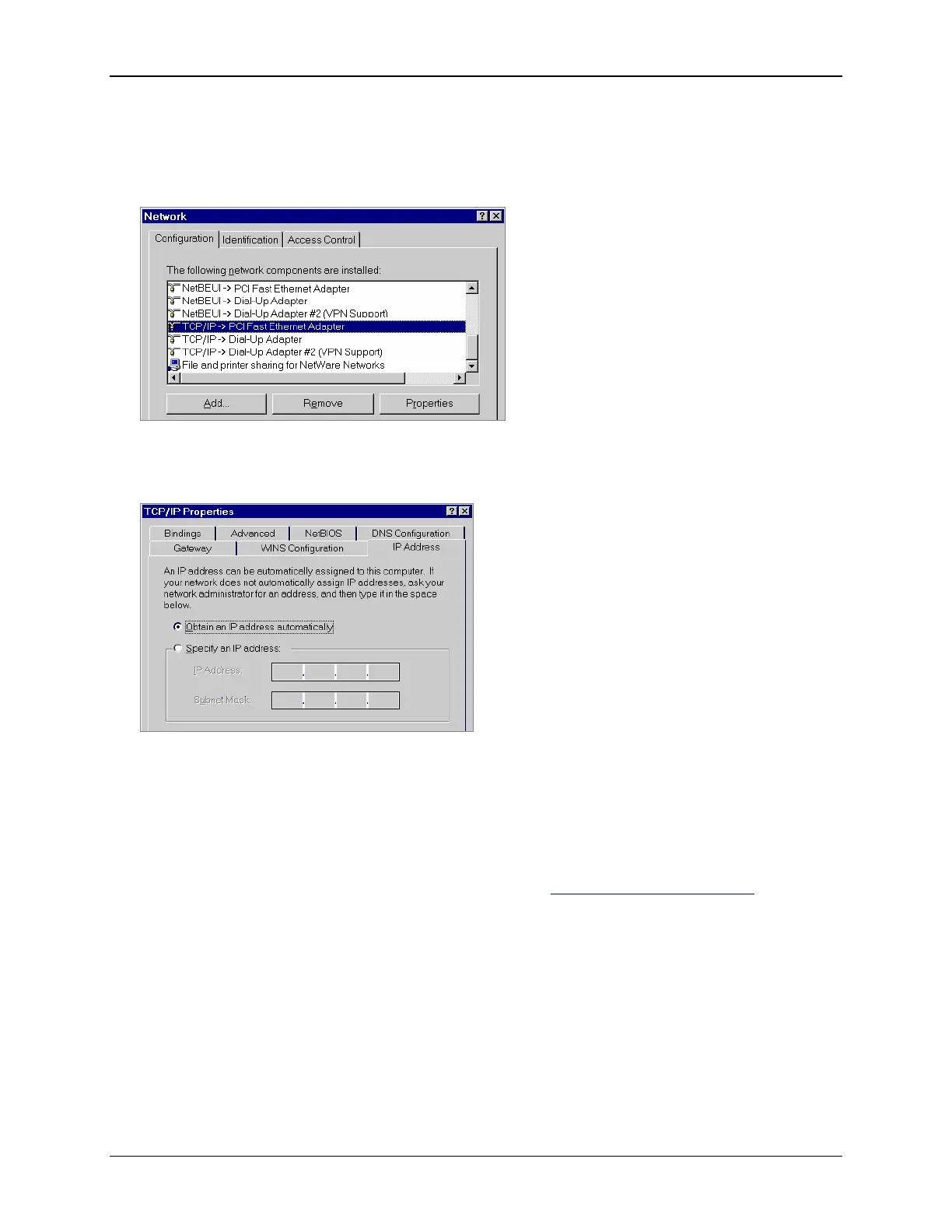
1. Select Start>Control Panel >Network. This displays the Configuration tab on the “Network”
window.
2. Select the TCP/IP protocol for your network card.
3. Click Properties. This displays the “TCP/IP Properties” window.
4. Click the IP Address tab.
5. Ensure that the Obtain an IP address automatically option is selected. This is the default Windows
settings.
6. Close this window.
7. Restart your computer to ensure it obtains an IP address from the Router.
8. Configure internet access using the procedure described in
Internet Access Configuration.
10



 To Next Page