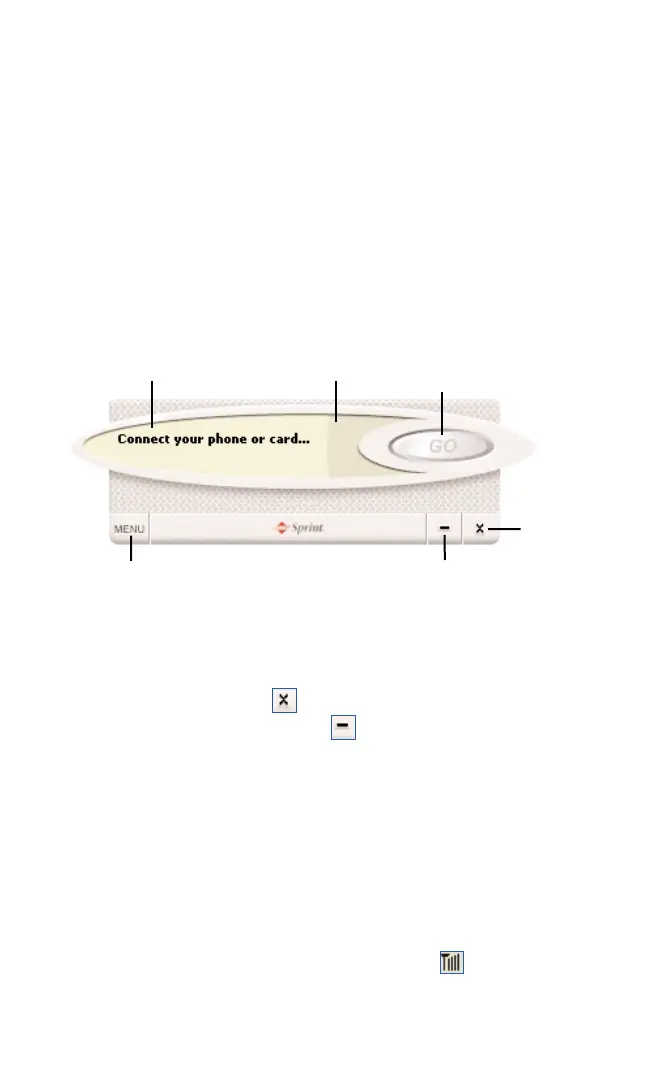
The PCS Connection Manager Window
The PCS Connection Manager features its own Custom Main Interface
(CMI) window. It includes the following components:
4
A Menu button in the lower left corner
4
Minimize and Close buttons in the lower right corner
4
A message area (the upper left portion of the display)
4
An indicator area (to the immediate right of the message area)
4
A button (“GO”) used to establish/cancel a connection
(The WMI view, an alternative interface, is described on page 44)
About the Interface
The following application functions are available within the main
window of the PCS Connection Manager:
4
Close: Closes the interface
4
Minimize: minimizes the interface
4
Go: Initiates a connection
4
Stop: Ends or cancels a connection
4
Menu: Provides access to tools and options settings
4
Message Area: Displays “Connect your phone or card,” “Ready to
Connect,” “Connected” or “Connecting” states
4
Indicator Area: The Indicator area displays icons that notify you when
you receive messages and indicate whether certain options and features
are enabled
4
Signal Strength: Visual indicator of signal strength
Section 3: Using the PCS Connection Card
3A: The PCS Connection Manager 37
Message Area
Indicator Area
Establish/cancel
a connection
button
Minimize
button
Close
button
Menu
button



 To Next Page