When Should I Use the Reset Button?
Assuming that the camera is charged but locked up, try using the Reset button
under the camera. If you can, rst remove the memory card. Because the button
is recessed with pinhole access, grab a pin, toothpick, wire or any tool sufficiently
narrow to t into the hole. The reset button will click when pressed. Keep it pressed
for 5 seconds. Camera settings will be returned to the factory defaults. If you were
unable to remove the memory card, you may lose any content.
How Do I Know the Camera Is on Standby?
With the three-position switch set to Custom Mode and no light coming from the
LED, press the Power button until the green LED turns on. It will shine steadily, then
ash for a few seconds and turn off. The camera is set for standby. You can place
the camera in position and walk away. If, on the other hand, you press the LED for
two seconds, it turns orange and shuts off, the camera has shut down and will not
wake up on its own. Press the LED until the green LED comes on, ashes for a few
seconds, then turns off. The camera is set for standby. It’s important to recognize
the state in which you leave the camera if you expect it to recognize the Schedule
Settings.
How Can I Make the Camera More Secure?
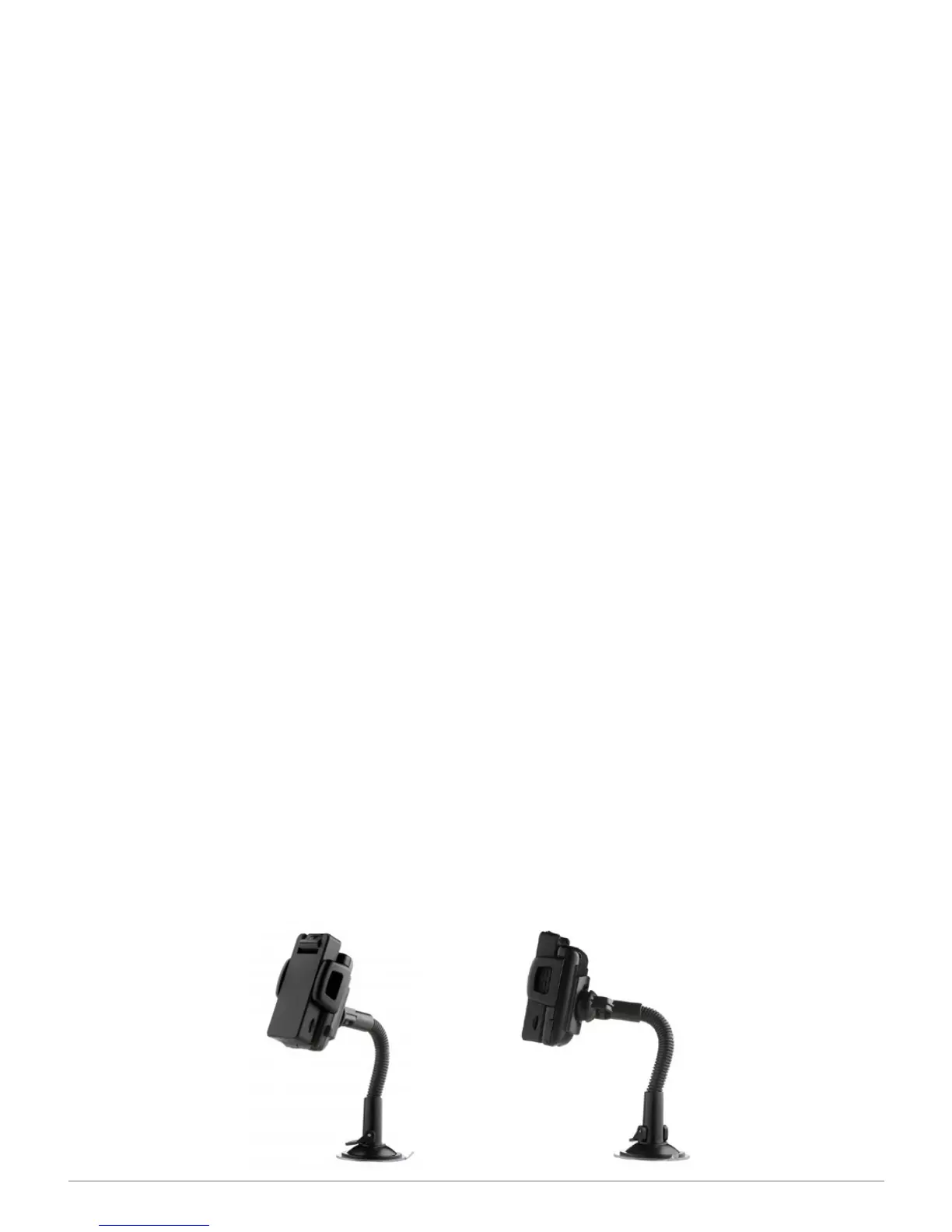
You can purchase the optional adjustable mount for the Zetta Z12. It enables covert
and secure mounting.
SPYTEC Z12 INTELLIGENT SECURITY CAMCORDER USER GUIDE 18
Can I Schedule Recordings Outside of 3-hour Multiples?
No. When designating blocks of time for the Z12 to record video using the Schedule
Settings screen in the Zetta Widget, the minimum duration is three hours. You can
drag your mouse to program longer segments, but they must be in multiples of 3
hours. So, you can designate a 3-, 6, 9- or 12-hour block, but you can’t set a 4-hour
block. Also, a block must begin at midnight, 3 am, 6 am, 9 am, noon, 3 pm, 6 pm,
or 9 pm. And no, you can’t switch the software from military (24-hour) to 12-hour AM
and PM time.


 To Next Page