Note: To check if the battery has power, make sure the camera is disconnected from
an external power source and hold the power button for one second.
If there’s no memory card in the slot or the inserted card is unformatted, the LED will
briey turn a steady green (indicating internal power), then a steady red (indicating
there’s no memory card), and then turn off.
If there is a formatted memory card inserted, the LED will turn a steady green, then
after a few seconds start ashing green indicating the camera is recording. If you’re
only checking power, press the power button for two seconds to stop recording. The
green LED will stop ashing, turn orange, then turn off completely.
Tip: There’s no way to tell whether the battery is fully- or partially-charged. Always
charge the camera before a recording session. If you’re unsure how much power is
left in the battery, keep the camera plugged into a power source.
Handling and Formatting the Memory Card
Because a MicroSD card (not included) is fragile and about one-quarter the size of
an SD card, it’s easy to damage or lose. Keep your eye on the card as you insert the
edge with the eight metal contacts pointed up into the slot while the camera’s bottom
indicia plate rests on a at surface. Push the card in until it snaps into place. To
remove the card, press it in with your nger nail, being careful to block the card from
becoming airborne as it’s ejected by the slot’s spring mechanism.
The easiest type of memory card to use with the Z12 contains a capacity of 32GB or
less, while cards with more memory must be properly formatted to be recognized by
the camera. See the Troubleshooting section (pg. 16) for formatting instructions.
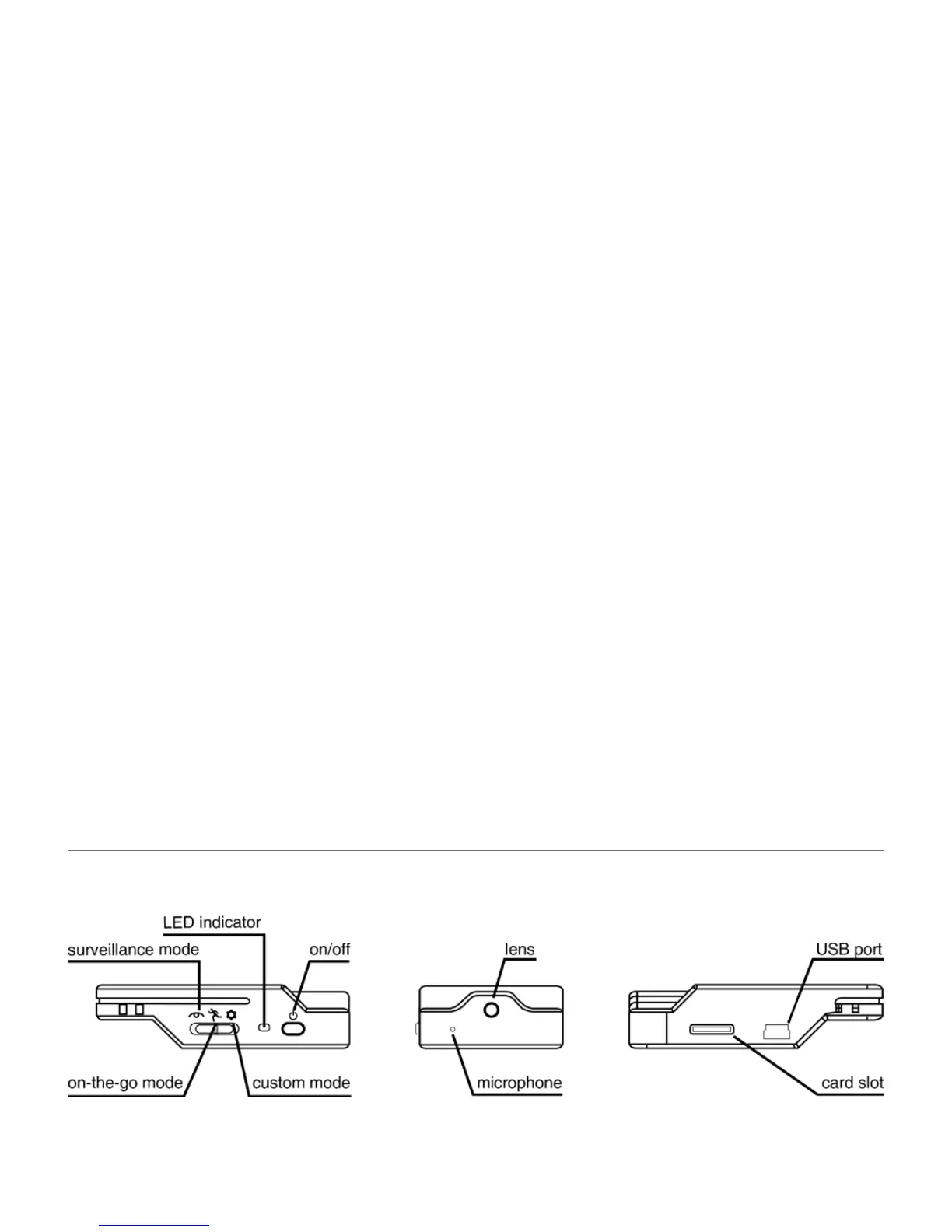
What’s on the Camera
FRONT
RIGHT SIDE
LEFT SIDE
SPYTEC Z12 INTELLIGENT SECURITY CAMCORDER USER GUIDE 3


 To Next Page