8
DISC / USB / SD CARD OPERATION
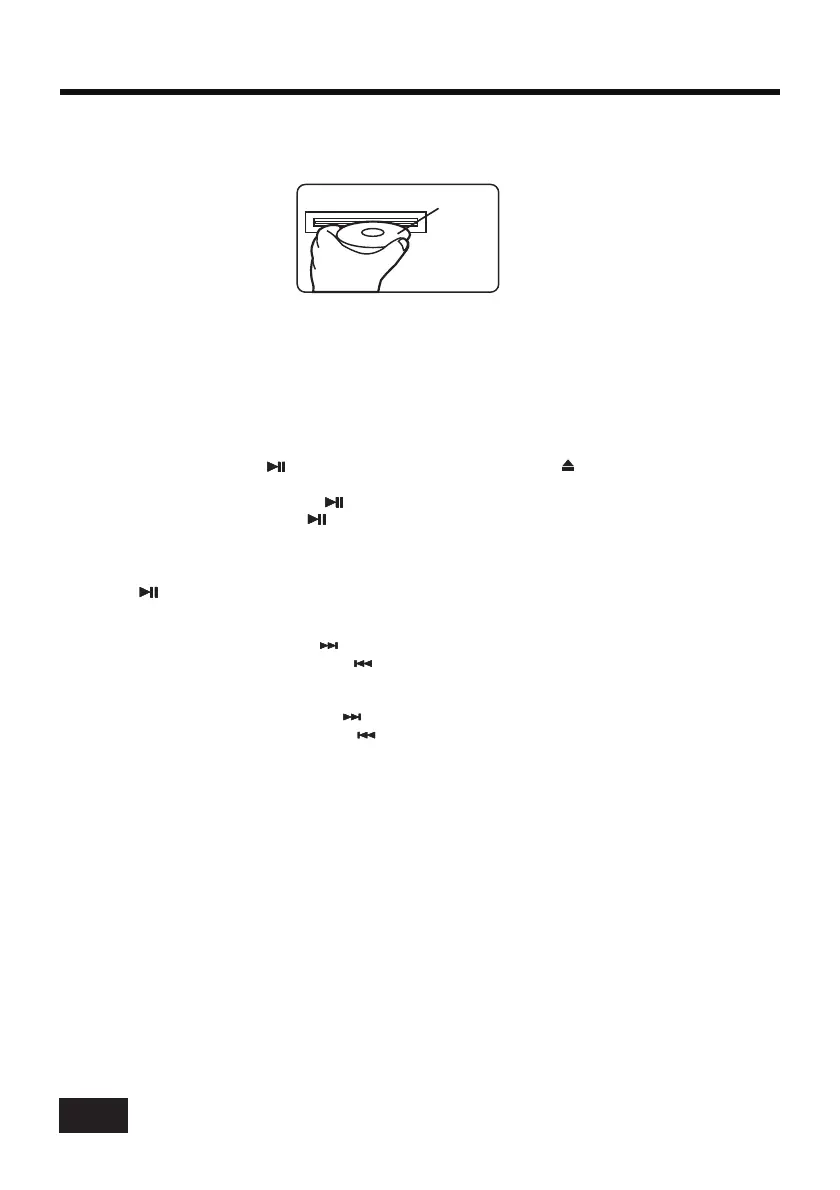
To insert DISC / USB / SD CARD
• To play files on a disc, insert a disc with the label surface facing upward into the disc slot.
Playback will begin automatically.
• To play files in a USB device, leftwards slide the sliding door for USB port and insert the USB
storage device into the USB port. Playback will begin automatically.
• To play files in an SD card, press the release button to remove the front panel, then insert an
SD card into the SD slot. Finally install the front panel to the chassis. Playback will begin
automatically.
Label surface up
Eject Disc/USB/SD
Play/Pause
Next/Previous Track
Fast Forward/Backward
Introduction Scan
INT
Repeating the same track
RPT
Playing all tracks in random
RDM
Track/Folder Navigation
5/-10
6/+10
5/-10/-DIR
6/+10/+DIR
• To eject a disc, press the button to stop playback. Press the (eject) button to eject the
disc and then remove it.
• To eject a USB device, press the button to stop playback, then remove the USB device.
• To eject an SD card, press the button to stop playback, and press the release button on
the front panel to release and remove the front panel, then remove the SD card.
Press the (play/pause) button to pause or resume playback.
• To play the next track, press the button.
• To play the previous track, press the button.
• To fast forward, press and hold the button.
• To fast backward, press and hold the button.
Press the button to play the first 10 seconds of each track, press again to stop the
introduction scan, and play the current track.
Press the button to repeat the current track, press again to stop repeat plaback and
resume normal playback.
Press the button to play all tracks in random order, press again to cancel this function.
• During a disc, USB or micro SD card mode, press the button to go backward 10 tracks.
Press the button to jump forward 10 tracks.
• During a MP3 disc, USB or SD card mode, press and hold the button to go back
the previous folder. Press and hold the button to go to the next folder.
You can repeat this function depending on the number and level of folders.
• These buttons have no this function if the USB device or SD card has no folders.


 To Next Page