G
G-P6025-TM001
Issue B
DigiSAFE DiskCrypt M100 User Manual 14
6 Helpful Information
6.1 Partitioning and formatting your hard drive
Note that in most cases, it is not necessary to do this because the hard drive will be
shipped, completely formatted.
In any case, if you wish to partition and format the drive, simply follow these steps.
CAUTION:
Performing partition and format operations will erase all data in the drive.
Windows XP and above
1. Connect and authenticate into DISKCRYPT
M100.
2. Right click on My Computer and Select
Manage.
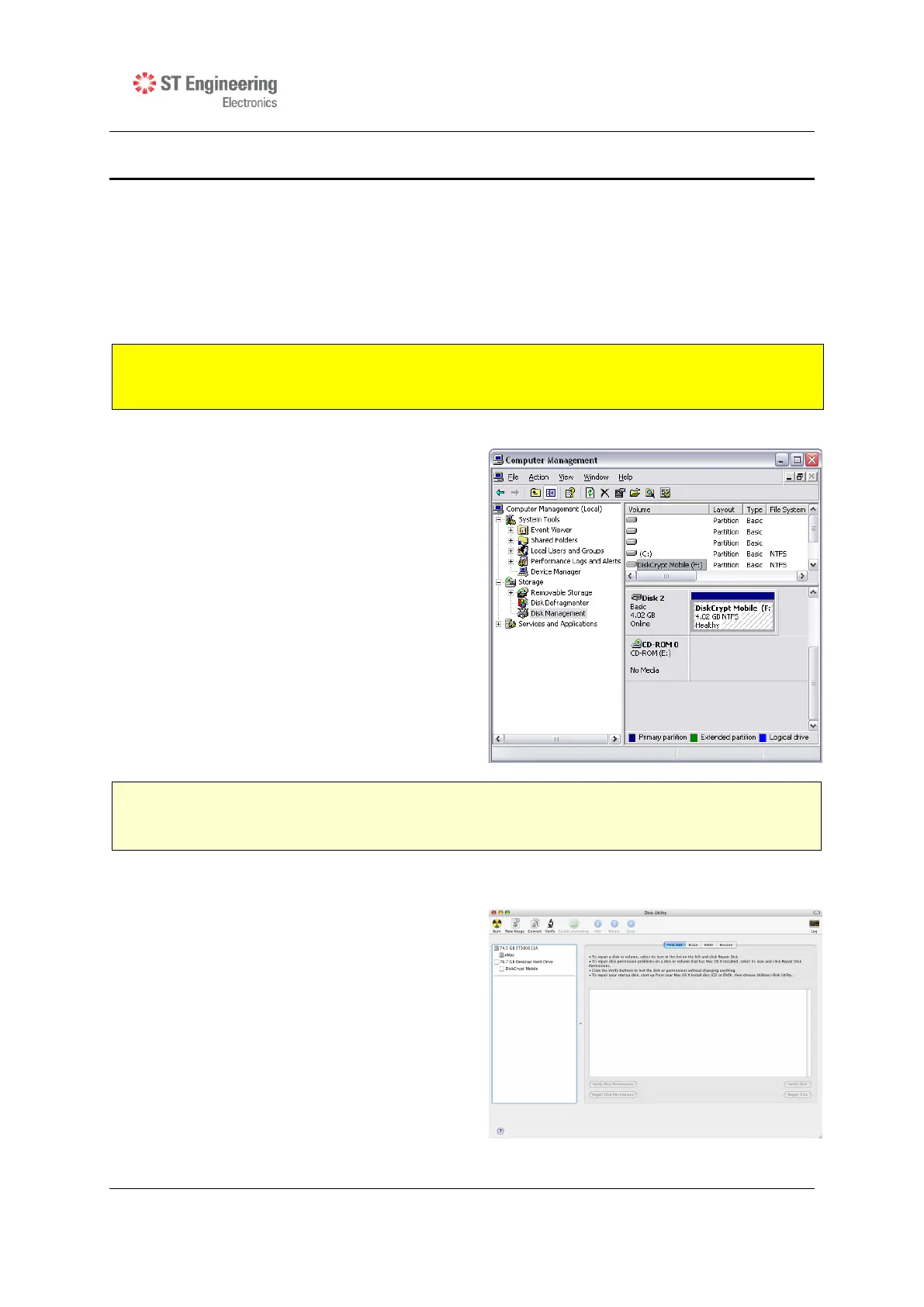
3. From the Computer Management
window, select Disk Management.
4. Right click on the drive and choose
Initialize.
5. Right click on the drive and select New
Partition.
6. Follow the New Partition Wizard to create
as many partitions as desired.
7. Right click on each partition and select
Format to format the drive.
8. The drive is ready to be used once
formatting completes.
Note:
You must have Administrator privileges to use the Disk Management utility.
Mac
1. Connect and authenticate into DISKCRYPT
M100.
2. Enter the Applications folder, followed by
the Utilities folder
3. Run Disk Utility.
4. Select DISKCRYPT M100 on the left hand
column and click on the Partition tab.
5. Choose the number, size and names of
the desired partitions.
6. Mac OS will then format the drives
automatically.
7. The drive is ready to be used once
formatting completes.



 To Next Page