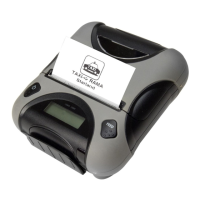
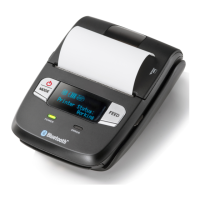
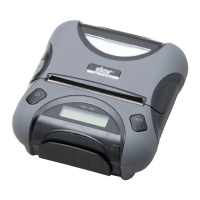
Moneris Go Appétit: Hardware Installation Guide 5
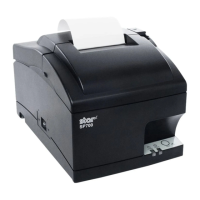
5. Once the printer powers on and you see the green LED, power off the printer using the toggle switch.
6. Hold down the FEED button on the front of the printer, and use the toggle switch to power it back on again.
The printer will print two long receipts. Keep these receipts to use for later setup steps.
7. Repeat steps 1-6 to install other kitchen printers in other kitchens in your business as necessary.
Enable the printer in the portal
Now that the printer hardware has been set up, it needs to be enabled in the Go Appétit portal. Follow the
instructions below to enable the printer.
Note: For information on logging in to the portal, refer to the Moneris® Go Appétit: Using your Restaurant
Solution guide.
1. Log in to the portal using your credentials.
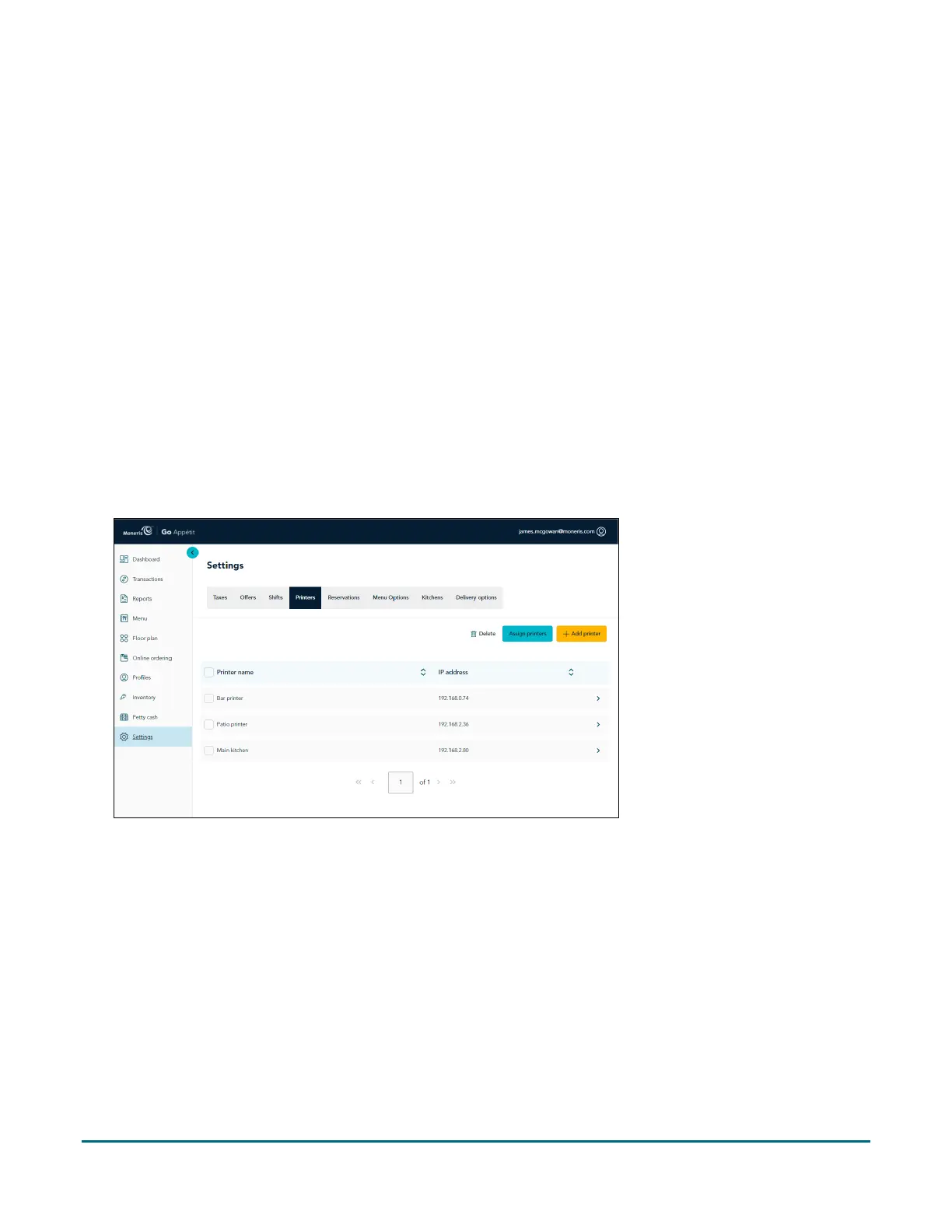
2. On the main menu, click Settings.
3. On the Settings screen, click the Printers tab at the top of the screen.
4. On the Printers tab, click the Add printer button.
5. In the Add printer side panel, click inside the Printer name field and give this printer a name.
Note: You should name the printer after the kitchen in which it is situated.


 To Next Page