Moneris Go Appétit: Hardware Installation Guide 6
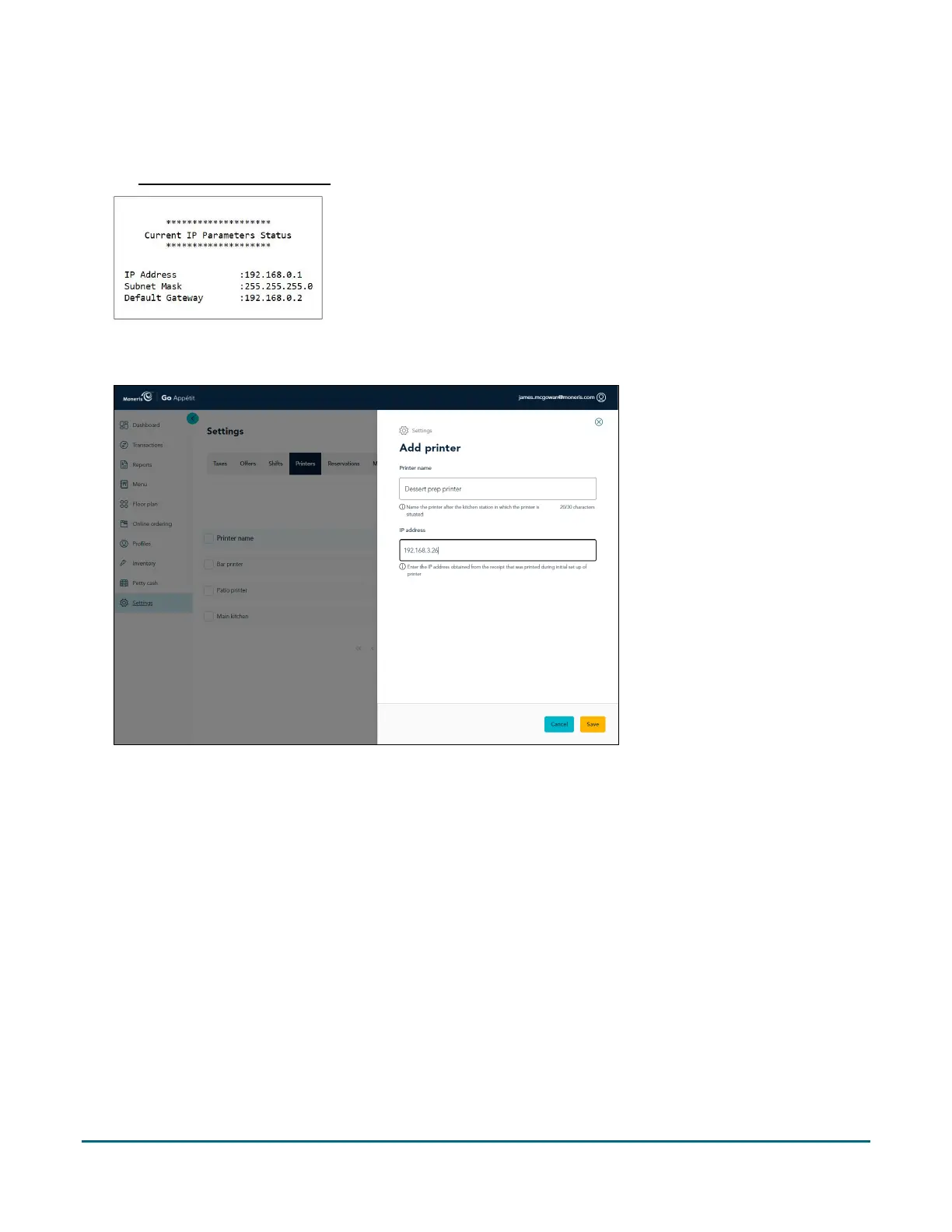
6. Click inside the IP address field and enter the IP address obtained from the receipt that printed in step 6 of
the Set up the printer hardware section on the previous page.
Note: You only need to add the numbers and the periods. The printout shows something called “BOOTP”
that is not required for this field.
7. Click the Save button at the bottom of the screen.
8. If you need to add other printers, click the Add printer button and repeat steps 5-7 for those additional
printers as well.
Assign the printer to a kitchen
The final step is to assign the printer to a kitchen, so that as orders are sent from the app on the terminal or
tablet, they are printed off.


 To Next Page