6
Instruction manual
Charge a device
If you’re only using the front USB 3.0 port to charge a device, a connection to a host
laptop isn’t required.
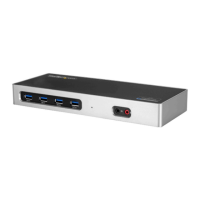
• To charge a device, connect it to the USB 3.0 port located on the front of the
docking station.
Note: This front USB 3.0 port can only fast-charge devices that comply with USB
Battery Charging Specication Revision 1.2.
Congure a display device
Use your Windows operating system to adjust display settings for multiple monitors.
Your laptop hardware must support dual external displays through its Thunderbolt 3
port.
Connect a display to the Thunderbolt 3 USB-C port
You can connect a second display (or a display adapter) to one of the docking station’s
extra Thunderbolt 3 USB-C port. The docking station’s host Thunderbolt 3 ports must
remain connected to your host laptop.
Type of Display Adapter Needed (sold separately)
HDMI USB-C to HDMI Adapter (CDP2HD4K60)
DVI USB-C to DVI Adapter (CDP2DVI)
VGA USB-C to VGA Adapter (CDP2VGA)



 To Next Page