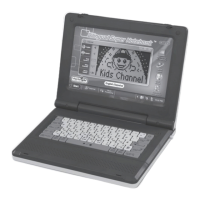
Press the “Erase” key to erase lines. The arrow keys also control
the eraser. Press the “Clear” key to clear the screen.
Activity 29 Drawing Programming
The user can input some simple programming lines to control the
movement of the cursor.
First, the user programs the action of the cursor by pressing the
“Draw”, “Move”, or “Erase” key.
Next, select the specic direction that the cursor should go to by
pressing an arrow key.
Lastly, the user can select the distance by which the cursor should
move when performing the action that the user has chosen. The user
may enter a one- or two-digit number by pressing any number key.
The user has now completed one line of program. The user may
now press the “Enter” key to write the next line of the program. The
steps may be repeated as much as the user likes. After the user
has entered the program, the “Save” key must be pressed to end
the program. Pressing the “Play” key runs the program. After the
Learning Smart Bilingual Laptop™ nishes running the drawing
program, press the “Save” key again to return to the program.
Activity 30 Drawing Smart
A picture will appear on-screen. Press the “Up” and “Down” arrow
keys to view a three-step process in drawing the picture. The user
must then press the “Enter” key to view new pictures. The user
must press the “Enter” key once more to conrm the selection and
then draw another picture.



 To Next Page