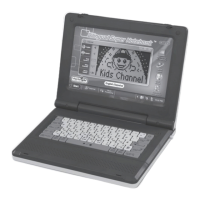
one (1) from ve (5) category icons displayed on-screen. The user
may press the Up/Down/Left/Right cursor key to select a category,
and may then press the “Enter” key to conrm the selection.
An activity list will appear. The user may press the Up/Down/Left/
Right cursor key to select an activity or input the corresponding activity
number by pressing a number key on the keyboard. Pressing the
“Enter” key to conrm the selection.
The user may press the “On/Mode” key at any time to return to the
activity selection window.
Features
Genius Challenge Test
The user may press the “Genius Challenge” key on the
keyboard to play this game. An animated display will be shown and
an activity from the category “Genius Challenge” (Activity 41 to
Activity 50) will then be randomly selected.
The user will be asked three (3) questions per activity. After answering
three (3) questions, the Learning Smart Bilingual Laptop™ will
randomly select a new activity. After completing ve (5) activities or
15 questions in all, an animated display will appear on-screen as a
reward to the user, depending on the user’s performance.
Picture Editor
Once the user presses the “Picture Editor” key, a picture will appear
on-screen. The user may edit the picture until satised with the creation.
When the user presses the “Picture Editor” key once more, another
picture will be selected randomly from the unit.
For further details on how to apply the tools to edit a picture, please
refer to Activity 28: “Draw”.



 To Next Page