EasyManua.ls Logo

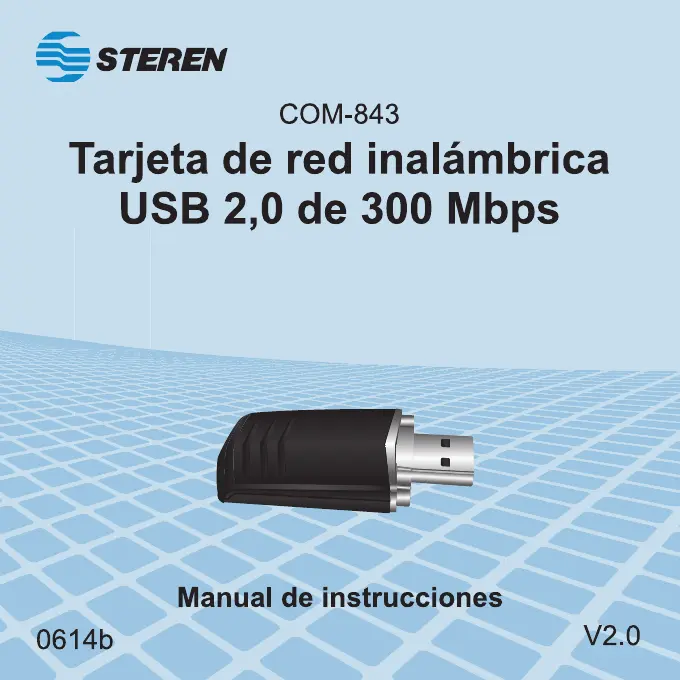
Steren COM-843 - User Manual

Steren COM-843
35 pages
Go to English
Print Icon
To Next Page IconTo Next Page
Loading...

Other manuals for Steren COM-843

Questions and Answers

  • S
    Samuel CoffeyAug 10, 2025
    How to fix Steren Adapter when I cannot communicate with other computers?
    • R
      Richard HallAug 10, 2025
      If you're having trouble communicating with other computers using the Steren Adapter, make sure that all related devices are switched on. Also, ensure that your adapter is configured on the same channel and using the same security options as the other computers within the infrastructure configuration.
  • C
    Christopher TorresAug 21, 2025
    How to troubleshoot Steren COM-843 that does not work properly?
    • L
      Larry BrownAug 21, 2025
      If your Steren Adapter isn't working correctly, try reconnecting the wireless USB adapter to your computer’s USB port. Then, right-click on 'My Properties', select 'Device Manager', and click on the network adapter to see if it’s successfully installed. A yellow exclamation mark indicates resource conflicts. If a yellow interrogation mark appears, ensure your PC has a free IRQ (Interrupt Request) and that you've inserted the correct adapter with the appropriate disk. If problems persist, remove the adapter, uninstall the software from your PC, restart your computer, and repeat the hardware and software installation as described in this user guide.
  • M
    Marvin LeeOct 31, 2025
    What to do if my Steren COM-843 Adapter is not connected to the wireless network or the Internet?
    • R
      Robert RomeroOct 31, 2025
      If your Steren Adapter isn't connecting, first, check that the LED indicators on the broadband MODEM show normal activity. If there's a problem, there might be an issue with the broadband connection. Next, verify the LED indicators on the wireless router are working correctly, ensuring the power cord and Ethernet cables are securely connected. Confirm that the IP address, subnet mask, gateway, and DNS settings are correctly entered in the network settings. In infrastructure mode, ensure the SSID is specified in the settings for wireless visitors and access points. In ad hoc mode, both wireless visitors need the same SSID. Configure one client to establish a BSS (Basic Service Set) and wait briefly before configuring others to prevent multiple BSS establishments. Also, check that the networ...

Summary

Important Safety Precautions

Product Highlights

High-Speed Data Transfers

Utilizes MIMO technology for wireless data transfers reaching up to 300 Mbps.

Easy Setup and Configuration

Features straightforward installation, monitoring, and configuration processes.

Advanced Security Features

Supports WPS, WPA/WPA2, TKIP/AES encryption, and WEP for secure wireless connections.

Drivers and Hardware Installation (Windows 7)

System Configuration

General Information

Displays basic information about the current wireless connection status and network details.

Profile Management

Add New Profile

Steps to create a new network profile by entering SSID, authentication mode, data type, and network key.

Remove Profile

Procedure to delete an existing network profile using the 'Remove' button in the utility.

Edit Profile

Instructions for modifying an existing network profile via the 'Edit' button in the utility.

Duplicate Profile

Process to copy an existing profile and create a new one with a different name.

Set Default Profile

Option to designate a specific profile as the default for automatic connection.

Available Network Scan

Connection Status

Statistics

WiFi Security Settings

Easy Sharing

Access Point Mode

Troubleshooting

Adapter Not Working Properly

Solutions for adapter malfunction, including driver issues, resource conflicts, and reinstallation.

Communication Issues

Resolving problems with communicating with other computers in an infrastructure configuration.

Connectivity Problems

Specifications

Warranty Information

Steren COM-843 Specifications

General IconGeneral
InterfaceUSB
USB version2.0
Connectivity technologyWired
InternalNo
Product colorWhite
LED indicatorsStatus
Wi-FiYes
Modulation16-QAM, 64-QAM, CCK, OFDM
Wi-Fi bandSingle-band (2.4 GHz)
Frequency range2.4 - 2.4835 GHz
Wi-Fi standards802.11b, 802.11g, Wi-Fi 4 (802.11n)
Top Wi-Fi standardWi-Fi 4 (802.11n)
Security algorithms64-bit WEP, 128-bit WEP, 152-bit WEP, WEP, WPA-PSK, WPA2, WPA2-PSK
Networking standardsIEEE 802.11b, IEEE 802.11g, IEEE 802.11n
Maximum data transfer rate300 Mbit/s
Housing materialPlastic
Quantity1
Weight and Dimensions IconWeight and Dimensions
Weight150 g

Related product manuals