Selected Profi les list, please follow these steps.
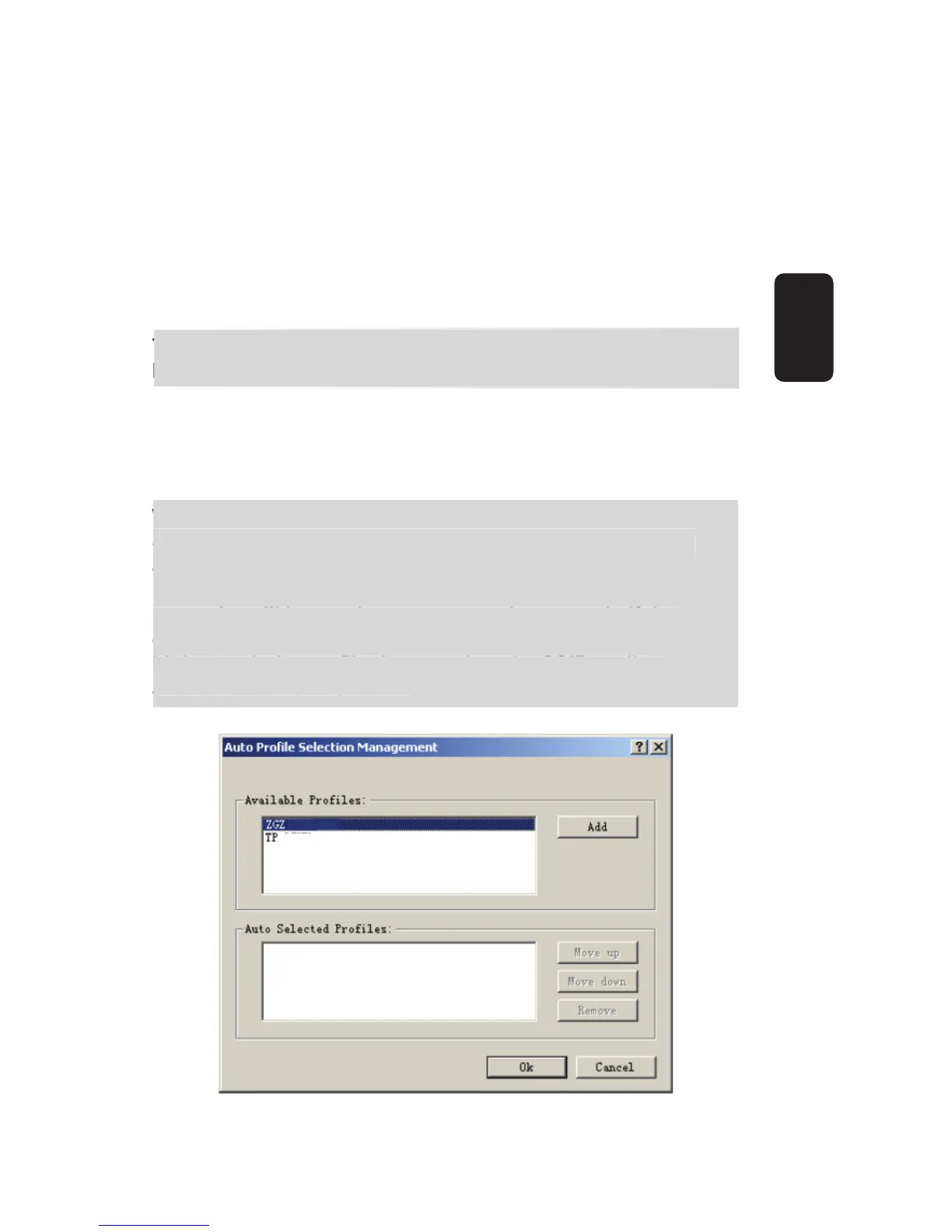
1. On the Profi le Management tab, click Order Profi les….
2. The Auto Profi les Selection management window will appear,
with a list of all created profi les in the Available Profi les box.
3. Highlight the profi les to add to auto profi le selection, and click
Add. The profi le will appear in the Auto Selected Profi les box.
4. Highlight a profi le in the Auto Selected Profi les box.
5. Click Move Up or Move Down as appropriate.
The fi rst profi le in the Auto Selected Profi les box has
highest priority, and the last profi le has lowest priority.
6. Click OK.
7. Check the Auto Select Profi les box on the Profi le Management
tab.
When auto profi le selection is enabled by checking Auto
Select Profi les on the Profi le Management tab, the client
adapter will scan for an available network. The profi le with
the highest priority and the same SSID as one of the found
networks will be used to connect to the network. If the
connection fails, the client adapter will try the next
highest priority profi le that matches the SSID until an
available network is found.


 To Next Page