CONFIGURATION
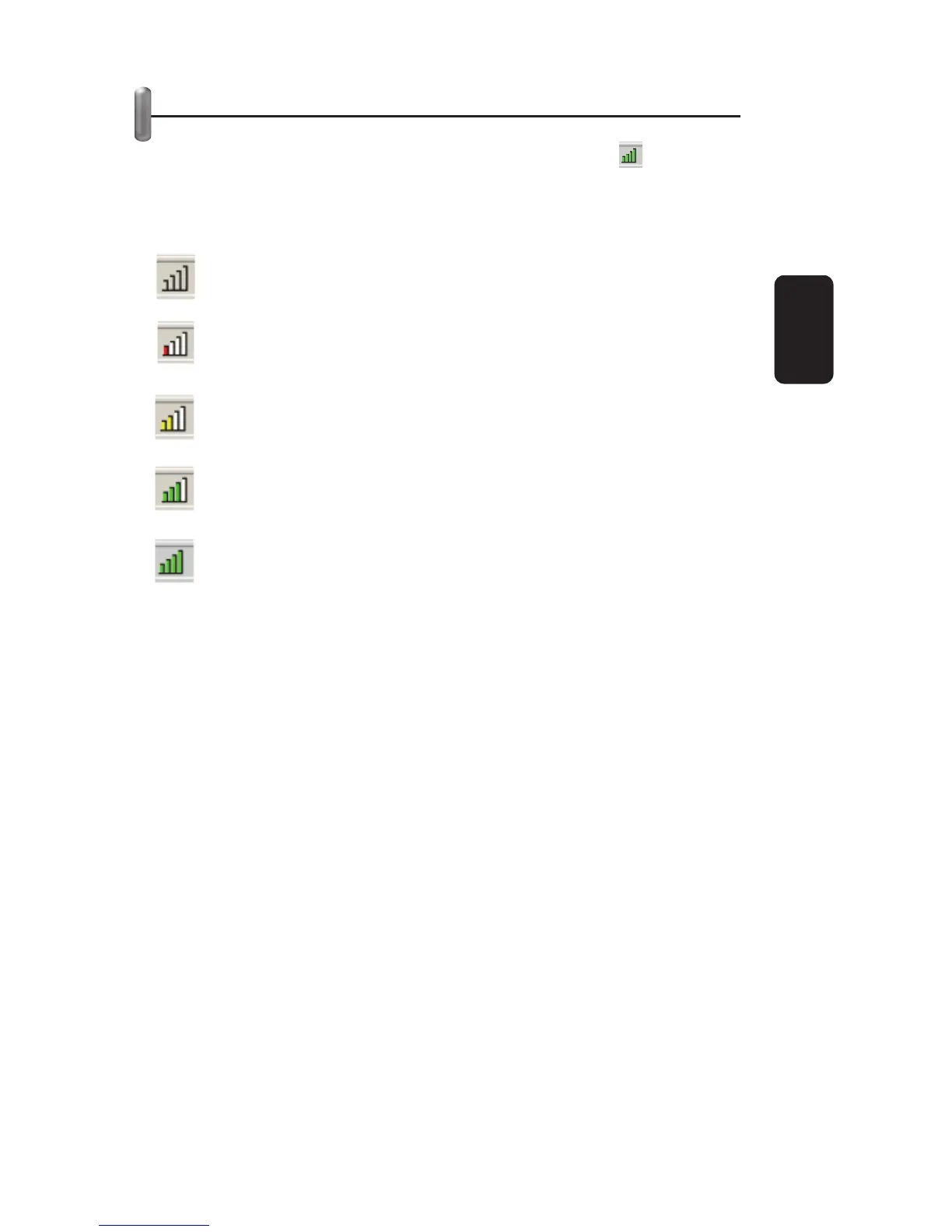
After installing the Adapter, the Adapter’s tray icon will
appear in your system tray. It appears at the bottom of the
screen, and shows the signal strength using color and the
received signal strength indication (RSSI).
If the icon is gray, there is no connection.
If the icon is red, there is poor signal strength and the
RSSI is less than 5dB.
If the icon is yellow, there is poor signal strength and the
RSSI is between 5dB and 10dB.
If the icon is green, there is good signal strength and the
RSSI is between 10dB and 20dB.
If the icon is green, there is excellent signal strength and
the RSSI is more than 20dB.
Double-click the icon and the Current Status screen of
Wireless Client Utility will appear. From this screen, you can view
the strength of the Adapter’s signal and the quality of its
connection. You can also click Advanced to view additional
status information about the current wireless connection. To Edit
or add a confi guration profi le, click the Profi le Management tab.
To display current diagnostics information, click the Diagnostics
tab.
The Wireless client Utility provides a complete and easy to use
set of tools to:
Display current status information
Edit and add confi guration profi les
Display current diagnostics information
•
•
•
ENGLISH
ENGLISH-9


 To Next Page