Map Screen When Navigating
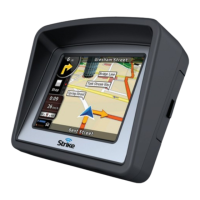
The most important and often most used screen of the Strike Genius is the Map
screen. The map looks similar to a conventional road-map. The blue arrow
represents your current position, and the orange line shows the recommended
route.
There are several screen buttons and data fields on the screen to help you
navigate.
During navigation, the screen shows route information and trip data, but when
you tap the map, additonal buttons and controls appear for a few seconds. Most
parts of the screen behave as buttons.
,
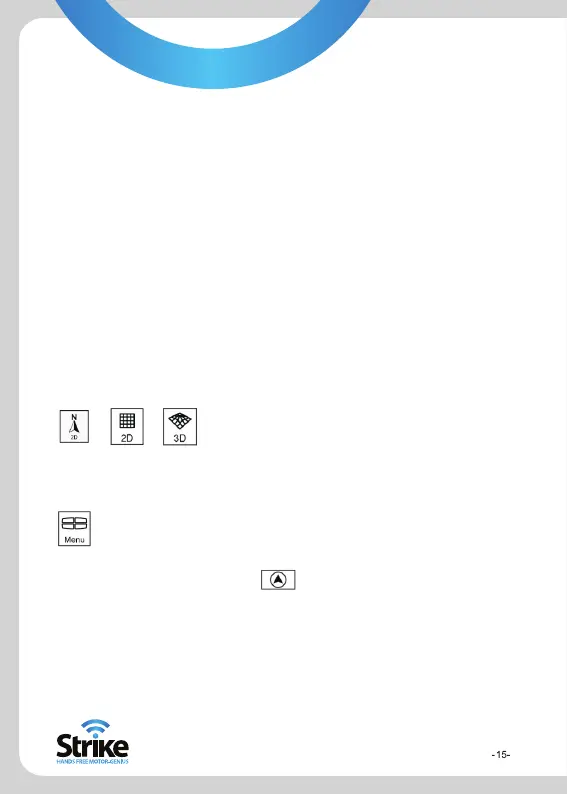
or : Cycles through the available map view modes;
a North orientated 2D (classic top-down) view,
a rotated 2D view and a rotated 3D
(perspective) view.
: Opens the navigation menu
If you have moved the map, a button appears. Tap this button
to move the map back to the current position.
One of the best features of the Strike Genius is the ability to
manipulate the maps to a view that you like. You can zoom in and out,
select from 2D and 3D options and even change the elevation.


 To Next Page