EasyManua.ls Logo

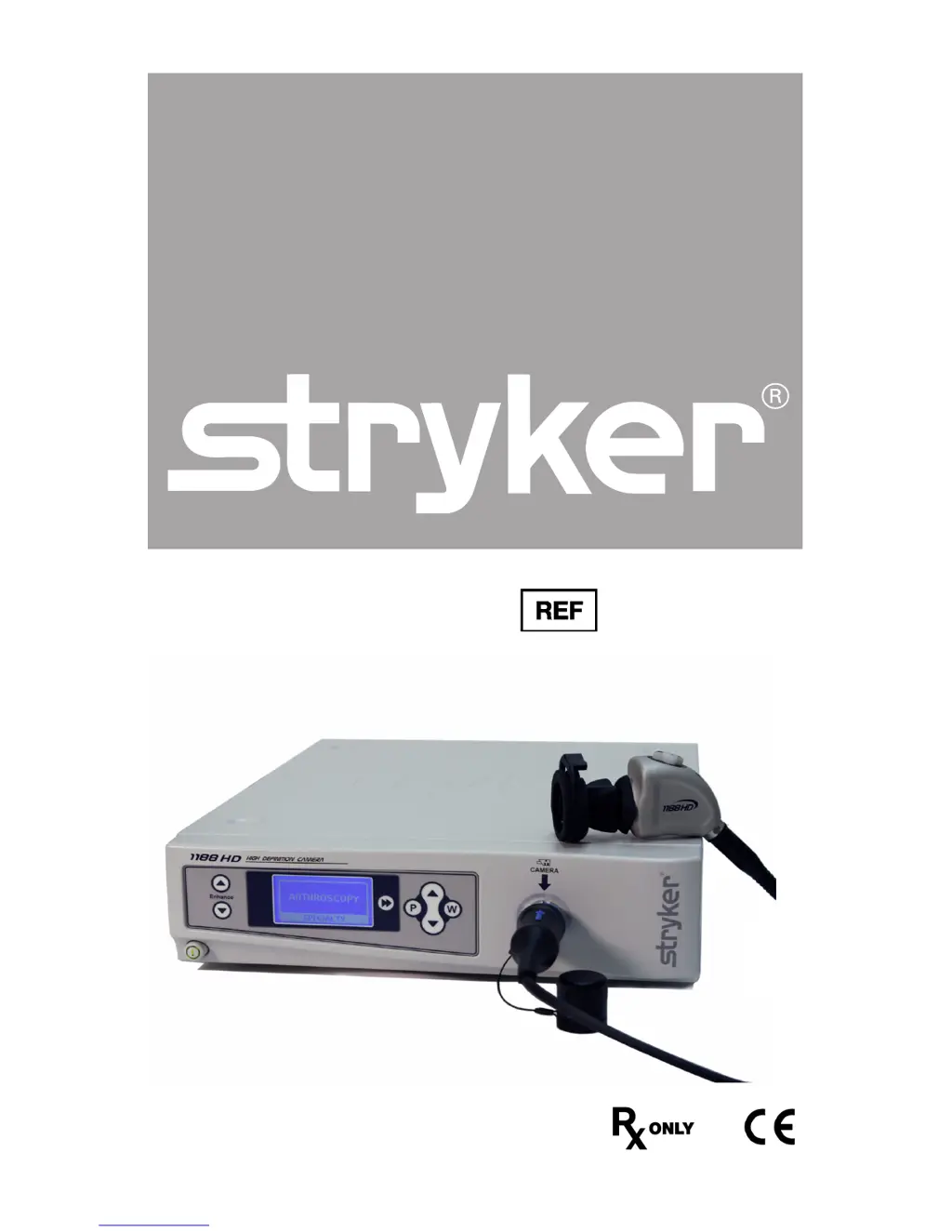
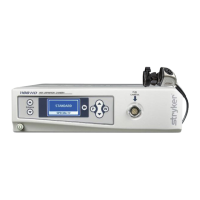
Stryker 1188HD - User Manual

Stryker 1188HD
48 pages
Print Icon
To Next Page IconTo Next Page
Loading...
1188-010-000
1188-210-105
1188-410-105
1188-710-105
User Guide
1188HD
Video Camera

Questions and Answers

  • L
    Laura CuevasAug 19, 2025
    What to do if I see a 'System Error' message with a color bar background on my Stryker Medical Equipment?
    • G
      garrisonashleeAug 20, 2025
      If you encounter a 'System Error' message with a color bar background, it could be due to the camera head temporarily shutting down because of overcurrent. Try turning off the console, waiting three seconds, and then turning it back on. Also, after sterilization, make sure the camera head has cooled down before you connect it to the console.
  • M
    Melinda SextonAug 21, 2025
    What should I do if my Stryker Medical Equipment picture is too dark?
    • K
      Kevin JohnsonAug 22, 2025
      If the picture appears too dark, try the following: * Increase the camera light level using the camera head. * Increase the light-source output. * Check the fiber-optic light cable for any excessive broken fibers.
  • R
    Roger GarrisonAug 23, 2025
    What should I do if my Stryker Medical Equipment picture is too bright?
    • K
      Kim NguyenAug 23, 2025
      If the picture is too bright, you can try the following: * Decrease the camera light level. * Decrease the light-source output. * Ensure that the Shutter submenu in the Configuration menu has the following settings: AGC Auto Shutter On.
  • A
    angela29Aug 26, 2025
    How to fix noise or snow on picture when using electrocautery probes with Stryker Medical Equipment?
    • K
      Kristine HensleyAug 26, 2025
      To address noise or snow on the picture when using electrocautery probes, try these steps: 1. Plug the electrocautery generator into a separate electrical outlet and separate the 1188HD power cord from the electrocautery power cord. 2. Separate the camera cable from the electrocautery cable. 3. Reposition the electrocautery grounding pad on the patient.
  • C
    Candice CarterAug 27, 2025
    What to do if I see a 'System Error' message with a light blue background on my Stryker Medical Equipment?
    • J
      Jorge HansenAug 27, 2025
      If you see a 'System Error' message with a light blue background, it indicates that no video was detected. After sterilization, ensure the camera head has cooled down before connecting it to the console. If the problem persists, the system should be returned for repair.
  • A
    Alison HernandezAug 29, 2025
    Why is there variability in color reproduction between different light sources or peripherals in my Stryker Medical Equipment?
    • A
      Angela MayAug 29, 2025
      Variability in color reproduction can be addressed by performing the white-balance procedure. Also, check the settings on video peripherals and ensure the light source has a proper infrared filter (check with manufacturer specifications).
  • P
    Paul SalazarAug 31, 2025
    How to fix a blurry picture on Stryker Medical Equipment?
    • J
      John OconnorSep 1, 2025
      To correct a blurry picture, ensure the coupler or C-Mount scope is in focus. You can also try increasing the enhancement. Additionally, make sure the specialty switch is not set to FLEXI-SCOPE unless you are using a flexible scope.
  • R
    Rebecca SmithSep 2, 2025
    What to do if there is no video picture when the camera head is plugged into my Stryker Medical Equipment?
    • A
      Ashley MannSep 3, 2025
      If there's no video picture when the camera head is plugged in, first check to ensure that all devices in the video system are plugged in and powered on. Next, inspect the connector on the camera-head cable for broken pins. You can also try detaching the camera head from the console and then reconnecting it, or turn off the console, wait 3 seconds, and turn it back on.
  • D
    Dawn DavisSep 4, 2025
    How to troubleshoot incorrect picture color on Stryker Medical Equipment?
    • A
      amandachenSep 5, 2025
      To troubleshoot incorrect picture color, first perform the white balance procedure. If the issue persists, check the color settings on the monitor.
  • T
    Tiffany AlvarezSep 6, 2025
    What causes a foggy picture on Stryker Medical Equipment and how to fix it?
    • C
      Clinton BoltonSep 7, 2025
      A foggy picture, characterized by loss of definition and clarity, can be resolved by refocusing the camera, refocusing the coupler, cleaning and drying both the scope and the coupler windows, and removing the coupler from the camera head to eliminate any moisture buildup between the components.

Summary

Warnings and Cautions

General Safety Precautions

Lists essential user precautions to prevent injury or damage to the device.

Symbol Definitions

Explains various symbols used in the manual and on the product.

Product Description and Intended Use

Camera Console Components

Details the front and rear panels of the camera control unit.

Camera Head Components

Describes the features and models of the camera head.

C-Mount Coupler

Explains the function and types of the C-mount coupler.

Setup and Interconnection

Setting Up the Console

Guides on connecting the camera console to power and video outputs.

Wiring Diagrams

Illustrates typical system configurations for connecting components.

Setting Up the Camera Head

Instructions for connecting the camera head to the console.

Setting Up the Coupler

Steps for attaching the C-mount coupler to the camera head.

Operation Instructions

Powering the Camera On;Off

Procedure for turning the camera system on and off.

Using the Camera Buttons

Explains the function of the P, W, Up, and Down buttons.

Selecting the Display Language

Guide to changing the language displayed on the console's LCD.

Using the Configuration Menu

Details on accessing and adjusting camera settings via the menu.

Controlling Remote Video Accessories

How to operate connected video accessories using the camera's P button.

Using the DVI Fiber Outputs

Instructions for transmitting DVI output over fiber optic cables.

Operating the Camera with a Light Source

Safety and operational guidance when using an external light source.

Troubleshooting

Common Problems and Solutions

Table listing common issues and their remedies.

Foggy Picture Resolution

Specific steps to resolve a foggy or unclear image.

Cleaning and Sterilization

Cleaning the Camera Console

Procedures for cleaning the non-patient-contacting console unit.

Reprocessing the Camera Head

Detailed instructions for cleaning and sterilizing the camera head.

Manual Cleaning Procedure

Step-by-step guide for manual cleaning of the device.

Automated Cleaning Procedure

Guidelines for using an automated washer/disinfector.

Sterilization Methods

Parameters and procedures for Steam and Ethylene Oxide sterilization.

Technical Specifications

Imaging System Details

Information on the camera's imaging sensor and resolution.

Video Outputs

Lists available video output types, connectors, and formats.

Input Electrical Ratings

Power requirements for the camera console.

Classification and Standards

Details equipment classification and compliance with product standards.

Electromagnetic Compatibility

Electromagnetic Emissions Guidance

Information on RF emissions and compliance levels.

Electromagnetic Immunity Guidance

Details on immunity tests and compliance levels for various disturbances.

Recommended Separation Distances

Guidance on maintaining safe distances from RF transmitters.

Warranty

Warranty Terms and Conditions

Outlines the terms, limitations, and duration of the product warranty.

Service and Claims

Service Procedures

Instructions for obtaining service or making claims for the product.

Stryker 1188HD Specifications

General IconGeneral
Model1188HD
CategoryMedical Equipment
ManufacturerStryker
Video OutputDVI
CompatibilityEndoscopes
Light Source CompatibilityStryker light sources
Power SourceAC Power

Related product manuals