MIDI OUT CONNECTIONS
MIDI OUT Connections: The MIDI OUT jacks are where you connect your Studio Logic SL-760
Master Controller to your various MIDI sound sources. Using a standard 5 pin DIN MIDI cable,
connect the Studio Logic MIDI OUT to your MIDI input jack on your synthesizer, sound modu-
le or other MIDI equipped keyboard. You may use the THRU (daisy chain) feature on your MIDI
gear to connect to other MIDI modules if you like. Avoid daisy chaining more than 2 modu-
les, if possible, to reduce the possibility of MIDI log jam or timing delays. The Studio Logic
SL-760 conveniently is supplied with two parallel (identical) MIDI OUT jacks on the rear panel
to help reduce the possibility of timing delays when connecting to multiple MIDI sound modu-
les. When connecting multiple devices to your SL-760 allocate them equally across the two
MIDI OUT connections on this keyboard.
SECTION 4.
Description of Front Panel Controls and Features:
What are they, what do they do and how do I use them?
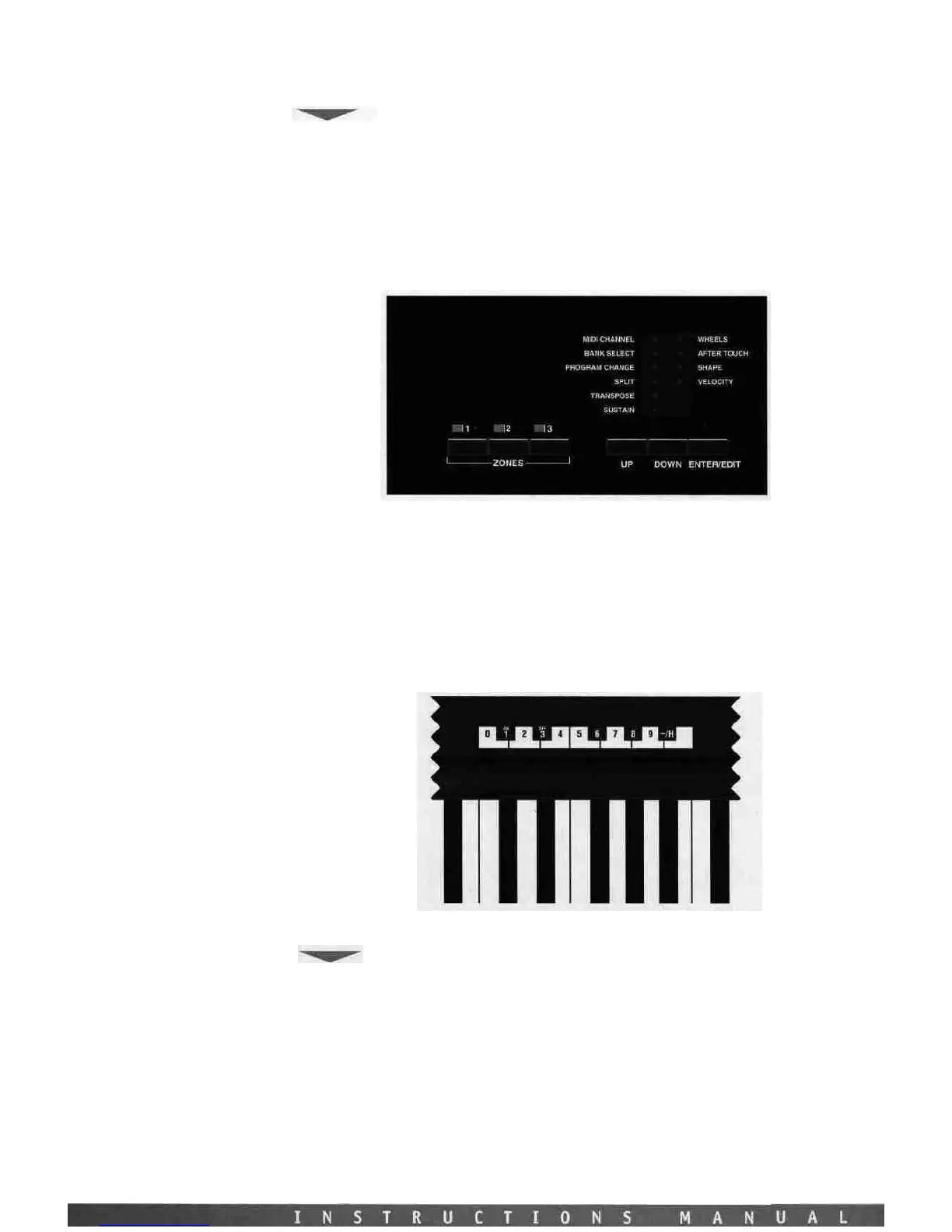
ZONE SELECT
Located on
the
top
panel
there
are
the
(3)
ZONE
buttons
for
the
(1)
enabling and disabling of
the
three
keyboard
ZONES
while in play mode and (2)
selecting
the
ZONES
while in
EDIT
MODE.
The LED indicators will be lit up when its corresponding zone is active or selected for editing.
In PLAY mode any combination of ZONES may be on or off at any point in time. However, in
EDIT
mode
the
ZONE
switches may only
be
used
to
select
one
ZONE
at
a
time.
Only
one
ZONE
at
a
time
may
be
edited
and
therefore
only
one
ZONE
light may
be
lit
at
a
time
while in
EDIT
mode.
You
are
able
to
jump from
ZONE
to
ZONE
while in
edit
mode by depressing
the
corre-
sponding ZONE BUTTONS.
Please note that you may only press a zone button and disable or^nable a zone while no notes
are depressed on the keyboard or while the sustain pedal is being depressed.



 To Next Page