4
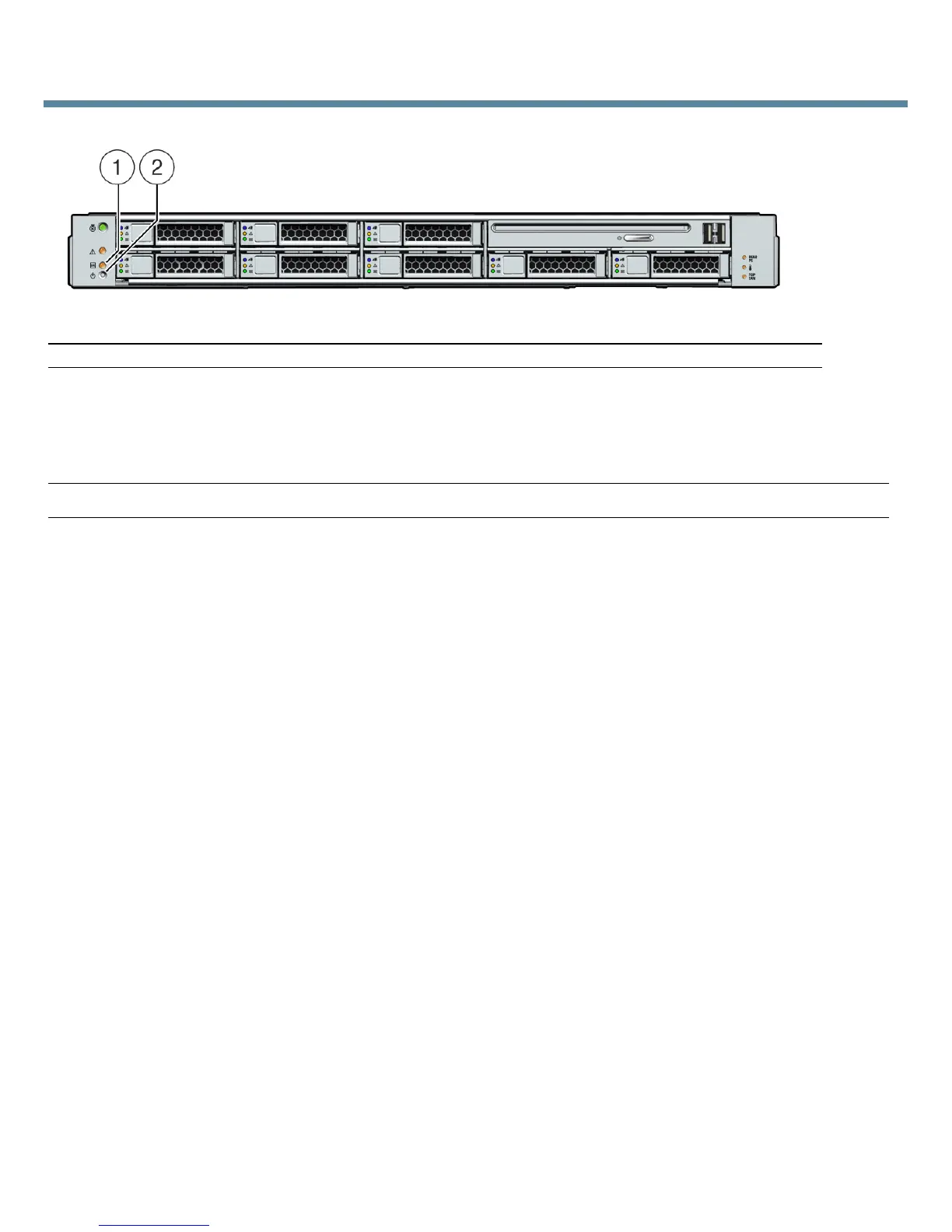
FIGURE 2 Server Front Panel Controls
2. To power on the server, use a non-metallic stylus to press and release the recessed Power button on the
front panel.
The server powers on and enters the power-on self-test (POST). The Power/OK LED lights and remains on.
Note – POST can take up to 1 minute to complete.
3. Continue with initial software setup tasks, as described in the server Installation Guide.
▼ Set Up the Platform Operating System, Driver Software, and Firmware
After configuring the ILOM SP with network settings, you can configure a preinstalled or supported OS.
Sun Installation Assistant
Sun highly recommends using the Sun Installation Assistant (SIA) to automate firmware upgrades and to
install a supported Linux or Windows operating system.
To determine which operating systems and firmware upgrades are supported by SIA for your system and to
download SIA, go to http://www.sun.com/systemmanagement/sia.jsp. SIA is also available in the
Documentation and Media Kit.
Also refer to the Sun Installation Assistant for Windows and Linux User ’s Guide (820-3357) at
http://docs.sun.com/app/docs/prod/install.x64svr#hic.
Operating System, Firmware and Driver Information
For information about operating systems supported for your system, go to:
http://www.sun.com/servers/x64/x4x50/os.jsp
For firmware and driver downloads go to:
http://www.sun.com/servers/x64/x4x50/downloads.jsp
where x4x50 is x4150, x4250, or x4450.
Figure Leg end
1 Power/OK LED 2 Power Button














 To Next Page