Click “IPV4 Search” and select the camera, then click “add” to connect the
device.
Step 2: Open the Device Manager page.
6
Step 1: Install VMS from the CD-ROM or Download form sunbatech.com
3. Camera Setup by VMS Client
- 05 -
This section will provide the user with information on how to setup the PTZ
camera using their computer.
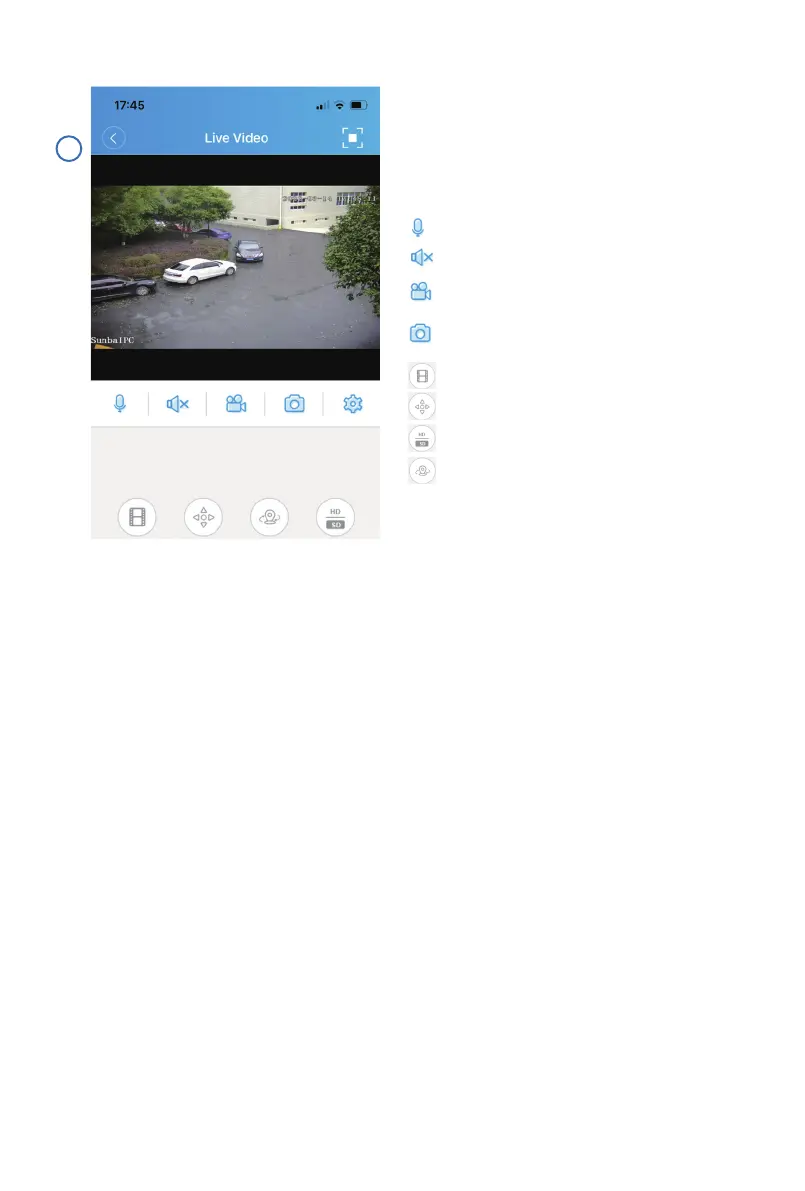
Control pan, tilt and zoom, watch live
view and set/delete/call presets from
this page.
Press to speak. (device must support speaker)
Check playback.
PTZ control.
Set/call preset/cruise.
Switch between HD/SD display.
Turn on/off microphone.
Record a video and save the clip to your
smartphone.
Take a snapshot and save the image to your
smapphone.
Input the default software account below. The account is to ensure no one
can have unauthorized access to your surveillance software. This is not the
credential for individual IP camera.
VMS for PC: admin/admin
VMS for Mac: admin/(blank)
Try the following if no device shows up:
A. Temporarily disable the firewall;
B. Connect the camera directly to your parental router;
C. Connect the camera directly to your PC/Mac for testing;
D. Contact support@sunba.net


 To Next Page