SunFounder GalaxyRVR Kit for Arduino, Release 1.0
• Verify / Upload - Imagine this as your magic elevator. It takes the code you’ve written and whisks it up into your
Arduino board.
• Select Board & Port - This is your treasure map. It automatically shows the Arduino boards you’ve plugged
into your computer, and tells you their port number.
• Sketchbook - This is your personal library. It’s where all your sketches (programs) are stored on your computer.
Plus, it can connect to the Arduino Cloud, so you can fetch your sketches from the online world too.
• Boards Manager - Think of this as your toolkit. It’s where you can find and install different packages for your
Arduino.
• Library Manager - This is your endless treasure chest. Thousands of libraries made by Arduino and its com-
munity are waiting for you here. Need a tool or material for your code? Dive in and find it!
• Debugger - Imagine you had a superpower that let you test and debug your code in real time, finding and fixing
problems as they happen. That’s what this is!
• Search - Think of this as your magnifying glass. It helps you search for keywords in your code.
• Open Serial Monitor - This is like your communicator device. It opens a new tab that lets your computer and
Arduino board send messages back and forth.
Now that we’ve gotten a glimpse of the playground, it’s time to dive in and start creating!
Step 5: Upload Your First Sketch
Alright, it’s time to have some fun! We’re going to make an LED blink - it’s like saying “Hello, World!” in the world
of Arduino.
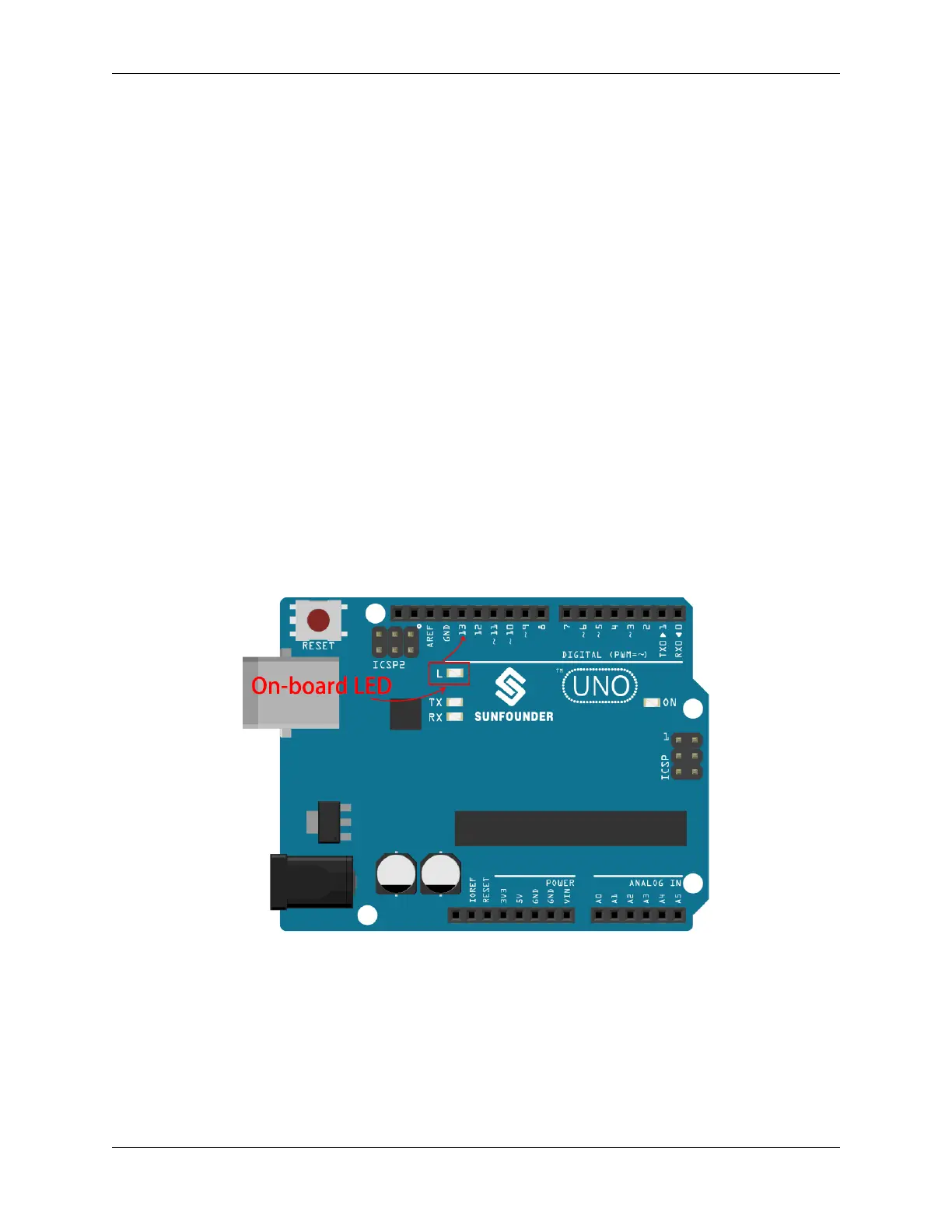
Most Arduino boards have a built-in LED on pin 13, which makes this a good first experiment.
Let’s break it down:
1. Plug it in: Connect your SunFounder R3 Board to your computer using a USB cable. This is how we’re going to
give our board power and send our program (also called a “sketch”) to it. You might feel like you’re just plugging
in a computer gadget, but believe me, you’re connecting to a world of possibilities!
2. Find the example sketch: On the Arduino IDE, go to File -> Examples -> Basic -> Blink. What you see that
pops up is a ready-to-use program that we’re going to modify. It’s like getting a ready-made cake that we’re about
to decorate!
3.3. Lesson 3: Entering the World of Arduino and Coding 29



 To Next Page