SunFounder Pironman
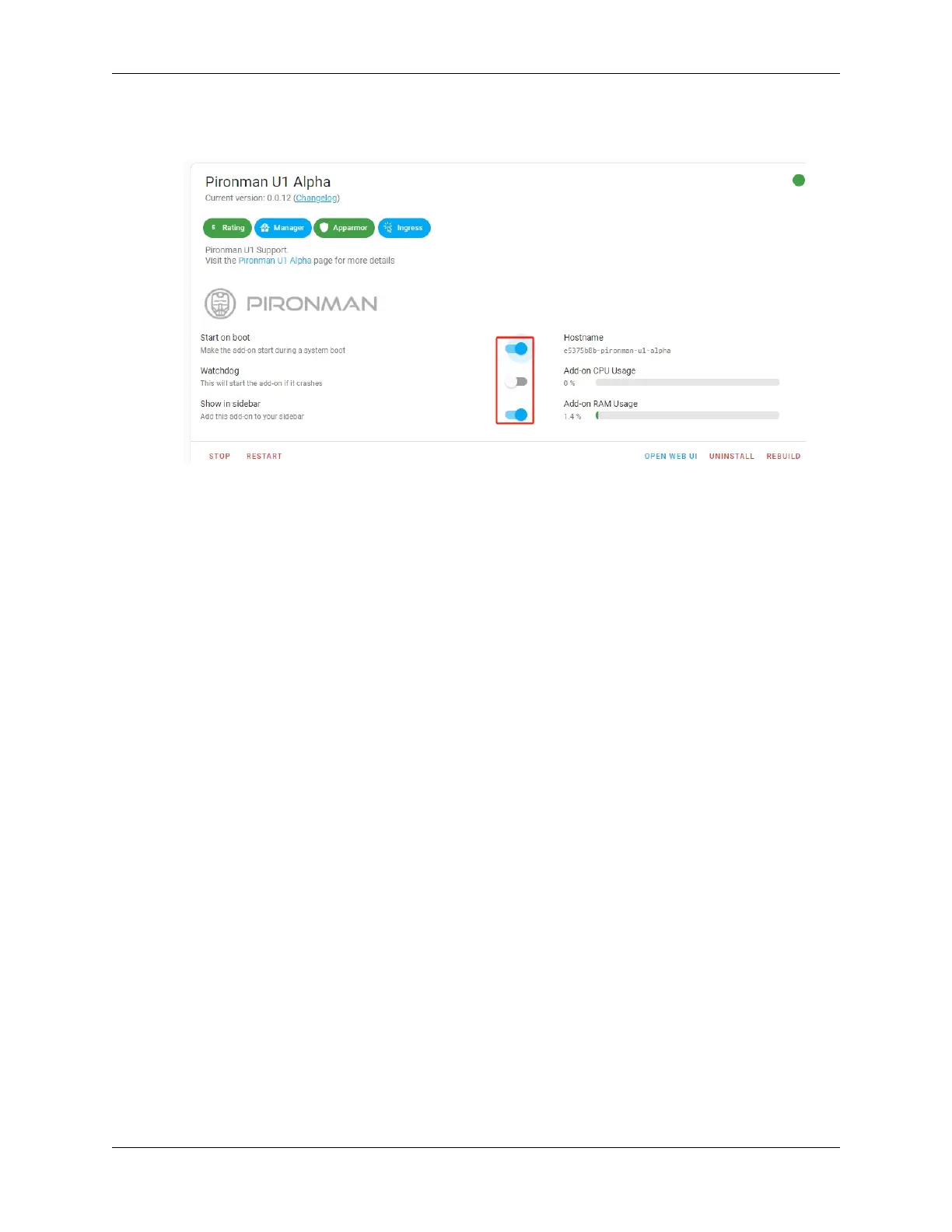
9. Now you can select these options, such as Start on boot to enable Pironman U1 to start when the system boots
up. Or Show in sidebar to show the dashboard specially designed for Pironman U1 in the sidebar.
10. Instructions for Powering On and Off:
• Power On: Press the button until the light turns green, indicating the system is powering on. You can then release
the button.
• Shutdown: Press and hold the button for 2 seconds until the light turns purple, then release. When the power
button’s light begins to flash purple, the Raspberry Pi will receive a shutdown signal and proceed to shut down.
The power button’s light will turn off once the shutdown process is complete.
• Power Cut: If you haven’t configured software on the Raspberry Pi, or for other reasons, you can opt for a power
cut shutdown. Press and hold the button for 5 seconds and turns red, indicating a direct power cut. Be cautious
with this method as it may damage data.
7.4 4. View Data from SPC Dashboard
If you select the Show in sidebar option in the Pironman U1 add-on and then refresh the webpage, you will be able to
open the Pironman U1 dashboard from the sidebar.
80 Chapter 7. Home Assistant(Pi 4)


 To Next Page