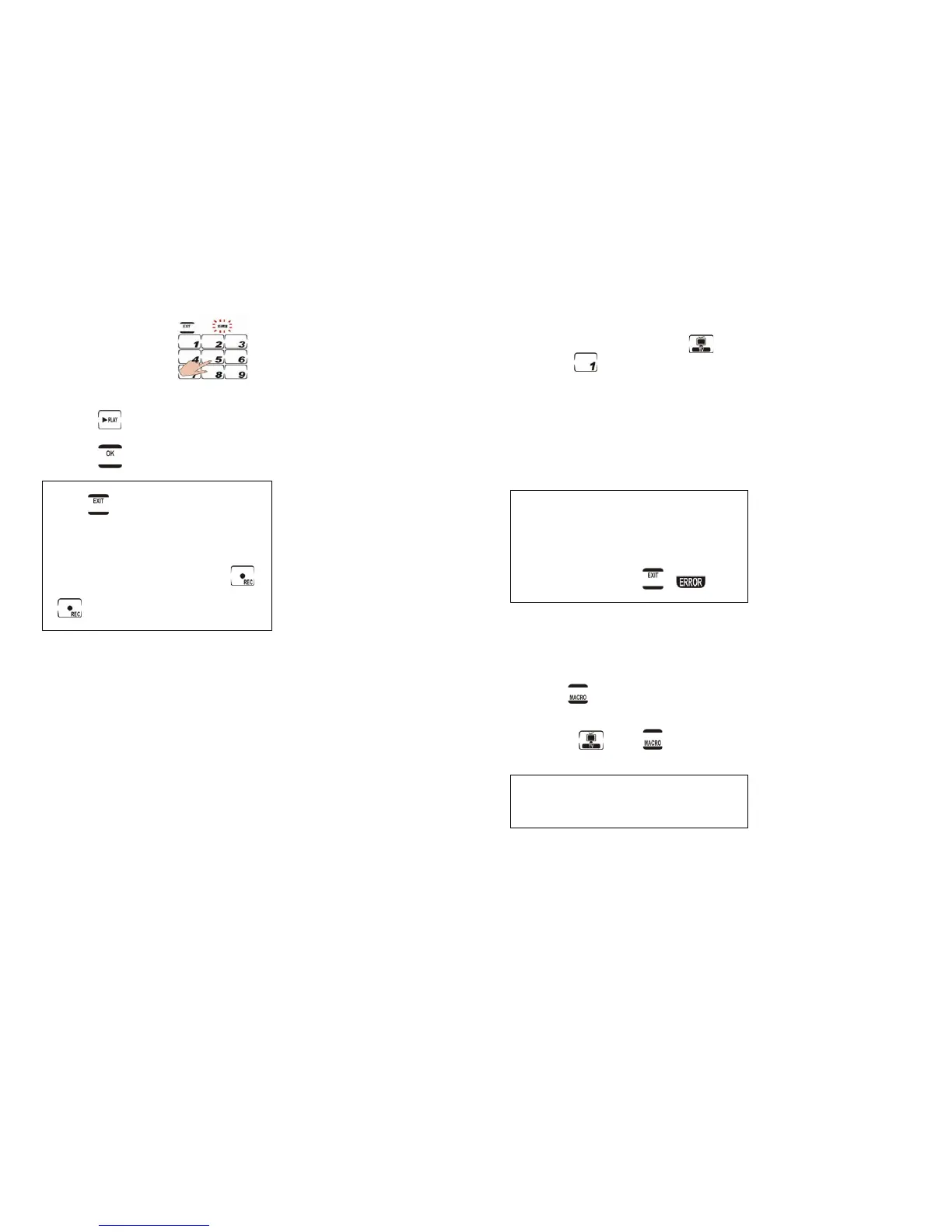
1-10. Press
to play a DVD
.
1-11. Press
to confirm setting.
Note:
• Press
at any time while creating a
macro to exit macro mode.
• You may create another macro at this
time by entering another sequence of
commands.
• If trying to create a macro with
under VCR, you must press and hold
for two seconds. This is to prevent
accidentally overwriting a tape.
23
2. Running a Macro
Press the DEVICE KEY.
To run the macro example, press
,
then press
.
Be sure to point the
remote at the devices while the macro
sequence is being sent. The following
macro will begin:
(1) TV turns on.
(2) TV switches to Video mode.
(3) DVD player turns on.
(4) Five seconds delay.
(5) DVD player starts playing DVD.
Note:
• To restore TV’s 1 to its original function,
delete the macro using the delete
function.
• After pressing the preset macro key for a
device, you can interrupt the command
sequence by pressing
.
appears and the macro stops.
3. Viewing Assigned Macro Keys
You may view which keys are assigned to
macro for any particular device.
3-1. Press the DEVICE KEY.
3-2. Press
. The assigned macro keys are
displayed for this DEVICE KEY.
For example, if you set 9 as a macro
key for
, when is pressed, the
preset macro key “9” appears.
Note:
If you’d like to check the macro key for
Page 2, press the DEVICE KEY to switch to
the next page and repeat Step 2.



 To Next Page