MENU FUNCTION
-26-
Select channels by pressing “ENTER” button to change the symbol in front of the channel number.
Symbol “X” means that this channel is not selected to backup.
Symbol “●” means that this channel is selected to backup.
‧ HDD NUM
Press “ENTER” to select the HDD containing the data you need.
‧ BACKUP TO USB
Press “ENTER” to start copying the chosen data to the USB flash drive.
2) DISK BACKUP (CD writer backup function is only for Model 1 & 5)
Before making disk backup, please check if the type of your CD is CD-R. The maximum number of backup files in the
CD is 41.
Note: During the backup process, a file player will also be copied into your CD, and you will see a message
“BACKUP PLAYER” shown on the screen.
Move the cursor to “BACKUP”, and press ”ENTER”. You will see a similar screen as the following:
BACKUP DISK BACKUP
USB BACKUP START TIME 2006 – 12 – 01 20 : 35 : 00
DISK BACKUP
END TIME 2006 – 12 – 01 23. : 35 : 00
AVAILABLE SIZE 600 MB
CHANNEL z 01 z 02 X 03 X 04
HDD NUM HDD-MASTER-1
BACKUP TO DISK START
The submenu items and their functions are the same as USB BACKUP except for “BACK TO DISK” item.
The process below describes how to make a disk backup:
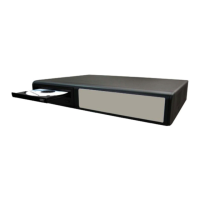
‧ Press “EJECT” button to open the disk tray. Put the CD into a CD-RW drive, and press “EJECT” button again to
close the disk tray.
‧ Go to “DISK BACKUP” menu, and set the start time, end time, channels and HDD.
‧ Move the cursor to “BACKUP TO DISK”, and press “ENTER” to start backup.
While CD backup is processing, users will see the backup completed percentage on the screen.
Note: During the backup process, a file player will also be copied into the CD, and you will see a message
“BACKUP PLAYER” shown on the screen.
‧ After CD backup is completed, “DISK BURN FINISH” will be prompted on the screen. Press “EJECT” button to eject
the CD tray and get the CD.
‧ Put the CD into the CD-ROM drive of your PC. Double click the file to convert it into “AVI” format. Play the converted
file in your PC to see if the backup is successful.
Note: The supported PC operation systems are Windows 2000 and Windows XP.


 To Next Page