LICENSED SOFTWARE AP
-42-
When CD writing is completed, the CD will be ejected, and “DVR Network Backup” pop-up window will show the
message “Download process is finished”. Press “PLAY” button to directly convert and play the file, or “Exit” to quit.
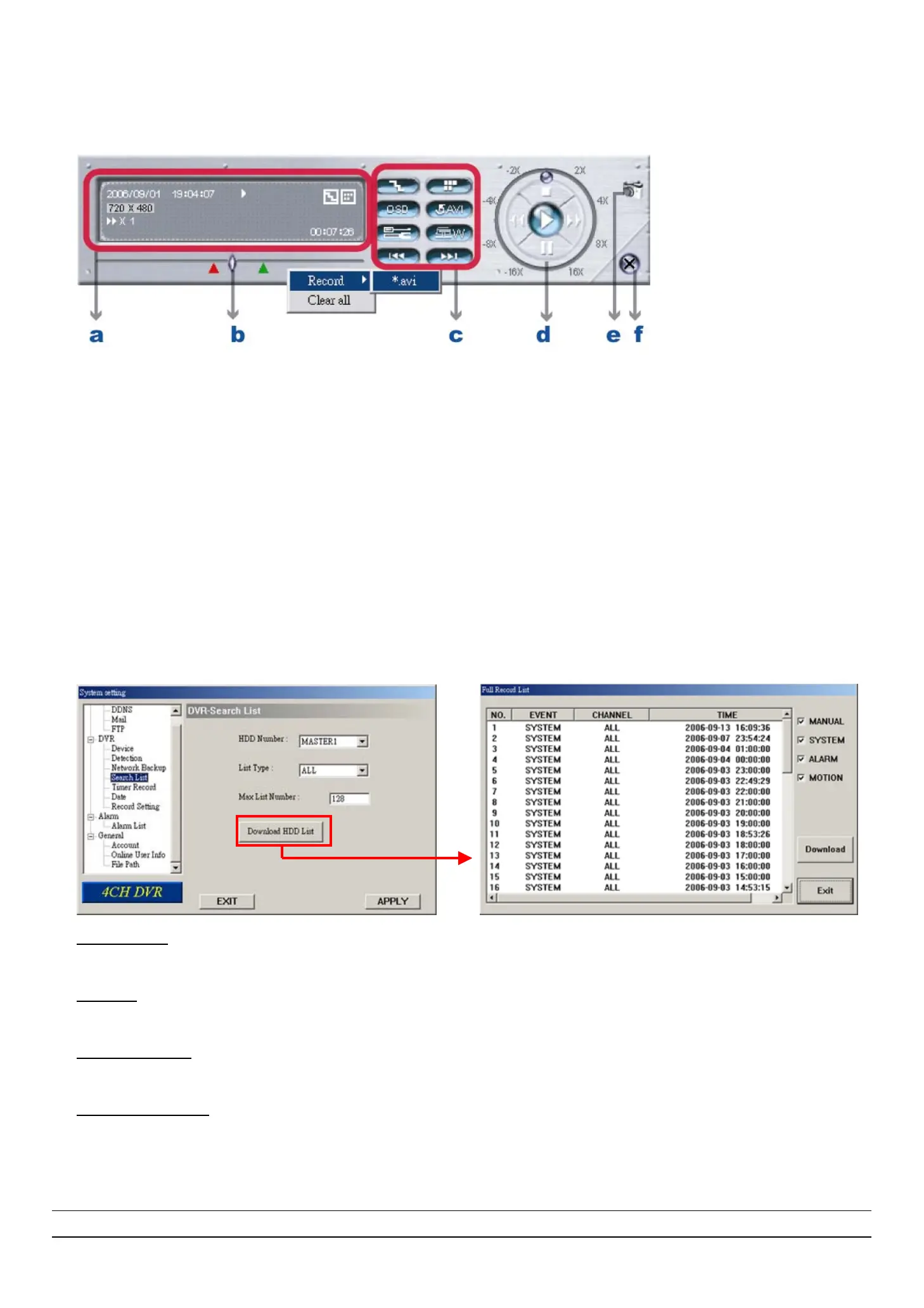
‧ The playback operation are described below:
a. Time Progress Bar
b. Playback Information
c. Functions:
(1) De-interlace (2) De-blocking (3) OSD (4) AVI Conversion
(5) Config. Setting (6) Watermark (7) Open Previous (8) Open Next File
d. Playback Control Buttons: Play / Stop / Pause / Fast Rewind / Fast Forward
e. Snapshot f. Close the Player
For AP playback and AVI conversion details, please refer to section “7.4 Playback Operation” at page 35.
(4) Search List
In “DVR” Æ “Search List”, you can quickly search the event logs from 4 kinds of recording, and directly backup the
event recording of the chosen event log.
‧ HDD Number
Select the HDD from which you want to search recording data in the drop-down menu.
‧ List Type
Select the event type you want to view from the drop-down menu: ALL / MANUAL / SYSTEM / ALARM / MOTION.
‧ Max List Number
Set the maximum number of items in the search list.
‧ Download HDD List
Press “Download HDD List’, and you will see a “Full Record List” shown on the screen.
Highlight the event log you want, and press “Download” to directly go to “DVR-Network Backup” window for video backup.
For the information of network backup, please refer to the section “(3) Network Backup” at page 40.
Tip: You can also quickly go to “DVR-Network Backup” window by double clicking the event log you want.



 To Next Page