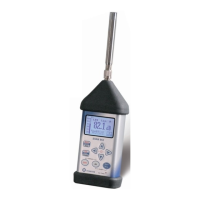
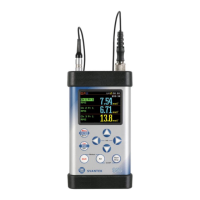
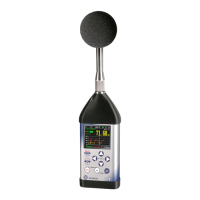
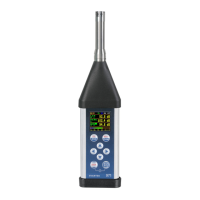
SVAN 958 USER MANUAL
_
viii
DOSIMETER SETUP selected in INPUT list and DOSIMETER SETUP window................................................ 5-26
DOSIMETER SETUP windows with EXPOSURE TIME selection....................................................................... 5-26
DOSIMETER SETUP windows with CRITERION LEVEL selection ................................................................... 5-26
DOSIMETER SETUP windows with THRESHOLD LEVEL selection................................................................. 5-27
DOSIMETER SETUP windows with EXCHANGE RATE selection..................................................................... 5-27
FFT SETUP selected in INPUT list (a), FFT SETUP window (b) and opened FFT SETUP (1) window (c)......... 5-28
FFT SETUP window in channel 1, enabling FFT analysis...................................................................................... 5-28
FFT SETUP (4) window with FILTER selection in sound mode............................................................................ 5-28
FFT SETUP (1) window with FILTER position not accessible in vibration mode ................................................. 5-28
FFT SETUP (1) window with BAND selection....................................................................................................... 5-29
FFT SETUP (1) window with WINDOW selection ................................................................................................ 5-29
FFT SETUP (1) window with LINES selection....................................................................................................... 5-29
FFT SETUP (x) window with LOGGER activation ................................................................................................ 5-30
INPUT windows in the case of 1/1 OCTAVE mode and in 1/3 OCTAVE mode.................................................... 5-30
1/1 OCTAVE SETUP windows with CHANNEL selection.................................................................................... 5-30
SPECTRUM window opened for channel 1 ............................................................................................................ 5-31
SPECTRUM (4) windows with FILTER selection in sound mode.......................................................................... 5-31
SPECTRUM (1) window with FILTER position not accessible in vibration mode................................................. 5-31
SPECTRUM windows with BAND not accessible in VM (a) and BAND selection in SM (b)............................... 5-31
SPECTRUM (4) windows with LOGGER selection ............................................................................................... 5-32
Main list with DISPLAY text highlighted (displayed inversely) ............................................................................... 6-1
DISPLAY window..................................................................................................................................................... 6-1
One-profile presentation mode .................................................................................................................................. 6-2
DISPLAY MODES widows and available presentation modes................................................................................. 6-2
LOGGER mode when there is nothing in the logger to be displayed (after setting LOGGER as active) .................. 6-2
MENU, DISPLAY, DISPLAY SETUP and DISPLAY SETUP (1) windows .......................................................... 6-3
DISPLAY SETUP windows with DISPLAY SCALE text highlighted..................................................................... 6-3
DISPLAY SETUP window, AUXILIARY text selected, and scale selection in the opened window ....................... 6-4
DISPLAY SETUP (1) windows with DISPLAY SCALE text highlighted................................................................ 6-4
Displays with the possible options of the SCALE in vibration mode ........................................................................ 6-4
Displays with the possible values of the vertical axis in LOGGER and SPECTRUM presentations......................... 6-5
DISPLAY SCALE (1) windows with X–ZOOM selection........................................................................................ 6-5
MENU, DISPLAY, DISPLAY SETUP and DISPLAY SETUP (1) windows .......................................................... 6-5
SPECTRUM VIEW windows with VIEW selection ................................................................................................. 6-5
SPECTRUM VIEW windows with TYPE for vibration measurements (a) and for sound measurements (b)........... 6-6
SPECTRUM VIEW windows with FILTER for vibration measurements (a) and for sound measurements (b)........ 6-6
SPECTRUM VIEW windows with MINIMUM / MAXIMUM spectrum selection.................................................. 6-6
DISPLAY SETUP windows with TOTAL VALUES text highlighted and CHANNEL x TOTALS entered ........... 6-6
CHANNEL 1 TOTALS windows in the case of sound measurements with filter selection ...................................... 6-7
CHANNEL 1 TOTALS windows in the case of vibration measurements with FILTER selection............................ 6-7
CHANNEL 1 TOTALS windows in the case of vibration measurements with TYPE selection ............................... 6-7
CHANNEL 1 TOTALS windows in the case of vibration measurements with calibration factor setting.................. 6-8
DISPLAY window with POWER SUPPLY text highlighted .................................................................................... 6-8
POWER SUPPLY windows for different sources powering the instrument.............................................................. 6-8
DISPLAY window with SCREEN SETUP text highlighted...................................................................................... 6-9
SCREEN SETUP windows with LIGHT TIMEOUT active (a), and not active (b).................................................. 6-9
SCREEN SETUP windows with BRIGHTNESS position active.............................................................................. 6-9
SCREEN SETUP windows with CONTRAST setting ............................................................................................ 6-10
DISPLAY window with UNIT LABEL text highlighted......................................................................................... 6-10
UNIT LABEL windows opened and after scrolling with the <>, <> push-buttons .......................................... 6-10
Main list with FILE text highlighted (displayed inversely)........................................................................................ 7-2
FILE list..................................................................................................................................................................... 7-2
FILE list with SAVE text highlighted (displayed inversely)...................................................................................... 7-3
SAVE window opened............................................................................................................................................... 7-3
Displays during the file’s name edition...................................................................................................................... 7-3
Displays in FILE NAME edition after pressing <Shift> and <> push-buttons....................................................... 7-3
Displays in FILE NAME edition after pressing <Shift> and <> push-buttons....................................................... 7-4
SAVE window with AUTO NAME function selection ............................................................................................. 7-4


 To Next Page
 Loading...