55
SwannView Link: Device Settings
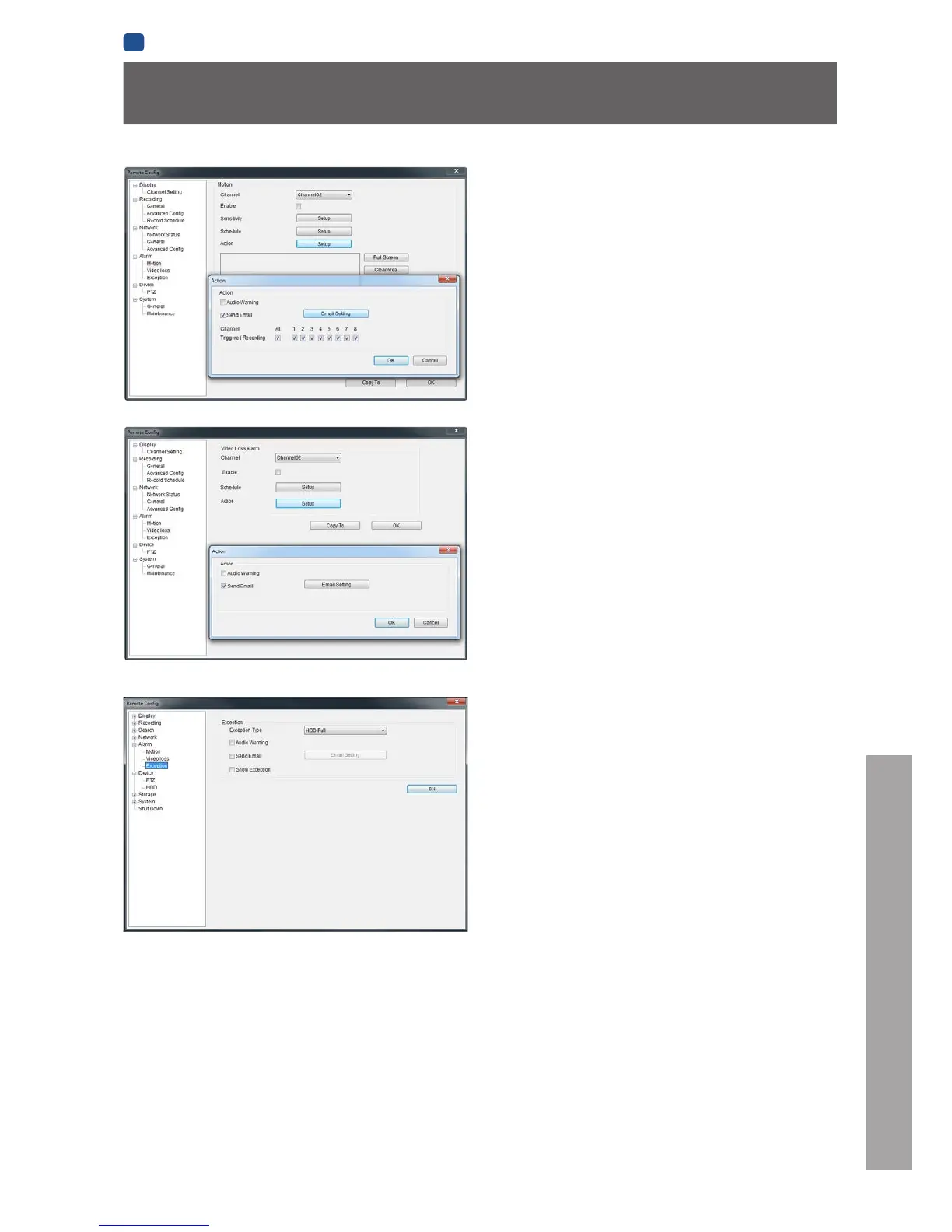
Alarm: Motion Detection
Channel: The channel you’re configuring the motion detection
settings for.
Enable: Whether the motion detection is enabled for the channel
currently selected.
Sensitivity: A sliding scale between 1 and 50. The number refers
to the number of pixels (as a percentage) that have to “change”
between frames - okay, this one is a little more complex than
this summary will allow. Seriously - check out “Alarm: Motion
Detection - Action” on page 41 for a much more useful
explanation of how motion detection works.
Action: What you’d like the DVR to do when it detects motion.
Typically (assuming the schedule is configured to do so) this will
be to record video. It can also be a cue to trigger an email alert,
or to sound the DVR’s internal buzzer.
Alarm: Video Loss
Action (Check boxes): Whether you’d like the DVR to send an
email alert or to sound the DVR’s internal buzzer.
Arm Schedule: The times of day/week you’d like the DVR to be
“armed” to detect video loss.
Alarm: Exception
Exception Type: What event type you’d like the DVR to react to.
By configuring the Action for these events, you can create any
combination of audio alerts (see below) or auto-emails to be
sent for different event types.
Audio Warning: Sounds the DVR’s internal buzzer.
Send Email: Commands the DVR to send an email alert.
Show Exception: Shows any alerts that occur at the bottom right
corner of the main screen. Double-click on the alert notification
to see details.











 To Next Page