English version
12
If it has successfully connected to the wireless network, the notification “Connected” appears after a couple of seconds.
You now have an active wireless network.
If you receive a notification saying the wireless connection cannot be configured because it is managed by another programme, disable this software
and start again.
We recommend securing the wireless part of the router. How to do this is described further down in this manual. Once secured, the network will
show as “Sweex LW300” with a message below detailing “Security-enabled wireless network”. When connecting to this secured network, you will
be prompted for the “Network key”. If the network key you have entered is incorrect, a notification saying "Limited or no network connection"
appears after a couple of seconds. Your wireless connection is not satisfactory. Re-connect to the wireless network and check the network key.
If you change something in the wireless settings of the router causing you to lose the wireless connection, then complete these steps again.
Accessing the router (Login)
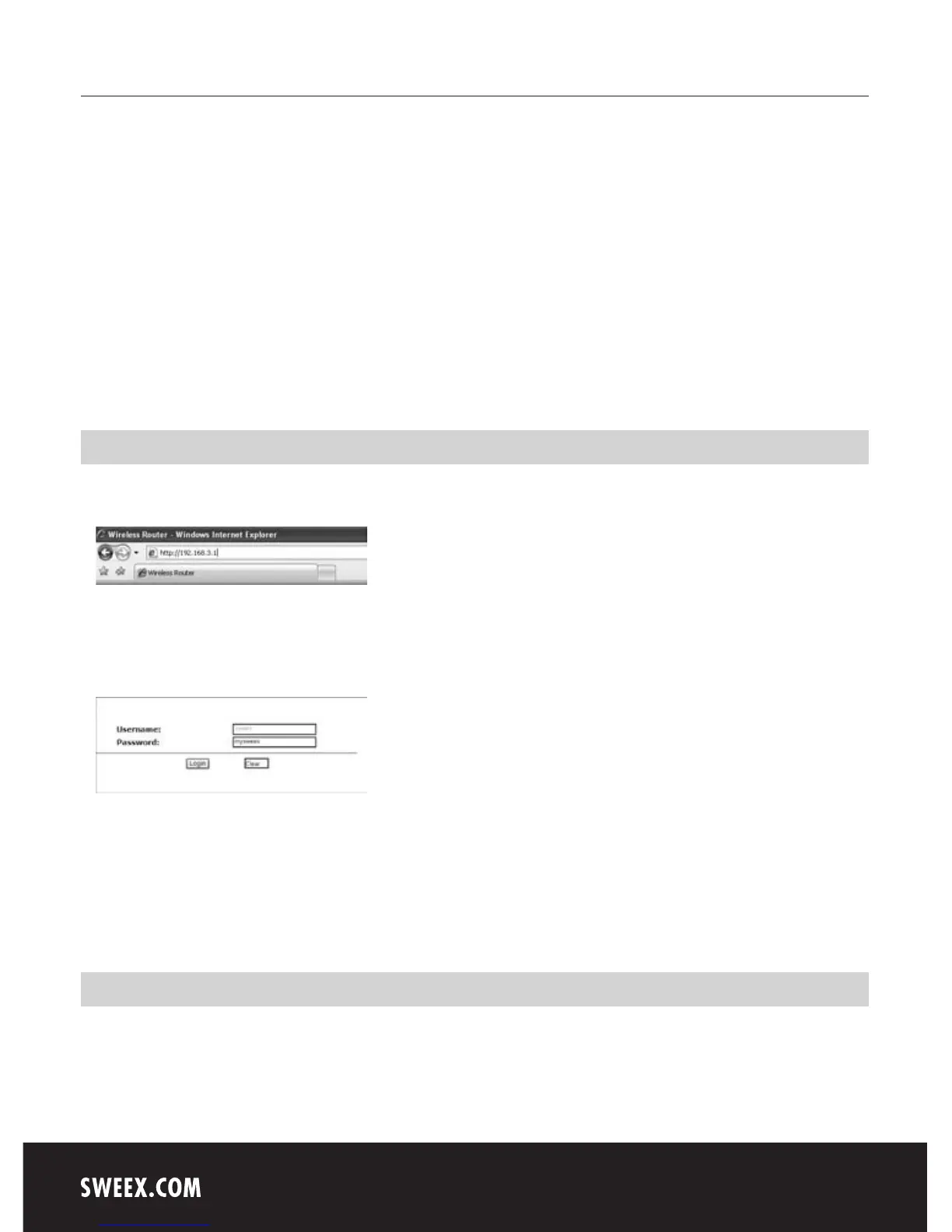
Open your web browser. In this example we use “Internet Explorer”.
The default router IP address is: 192.168.53.1
An IP address is a unique number required by each network device, including a computer or router, in order to be active within that network. Without an
IP address you are unable to make connections within a network. Type the router IP address in the browser address bar. You can now access the router
The router login screen appears. Enter the corresponding password:
Password: mysweex
If this login screen fails to appear, recheck the settings of your Internet browser as described above. Also check the IP address of your computer. In
this IP address, only the digits after the last dot may deviate from the IP address of the router (e.g.: 192.168.3.xxx).
Where to find the IP address of the computer
Win2000/WinXP: Click “Start” (Start) - "Run” (Run) - Type cmd - press Enter- In the black window, type ipconfig - press Enter and your IP address
is displayed.
Win98/Me: Click “Start” (Start) - "Run” (Run) - Type winipcfg - press Enter. In the window, select your network adaptor. (Usually NOT the ppp
adaptor) and your IP address is displayed.


 To Next Page