©2016 SwellPro All Rights Reserved
32
4.6.6 FPV Monitor
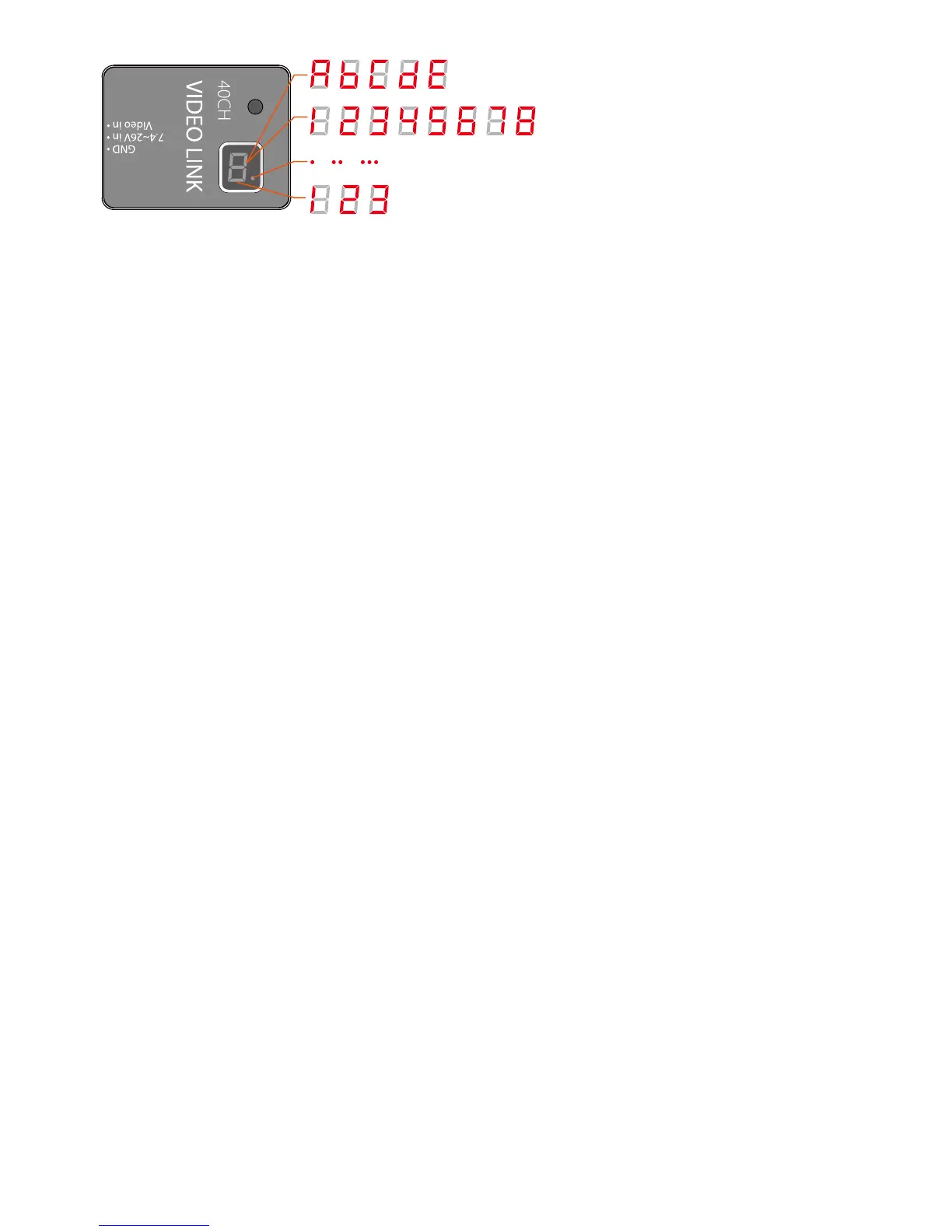
Frequency:A,b, C,d,E
Channel:1,2,3,4,5,6,7,8
Power:Blinking 1(25mW),2(400mW),3(600mW)
Power Switch-over:1(25mW),2(400mW),3(600mW)
Tuning Channels
Once powering up the drone system, the current frequency will initially be displayed on the LED display,
followed by the current channel, at-sight power is identied by blinking sequence of the red dot in the
lower right corner. (Blinking sequence: once represents 25mW, twice represents 400mW, triple
represents 600mW.)
Example: To set up channel E5
1. Long press the button for 3s and then release, the system enables the selection of a frequency from
A B C D E circular fashion. To select channel E, short press the button to choose channel E1. Now, the
system will circularly indicate frequency "E" & channel "1" without any operation.
2. In order to get E5, please short press the button 4 times continuously. When the system circularly
indicates frequency "E" & channel "5", long press the button for 2s to conrm the selection, then release
the button.
Note: The red dot in the lower right corner will blink once to conrm a successful set-up.
After completing above steps, the frequency "E" will be showed in the system rst, and channel "5"
follows next, and the number of blimks of the red dot stands for the current power selected.
Power selection
1. Long press the button for 5s to enter into "Power switch-over" mode.
The system will show the current power level, the number blinks slowly.
2. To enable the change of power level, short press the button once to select the desired power level
from the following options: 1=(25mW) - 2=(400mW) 3=(600mW), the corresponding number will blink
indicating the power level.
3. After selecting the desired power level, long press the button for 2s to conrm the selection and quit
the "Power switch-over" mode, the red dot will ash once to indicate the successful set-up.
4. After releasing the button, the system will rstly indicate the expected Frequency, then comes with
channel, nally the number of ashes of the red dot represents the selected Power.
1. 'OK' Button
Routine: Press 'OK' button once, the 'AUTO-SEARCH' is activated.
Functionality in 'M' menu: Press 'OK' button once is to conrm the selected items.
2. '-' Button













 To Next Page