Hint
Hint
∗1
• Language options are not available with
some discs.
• If OTHER is selected on the AUDIO, SUBTI-
TLE or DISC MENU screen, press four-digit
number to enter the code for the desired lan-
guage. (Refer to the language code list on
page 24.)
• Only the languages supported by the disc
can be selected.
∗2
• Language Setting for Audio and Subtitle is
not available with some discs. Then use the
AUDIO and the SUBTITLE button. Details
are on page 19.
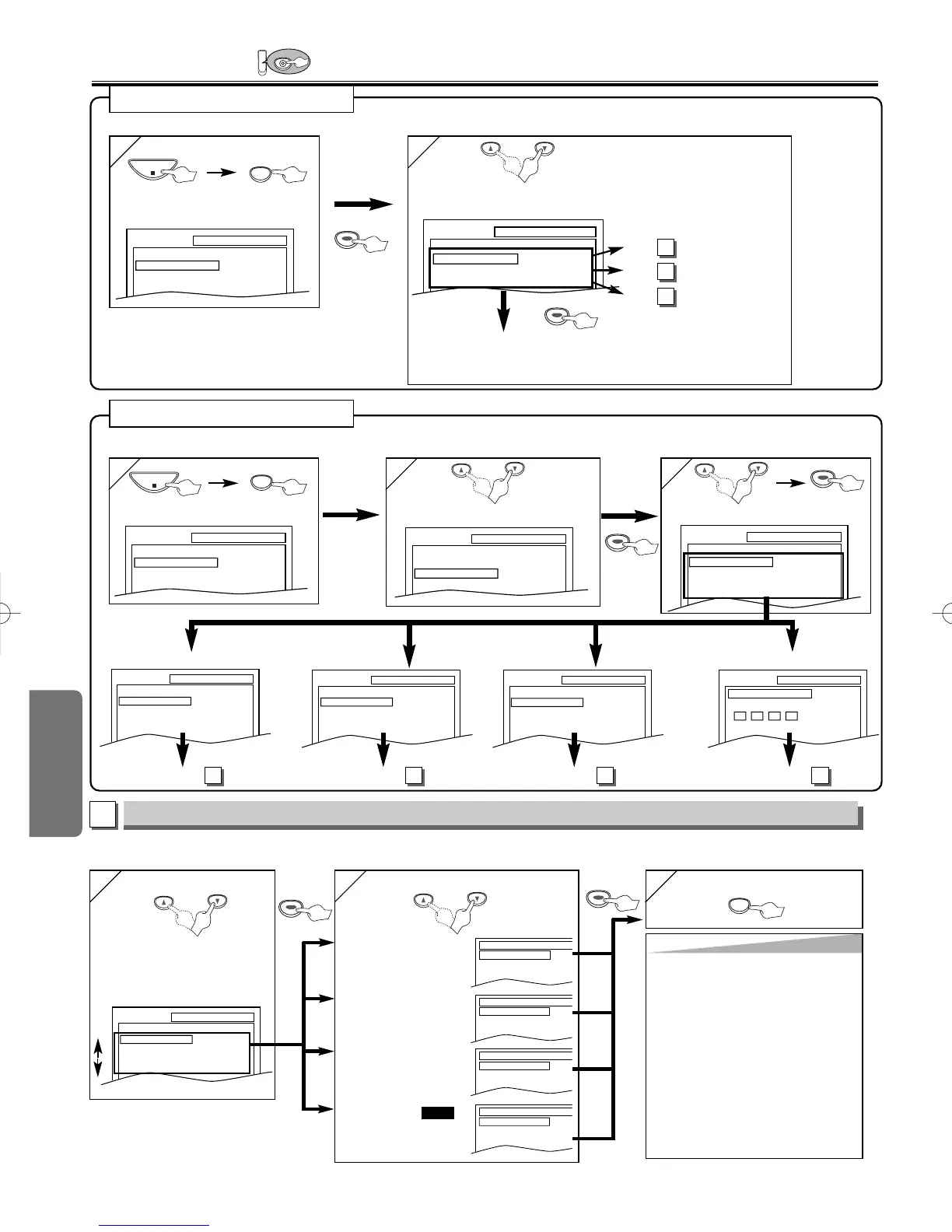
LANGUAGE Setting
Follow the step 1) to 3) in “CUSTOM Menu” section on page 20.
4
4
or
Select the desired item
6
6 To exit the menu
5
5
AUDIO
∗∗
1
∗∗
2
(Default: ORIGINAL)
Sets the audio language.
SUBTITLE:
∗∗
1
∗∗
2
(Default: OFF)
Sets the subtitle language.
DISC MENU:
∗∗
1
(Default: ENGLISH)
Sets the language for DVD
menu.
PLAYER MENU:
(Default: ENGLISH)
Sets the language for the
On-screen display.
QUICK
Q
Q
UICK SETUP Men
UICK SETUP Men
u
u
or
•Refer to “PLAYER MENU”, “TV
ASPECT”, or “DOLBY DIGITAL”
section on page 20, 21.
You can change the DVD player’s settings.
<SETUP MENU>
<SETUP MENU>
Confirm that QUICK is selected
You can select the “PLAYER MENU”, “TV ASPECT”, or “DOLBY DIGITAL” from the QUICK SETUP menu quickly.


 To Next Page