WiseScript Package Editor Reference 104
Using Script Editor
To create a dialog box for the action
1. From Event, select Exit.
To write a script action that interacts with the developer who uses it, you must add
a Custom Dialog script line, which you must store in the Exit script.
A user-defined action requires a dialog box only if it has parameters that you need
to change when you use the action.
2. In the Actions list, double-click the Custom Dialog action.
The Dialog Box Properties dialog box appears.
3. In Dialog Title, enter “Enter Time to Wait” and click OK.
The Custom Dialog Editor opens.
4. Click on the toolbar.
The Text Control Settings dialog box appears.
5. In Text, enter “Milliseconds to Wait” and click OK.
6. Click on the toolbar.
The Edit Text Control Settings dialog box appears.
7. Enter the following on the dialog box and click OK.
In Default, enter %WAIT_TIME%.
In Variable, enter WAIT_TIME.
8. Click on the toolbar.
The Push Button Control Settings dialog box appears.
9. Enter the following on the dialog box and click OK.
In Label, enter OK
Mark the Return to Previous Dialog action.
Mark Default Button.
10. Click the Push Button tool on the toolbar again.
The Push Button Control Settings dialog box appears.
11. Enter the following on the dialog box and click OK.
In Label, enter Cancel.
Mark the Abort Installation action.
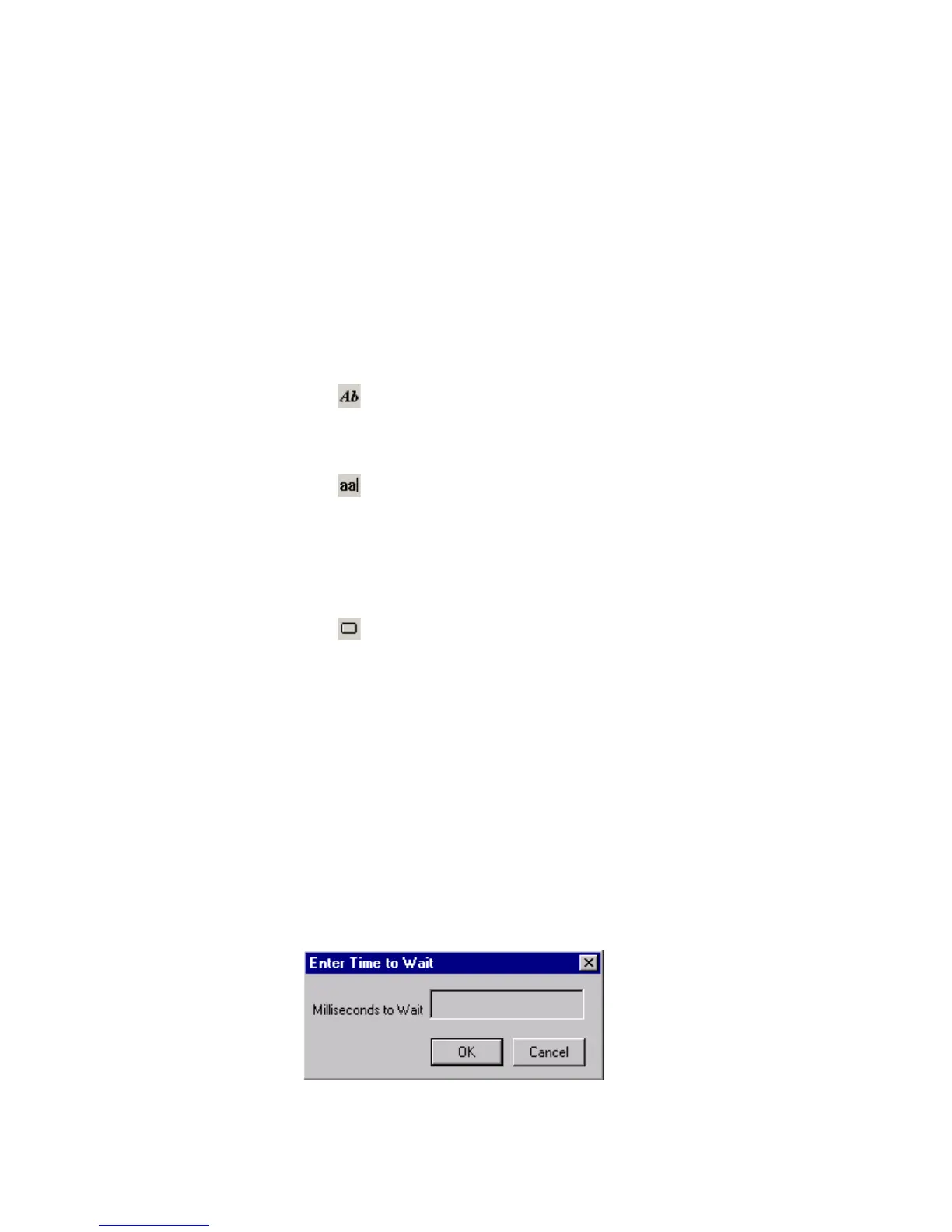
12. Rearrange the dialog box so that it looks something like this:




 To Next Page