EasyManua.ls Logo

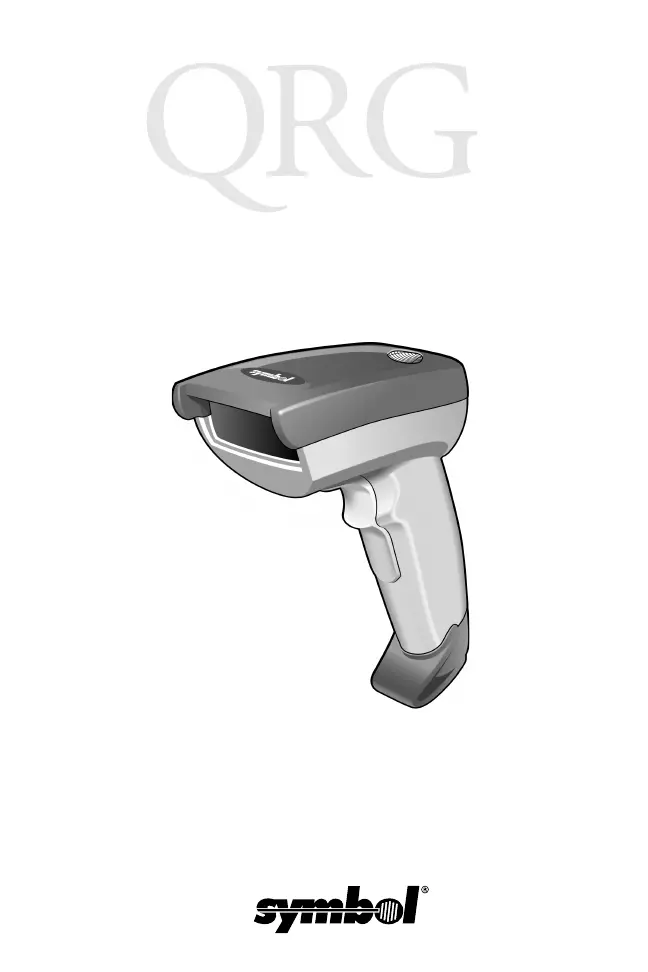
Symbol LS 4008i - User Manual

Symbol LS 4008i
48 pages
Print Icon
To Next Page IconTo Next Page
Loading...
LS 4008i

Other manuals for Symbol LS 4008i

Questions and Answers

Summary

Introduction

Parts of the LS4008 i Series Scanner

Installing the Interface Cable

Connect modular connector to scanner interface port

Connect the modular connector to the scanner's interface port.

Connect the other end of the interface cable to the host

Connect the other end of the interface cable to the host.

Connect power supply to cable if needed

Connect the power supply to the cable if it is necessary.

Scan bar codes on page 37 to communicate with the host

Scan bar codes on page 37 to establish communication with the host.

Removing the Interface Cable

Detach cable connector by pressing clip with screwdriver

Detach the cable connector by pressing the clip with a screwdriver.

Aiming

Scanner performs best when not perpendicular to bar code

The scanner performs best when it is not exactly perpendicular to the bar code.

Scanning In Hand-Held Mode

Verify all cable connections are secure

Verify that all cable connections are securely fastened.

Aim scanner at bar code and press trigger if available

Aim the scanner at the bar code and press the trigger if available.

Ensure scan line covers all bars and spaces of the symbol

Ensure the scan line covers all bars and spaces of the symbol.

Successful decode yields beep and green LED

A successful decode results in a beep and a green LED indicator.

Scanning in Hands-Free Mode

Place scanner into its stand

Place the scanner into its stand.

Position bar code for scan line to cover all bars and spaces

Position the bar code so the scan line covers all bars and spaces.

Successful decoding triggers beep and green LED

Successful decoding triggers a beep and a green LED.

Troubleshooting

No response when following operating instructions

Scanner shows no response despite following operating instructions.

Laser activates, but scanner fails to decode bar code

Laser activates, but the scanner fails to decode the bar code.

Bar code decodes but data is not sent to host

Bar code decodes successfully but data is not sent to the host.

Scanned data appears incorrectly on the host system

Data scanned by the device appears incorrectly on the host system.

Programming Bar Codes

Set Defaults

Resets all scanner parameters to default values.

Host Type

Selects the appropriate host system interface for the scanner.

Keyboard Wedge Host Type

Configures the scanner for IBM PC/AT and compatible interfaces.

Country Keyboard Types

RS-232 Host Types

USB Host Types

IBM 46 XX Host Types

Wand Host Type

Carriage Return;Line Feed

SCAN OPTIONS

Configures general scan options for data transmission.

<DATA><SUFFIX>

Appends data and suffix to transmitted data.

ENTER

Confirms or executes scan options and settings.

Regulatory Information

Ergonomic Recommendations

Recommendations to avoid or minimize ergonomic injury risks

Follow recommendations to avoid or minimize ergonomic injury risks.

Power Supply

Use only Symbol-approved power supplies with specified voltage and current

Use only Symbol-approved power supplies with specified voltage and current.

Radio Frequency Interference Requirements

Equipment complies with FCC Part 15 limits for Class B digital devices

Equipment complies with FCC Part 15 limits for Class B digital devices.

Reorient or relocate the receiving antenna

Adjust antenna orientation or position to resolve interference.

Increase the separation between the equipment and receiver

Increase physical distance to reduce interference.

Radio Frequency Interference Requirements - Canada

Marking and European Economic Area (EEA)

Laser Devices

Avoid hazardous laser exposure by using specified controls and procedures

Avoid hazardous laser exposure by using specified controls and procedures.

Avoid staring directly into Class 2 laser light beams

Avoid staring directly into Class 2 laser light beams.

Scanner Labeling

Information on scanner labeling regarding laser classification and warnings.

Warranty

Symbol warrants hardware products against defects in materials and workmanship

Symbol warrants hardware products against defects in materials and workmanship.

Warranty Coverage and Procedure

Symbol will repair or replace defective products during the warranty period

Symbol will repair or replace defective products during the warranty period.

A Return Material Authorization (RMA) number is issued for warranty service

A Return Material Authorization (RMA) number is issued for warranty service.

Customer is responsible for software, data, and backups

Customer is responsible for software, data, and backups.

General

Symbol disclaims all warranties except those expressly stated

Symbol disclaims all warranties except those expressly stated.

Sellers liability for damages limited to product purchase price

Seller's liability for damages is limited to the product's purchase price.

Service Information

Unit configuration for network and application operation

Unit requires configuration for network and application operation.

Contact facilitys technical support for operational problems

Contact facility's technical support for operational problems.

Escalating to Symbol Support Center for equipment issues

Facility support contacts Symbol Support Center for equipment issues.

Symbol Support Center Contact Information

Contact numbers for Symbol Support Center by region.

Accessing the latest guide version from the Symbol website

Access the latest guide version from the Symbol website.

Summary

Introduction

Parts of the LS4008 i Series Scanner

Installing the Interface Cable

Connect modular connector to scanner interface port

Connect the modular connector to the scanner's interface port.

Connect the other end of the interface cable to the host

Connect the other end of the interface cable to the host.

Connect power supply to cable if needed

Connect the power supply to the cable if it is necessary.

Scan bar codes on page 37 to communicate with the host

Scan bar codes on page 37 to establish communication with the host.

Removing the Interface Cable

Detach cable connector by pressing clip with screwdriver

Detach the cable connector by pressing the clip with a screwdriver.

Aiming

Scanner performs best when not perpendicular to bar code

The scanner performs best when it is not exactly perpendicular to the bar code.

Scanning In Hand-Held Mode

Verify all cable connections are secure

Verify that all cable connections are securely fastened.

Aim scanner at bar code and press trigger if available

Aim the scanner at the bar code and press the trigger if available.

Ensure scan line covers all bars and spaces of the symbol

Ensure the scan line covers all bars and spaces of the symbol.

Successful decode yields beep and green LED

A successful decode results in a beep and a green LED indicator.

Scanning in Hands-Free Mode

Place scanner into its stand

Place the scanner into its stand.

Position bar code for scan line to cover all bars and spaces

Position the bar code so the scan line covers all bars and spaces.

Successful decoding triggers beep and green LED

Successful decoding triggers a beep and a green LED.

Troubleshooting

No response when following operating instructions

Scanner shows no response despite following operating instructions.

Laser activates, but scanner fails to decode bar code

Laser activates, but the scanner fails to decode the bar code.

Bar code decodes but data is not sent to host

Bar code decodes successfully but data is not sent to the host.

Scanned data appears incorrectly on the host system

Data scanned by the device appears incorrectly on the host system.

Programming Bar Codes

Set Defaults

Resets all scanner parameters to default values.

Host Type

Selects the appropriate host system interface for the scanner.

Keyboard Wedge Host Type

Configures the scanner for IBM PC/AT and compatible interfaces.

Country Keyboard Types

RS-232 Host Types

USB Host Types

IBM 46 XX Host Types

Wand Host Type

Carriage Return;Line Feed

SCAN OPTIONS

Configures general scan options for data transmission.

<DATA><SUFFIX>

Appends data and suffix to transmitted data.

ENTER

Confirms or executes scan options and settings.

Regulatory Information

Ergonomic Recommendations

Recommendations to avoid or minimize ergonomic injury risks

Follow recommendations to avoid or minimize ergonomic injury risks.

Power Supply

Use only Symbol-approved power supplies with specified voltage and current

Use only Symbol-approved power supplies with specified voltage and current.

Radio Frequency Interference Requirements

Equipment complies with FCC Part 15 limits for Class B digital devices

Equipment complies with FCC Part 15 limits for Class B digital devices.

Reorient or relocate the receiving antenna

Adjust antenna orientation or position to resolve interference.

Increase the separation between the equipment and receiver

Increase physical distance to reduce interference.

Radio Frequency Interference Requirements - Canada

Marking and European Economic Area (EEA)

Laser Devices

Avoid hazardous laser exposure by using specified controls and procedures

Avoid hazardous laser exposure by using specified controls and procedures.

Avoid staring directly into Class 2 laser light beams

Avoid staring directly into Class 2 laser light beams.

Scanner Labeling

Information on scanner labeling regarding laser classification and warnings.

Warranty

Symbol warrants hardware products against defects in materials and workmanship

Symbol warrants hardware products against defects in materials and workmanship.

Warranty Coverage and Procedure

Symbol will repair or replace defective products during the warranty period

Symbol will repair or replace defective products during the warranty period.

A Return Material Authorization (RMA) number is issued for warranty service

A Return Material Authorization (RMA) number is issued for warranty service.

Customer is responsible for software, data, and backups

Customer is responsible for software, data, and backups.

General

Symbol disclaims all warranties except those expressly stated

Symbol disclaims all warranties except those expressly stated.

Sellers liability for damages limited to product purchase price

Seller's liability for damages is limited to the product's purchase price.

Service Information

Unit configuration for network and application operation

Unit requires configuration for network and application operation.

Contact facilitys technical support for operational problems

Contact facility's technical support for operational problems.

Escalating to Symbol Support Center for equipment issues

Facility support contacts Symbol Support Center for equipment issues.

Symbol Support Center Contact Information

Contact numbers for Symbol Support Center by region.

Accessing the latest guide version from the Symbol website

Access the latest guide version from the Symbol website.

Symbol LS 4008i Specifications

General IconGeneral
BrandSymbol
ModelLS 4008i
CategoryBarcode Reader
LanguageEnglish

Related product manuals