
 To Next Page


P
Patricia BellSep 18, 2025
What to do if Symbol LS1203 emits low/high beeps?
- PPaul HamiltonSep 18, 2025
Scan the correct numeric bar codes within range for the parameter programmed.

What to do if Symbol LS1203 emits low/high beeps?
Scan the correct numeric bar codes within range for the parameter programmed.
What to do if nothing happens when I press the trigger button on my Symbol LS1203 Barcode Reader?
If nothing happens when you press the trigger button on your Symbol Barcode Reader, there could be a few reasons. First, check the system power and reconnect the power supply if your configuration needs one. Next, check all cable connections to make sure they are securely connected. Finally, ensure you are using the correct host interface cable; if not, connect the correct cable.
Why is my Symbol Barcode Reader displaying scanned data incorrectly on the host?
If the host is displaying scanned data incorrectly from your Symbol Barcode Reader, first ensure that the proper host is selected by scanning the appropriate host type programming bar code. For RS-232 connections, set the scanner's communication parameters to match the host's settings. If you are using a USB HID keyboard or Keyboard Wedge configuration, program the system for the correct keyboard type and language, and turn off the CAPS LOCK key. Also, program the proper editing options, such as ADF or UPC-E to UPC-A Conversion. Check the scanner’s host type parameters or editing options.
What to do if my Symbol Barcode Reader emits the laser but does not decode the bar code?
If your Symbol Barcode Reader emits the laser but doesn't decode the barcode, it could be due to several reasons. First, ensure the scanner is programmed to read the correct barcode type. If the barcode symbol is unreadable, scan test symbols of the same barcode type to see if the barcode is defaced. Adjust the distance between the scanner and the barcode, moving closer or further away. Make sure the scan line crosses every bar and space of the symbol by adjusting the symbol's position until the scan line is within the acceptable aiming pattern.
What does it mean when Symbol Barcode Reader emits low/high/low/high beeps?
If the Symbol Barcode Reader emits low/high/low/high beeps, scan Default Parameters or reduce the number of ADF rules or the number of steps in the ADF rules, because you are out of host parameter storage space or out of memory for ADF rules.
What to do if the Symbol LS1203 Barcode Reader laser comes on but doesn't decode the symbol?
If the laser is on but the symbol isn't decoding, it could be due to several reasons: 1. The scanner may not be programmed for the correct bar code type. Ensure it's programmed to read the type of bar code you're scanning. 2. The bar code symbol might be unreadable. Check the symbol to ensure it isn't damaged. Try scanning a different bar code. 3. The distance between the scanner and the bar code might be incorrect. Adjust the distance by moving the scanner closer to or further from the bar code.
Why does host display scanned data incorrectly from Symbol Barcode Reader?
If the host displays scanned data incorrectly from the Symbol Barcode Reader, ensure the proper host is selected and scan the appropriate host type programming bar code. For RS-232, set the scanner's communication parameters to match the host's settings. For USB HID keyboard or Keyboard Wedge, program the system for the correct keyboard type and language, and turn off CAPS LOCK. Program the proper editing options, and check the scanner’s host type parameters or editing options.
Why does Symbol LS1203 emit frequent beeps?
If the Symbol Barcode Reader emits frequent beeps (USB host interface only), this is normal and usually happens when the host cold boots.
Why does my Symbol LS1203 Barcode Reader emit high/low beeps?
If your Symbol Barcode Reader emits high/low beeps, it means that the scanner is buffering Code 39 data, which is normal.
What does it mean when my Symbol LS1203 emits high/high/high/low beeps?
If your Symbol Barcode Reader emits high/high/high/low beeps, it is normal during a host reset when using RS-232. Otherwise, set the scanner's RS-232 parity to match the host setting.
Instructions for connecting and disconnecting the scanner's cable.
Guides for connecting the scanner to Keyboard Wedge, RS-232, and USB interfaces.
Proper technique for aiming and scanning barcodes for successful reads.
Details the two scanner modes and how to switch between them.
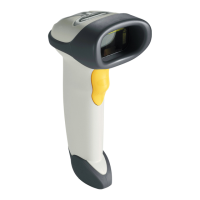
Identifies scanner parts and details Triggered/Auto-scan modes.
Lists common problems, causes, and suggested solutions for the scanner.
Explains beep sequences and their corresponding status indications.
Defines the meaning of different LED colors displayed by the scanner.
Instructions on how to reset all scanner parameters to their default values.
Detailed configuration for Keyboard Wedge, RS-232, and USB interfaces.
Information on setting scan data formats like Carriage Return/Line Feed.
Guidelines to prevent ergonomic injuries and ensure user safety during operation.
Covers general regulations and specific power supply requirements and warnings.
Details FCC compliance and potential radio frequency interference.
Details safety precautions and classifications for laser devices.
Explains the meaning of various compliance marks and certifications found on the scanner label.
 General
| Scan Pattern | Single line |
|---|---|
| Scan Technology | Laser |
| Connectivity | Wired |
| Decode Capability | 1D |
| Weight | 4.3 oz./122 g |
| Light Source | 650 nm visible laser diode |
| Scan Rate | 100 scans per second |
| Storage Temperature | -40° to 158° F / -40° to 70° C |
| Interface | USB, RS-232, Keyboard Wedge |
| Drop Specification | Withstands multiple 5 ft./1.5 m drops to concrete |
| Operating Temperature | 32° to 104° F / 0° to 40° C |
| Humidity | 5% to 95% (non-condensing) |
| Supported Barcodes | UPC/EAN, Code 39, Code 128 |