1-6-5 H9400IB
OPEN/CLOSE
OUTPUT
REC
REW
FF
VIDEO AUDIO
CH-DOWN
POWER
CH-UP
STOP/EJECT
PLAY
DVD
VCR
TIMER REC
STOP
PLAY
DISC IN
FWD
REV PLAY
1 2 3 4 768
25
2324 22 20
19
18
17
16
15
14
13
12
11
10
5
921
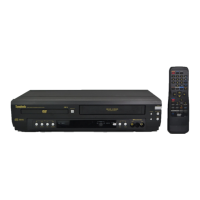
FRONT PANEL
REMOTE CONTROL
+
123
456
789
010
SPEED AUDIO
POWER
SKIP/CH.
SLOW
VCR/TV
DISPLAY
PAUSE
PLAY
STOP
RECORD
ENTER
RETURNTITLE
MENU
SETUP
CLEAR/
C.RESET
ZOOMMODE
A
-
B
ANGLE
SEARCH
MODE
REPEAT
SUBTITLE
T- S E T
DVD VCR
27
26
28
29
30
31
32
33
34
35
37
38
40
39
36
55
51
52
53
50
54
49
48
46
45
47
42
43
44
41
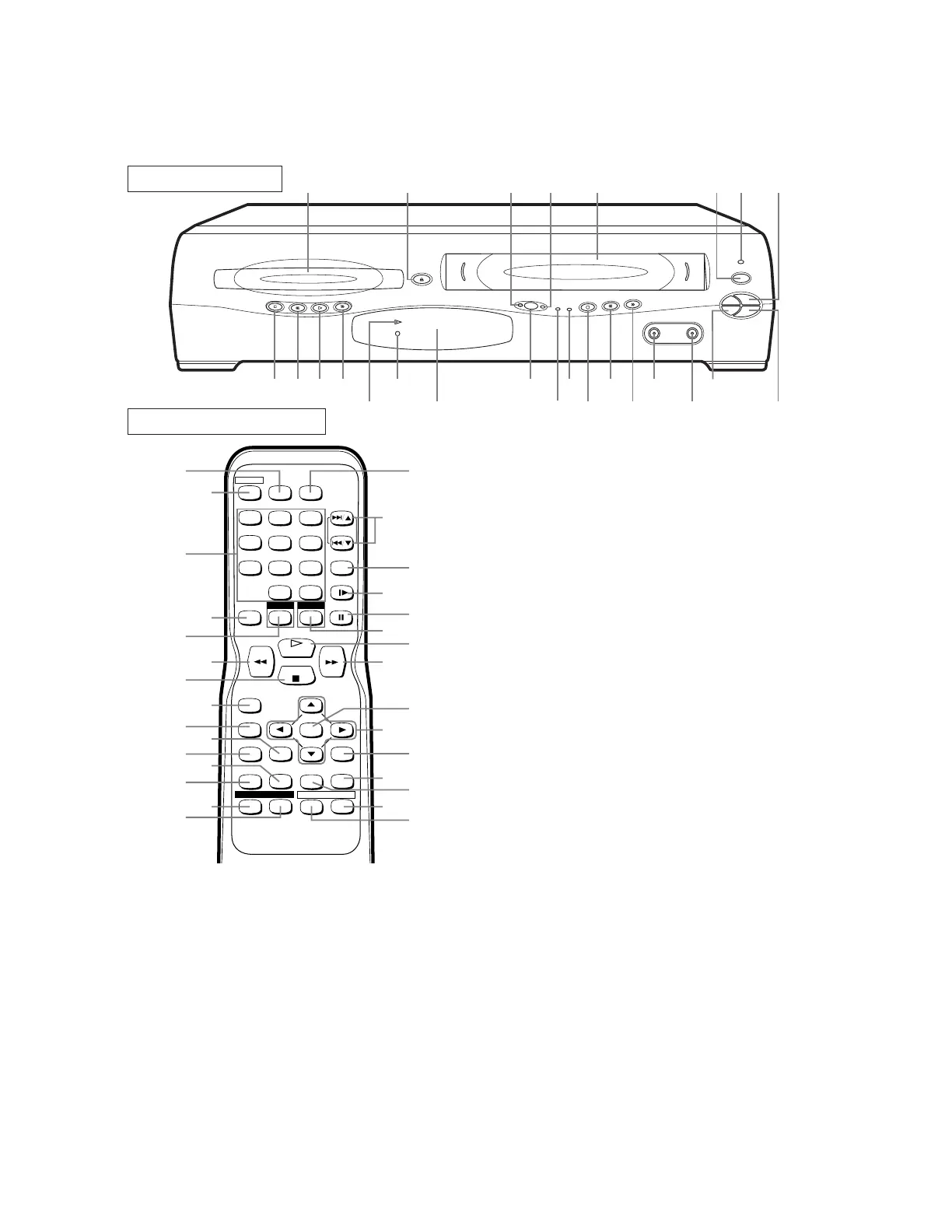
1. Disc loading tray
2. OPEN/CLOSE Button
Press to insert discs into or remove them from the
tray.
3. DVD OUTPUT Light (Green)
This light appears when the DVD output mode is
selected. You can only watch DVDs when the green
DVD OUTPUT light is on. To make the green DVD
OUTPUT light come on, press DVD on the remote
control or OUTPUT on the front panel.
4. VCR OUTPUT Light (Green)
This light appears when the VCR output mode is
selected. You can only watch tapes when the green
VCR OUTPUT light is on. To make the green VCR
OUTPUT light come on, VCR on the remote control
or OUTPUT on the front panel.
5. CASSETTE COMPARTMENT
6. POWER Button
Press to turn the power on and off.
7. POWER Light (red)
Lights up when the power is on.
8. STOP/EJECT Button (VCR)
EJECT Button
Press to remove the tape from the VCR.
STOP Button
Press to stop the tape motion.
9. PLAY Button(VCR)
Press to begin playback.
10. CHANNEL Buttons
In VCR mode, press to change TV channels on t
VCR; press to adjust the tracking during normal
slow motion playback; press to remove vertical jitt
in a Still picture.
11. AUDIO In Jacks
Connect audio cables coming from the audio o
jacks of a camcorder, another VCR, or an aud
source here.
12. VIDEO In Jack
Connect a video cable coming from the video o
jack of a camcorder, another VCR, or a video sour
(laser disc player, camcorder, etc.) here.
13. F.FWD Button (VCR)
Press to rapidly advance the tape, or view the pictu
rapidly in forward during playback. (Forwa
Search).
14. REW Button (VCR)
Press to rewind the tape, or to view the picture rapi
ly in reverse during the playback mode (Rewin
Search).
15. REC Button
Press once to start a recording. Press repeatedly
start a One-Touch Recording.
16. REC Light
Lights up during recording.
17. TIMER Light
This light glows when the DVD/VCR is in standb
mode or off for a timer recording or during a On
Touch Recording. It flashes if T-SET is pressed for
timer recording, but there is no tape in th
DVD/VCR. It flashes when all timer recordings
One-Touch Recordings are finished.
[ EWD2203 ]


 To Next Page