4
Chapter 1: Before You Start
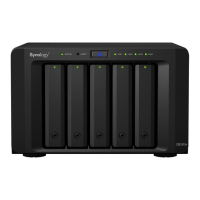
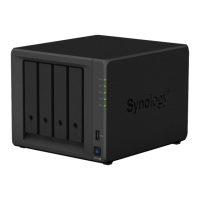
Synology DiskStation at a Glance
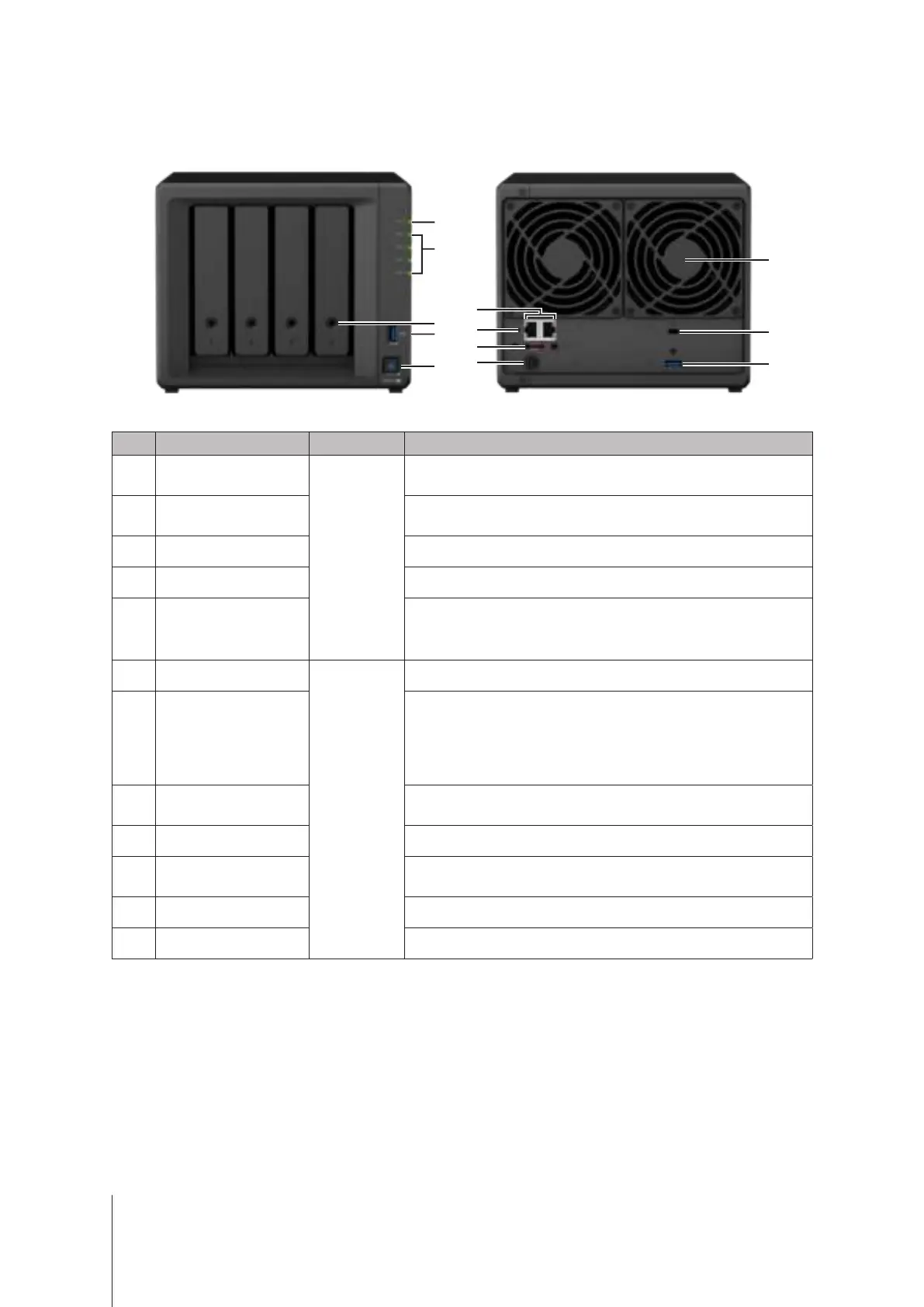
No. Article Name Location Description
1 Status Indicator
Front Panel
Displays the status of the system. For more information, see "Appendix B:
LED Indicator Table".
2
Disk Indicator
Displays the status of the installed drive. For more information, see
"Appendix B: LED Indicator Table".
3 Drive Tray Lock Lock or unlock drive trays.
4 USB 3.0 Port Connect external drives or other USB devices to the DiskStation here.
5 Power Button
1. Press to power on the DiskStation.
2. To power off the DiskStation, press and hold until you hear a beep
sound and the Power LED starts blinking.
6 LAN Port
Back Panel
Connect network cables here.
7 RESET Button
1. Press and hold until you hear a beep sound to restore the default IP
address, DNS server, and passwords for the
admin
account.
2. Press and hold until you hear a beep sound, then press and hold
again until you hear three beep sounds to return the DiskStation to
“Not installed” status so that DiskStation Manager (DSM) can be
reinstalled.
8 eSATA Port
Connect external SATA drives or Synology Expansion Unit
1
to the
DiskStation here.
9 Power Port Connect the AC power adapter here.
10 Fan
Disposes of excess heat and cools the system. If the fan malfunctions,
the DiskStation will emit a beeping sound.
11 Kensington Security Slot Attach a Kensington security lock here.
12 USB 3.0 Port Connect external drives or other USB devices to the DiskStation here.
1
For more information about Synology Expansion Unit supported by your DiskStation, please visit
www.synology.com
.



 To Next Page