QUALITY CONTROL
Sysmex KX-21 Operator’s Manual -- Revised October 1998 5-27
4. PRINT
Using this menu, QC data in the line cursor position can be printed out from the built-in
printer.
How to print QC Data
(1) Display the QC Chart screen of QC file that contains the data you want to print.
For how to select QC file, refer to Chapter 2.3: Select QC File in this chapter.
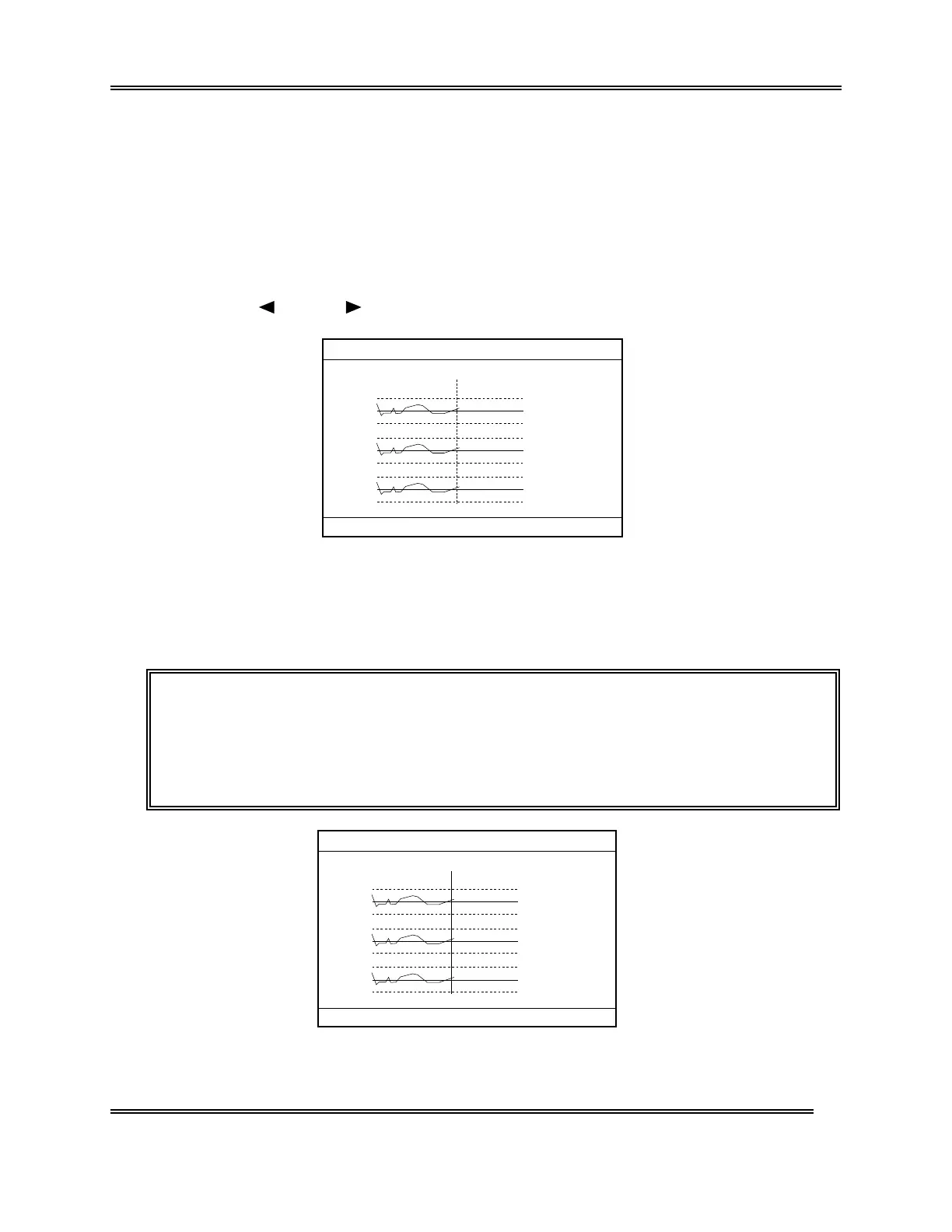
(2) Using [ ] key or [ ] key, move the line cursor to the position of the data to be
printed.
(N=30) 31/12
UL
WBC
RBC
HGB
LL
UL
LL
UL
LL
LIMIT DATA
(MEAN)
8.1
7.6 7.3
7.1( 7.8)
4.70
4.50 4.52
4.30( 4.55)
15.5
15.0 14.8
14.5( 15.0)
FILE No.1
1:QC Analyze 2:Settings 3:Erase All
Figure 5-4-1: QC Chart Screen
(3) Press [ENTER] key.
The line cursor changes from dotted line to solid line, and the menu in the Menu
Display Area changes over to "1: Delete," "2: Print," "3: HC Output."
NOTE: • Press
ENTER
ke
a
ain, and the line cursor returns to dotted line and
the menu in the Menu Displa
Area chan
e to the ori
inal status.
• The line cursor that has chan
ed to solid line cannot be moved.
• "3: HC Output" on the menu is displa
ed onl
when the serial interface
option
is incorporated.
(N=30) 31/12
UL
WBC
RBC
HGB
LL
UL
LL
UL
LL
LIMIT DATA
(MEAN)
8.1
7.6 7.3
7.1( 7.8)
4.70
4.50 4.52
4.30( 4.55)
15.5
15.0 14.8
14.5( 15.0)
FILE No.1
1:Delete 2:Print 3:HC Output
Figure 5-4-2: Print Menu Screen
Sysmex KX-21 Operator’s Manual -- Revised January 2000


 To Next Page