3 4
Step 2
Connect to T-Mobile Broadband
Connect your Mobile Hotspot to your Wi-Fi
enabled computer using the default SSID
and password on the label inside your
Mobile Hotspot’s battery compartment.
NOTE: See the Set Up & Connect section
for more information.
Step 3
Activate on www.t-mobile.com
After connecting to your Mobile Hotspot
and opening a Web browser, you will see
an Activation page. Provide the requested
information and click Activate device.
Activation will require us to re-establish
your connection. Once you receive a text
message from T-Mobile that your Mobile
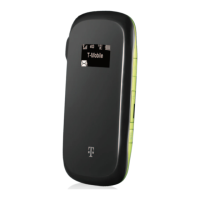
Hotspot has been activated (an envelope
indicator will appear on
your Mobile Hotspot’s
display), open a new Web
browser window on your
computer to continue.
Step 4
Register your account
Once you have re-established your
connection to the T-Mobile Broadband
network, open a new Web browser window.
You will see the Registration page where
you will be asked to register your new
account. Click Register when done.
Your new account number - Please check
your Mobile Hotspot inbox (see the Text
Messaging section) for a text message
containing your new Mobile Broadband
phone number for your Mobile Hotspot.
Please write this number down and keep
it in a safe place. You will need the phone
number when you log into the www.my.t-
mobile.com Web site to purchase a Mobile
Broadband Pass.
Phone Number:( ) -
Step 5
Purchase a Mobile Broadband Pass
After you have registered your account, you
will need to purchase a Pass before you
can access the Internet. After purchasing a
Pass, you can connect to the Internet.


 To Next Page