Maintaining and Transferring Files
Maintaining and Transferring FilesMaintaining and Transferring Files
Maintaining and Transferring Files
Page - 18
Stoneridge
Connecting digivu to the Vehicle Tachograph Unit
Insert a valid Company Card into Slot 1 or Slot 2 of the Vehicle
Tachograph.
Please note: The new Smart Tachographs vary from the above
and therefore download sockets will be located in a slightly
dierent position.
Insert the digivu into the appropriate
download connector as indicated.
The digivu is powered by the
Tachograph.
digivu internal memory
digivu has 16MB of internal memory which on average will store
120+ VU data les. The indicator shows a green LED for sucient
memory, an orange LED for 75% used memory and a red light
indicates that there is insucient space for the current VU
download. The digivu will manage its own le storage by default
so will automatically overwrite archived les.
VDO
Maintaining and Transferring Files
Maintaining and Transferring FilesMaintaining and Transferring Files
Maintaining and Transferring Files
Page - 19
digivu activity LED
When your digivu is connected to a VU the Download Activity LED
will indicate the current stage of the download process. A
ashing orange LED indicates that the digivu and the Vehicle Unit
are communicating. A red LED indicates an error in the download
process - see Troubleshooting on pages 24-25 for more
information. A green LED indicates your download from the VU
has been successful.
Maintaining and transferring les from your download device
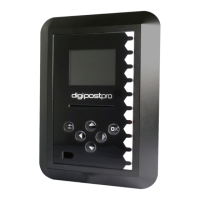
The digipostpro supports the transfer of VU and Driver Card les
from both the digivu and digifobpro. It does not support
alternative download devices.
digivu
To connect your digivu simply remove the digivu cap and insert
the digivu into the digipostpro’s front socket. The le transfer will
begin automatically and a progress bar indicates the transfer
progress. When the transfer is completed an alert will sound (if
enabled) and a digivu with tick icon will be displayed. Press OK to
enter the digivu menu if it is enabled. If not, simply remove the
digivu from the device.
digivu rmware upgrades
If your digivu is running an old version of rmware, when it rst
connects to the digipostpro you will be asked whether you want
to update it. To update it, select the green tick and press OK. A bar
will indicate the progress of the update. A tick icon appears upon
completion.


 To Next Page
 Loading...