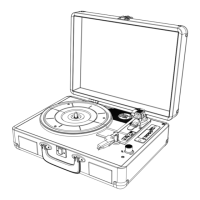
1. Set the auto-stop to "ON" and turn the mode selection knob on the control panel aim to "BT" on the panel .
2. Using the controls on your Bluetooth device, search for and select "BLTD"in your Bluetooth settings to pair. If your device
requests a password, enter the default password "0 0 0 0 " and press OK.
3. When successfully paired, an audible chime will sound. After initial pairing, the unit will stay paired unless unpaired
manually by the user or erased due to a reset of the device. If your device should become unpaired or you find it is unable to
connect, repeat the above steps.
4. Play, pause or skip a selected track using the controls on the connected Bluetooth Device or the controls on the turntable.
On an iPhone
Paired
Bluetooth
Bluetooth
ON
BLTD
Devices
Now
discoverable
• Go to SETTINGS > BLUETOOTH
Search for devices ( Bluetooth is ON)
12:12 PM
On an Android Phone
Bluetooth
settings
Bluetooth devices
Scanning
Bluetooth
Device Dname
BLTD
Visible
Search for devices
• Go to SETTINGS > BLUETOOTH
Search for devices (Bluetooth is ON)
12:12
PM
Bluetooth Input--- pairing with Bluetooth
1. Use the above methods to play a record.
2. Insert your USB stick into the USB slot. Press and hold the “M” button for 1 second, you will hear a beep sound and it begins to
recording.
3. Stop recording. Press and hold the “M” button for 1 second that
will stop the recording and save the recording as the last file ,
only after this that you can plug out the USB device.
4. Find below file name on your PC, and repeat steps 2-3 above if you want the other recordings.
File Folder
PHONO01.MP3
⇒ son folder
AB_REC
USB Recording Vinyl Records
NOTE: USB in FAT/FAT32 format ONLY, NOT support USB in exFAT or NTFS format
Never remove the USB memory card while recording. If you remove it, the recorded data may be damaged.
Make sure that the USB memory card you use has enough space.
For recording, press "M" Mode switching / recording button at the start and end of each song.
All songs recorded as one file. It will not automatically separate songs ( it will not be individual data for each song)
USB Playback Music
1. USB in FAT/FAT32 format ONLY, NOT support USB in exFAT or NTFS format
2. Insert your USB stick into the USB slot. Turn the Mode selection knob aim to “AUX”, then press and hold "M" button, it will load the
songs that is playable , you can control tracks by the Previous /Next Track button or Pause/Play/DEL button.
*iPhone image is for demonstration only


 To Next Page