folding line
2 staples here (saddle stitching)
folding line
2 staples here (saddle stitching)
Open size: 9”W x 4.5”H Folded Size: 4.5”W x 4.5”H Material: 80gsm woodfree paper Color: Grayscale
Diecut
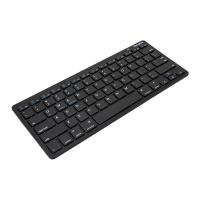
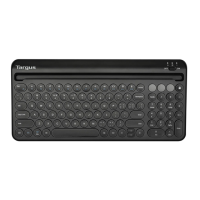
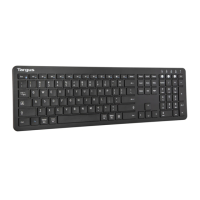
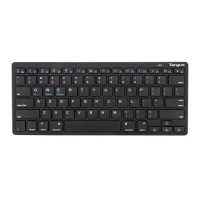
Targus KB55 Multi-Platform Bluetooth Keyboard Targus KB55 Multi-Platform Bluetooth Keyboard
Help with setup: keyboard is not working
• Check the orientation of the batteries inside the keyboard, or replace the batteries.
• Remove any metal object between the receiver and the keyboard that may interfere with
reception.
• Restart the computer.
• Only one device can be actively paired at one time.
• After pairing for the rst time, your device will automatically connect to the keyboard within
3-5 seconds the next time you turn the keyboard on.
• In case of connection failure, delete the pairing record from your device, and try the above
pairing procedures again.
For iOS users, if the Caps Lock does not work, or causes the iPad to restart, go to general
settings and turn o the “caps lock switch to/from Latin”.
Power Saving Mode
In paired status, the keyboard will enter into the sleep mode after being idle for 10 minutes.
To activate the keyboard, press any key and wait 3 seconds. In paired failure status, the
keyboard will enter sleep mode after 2 min.
Function Keys
Function key features may have variations depending on the Operation System version and devices.


 To Next Page