TASCAM DR-70D
9
2 – Names and Functions of Parts
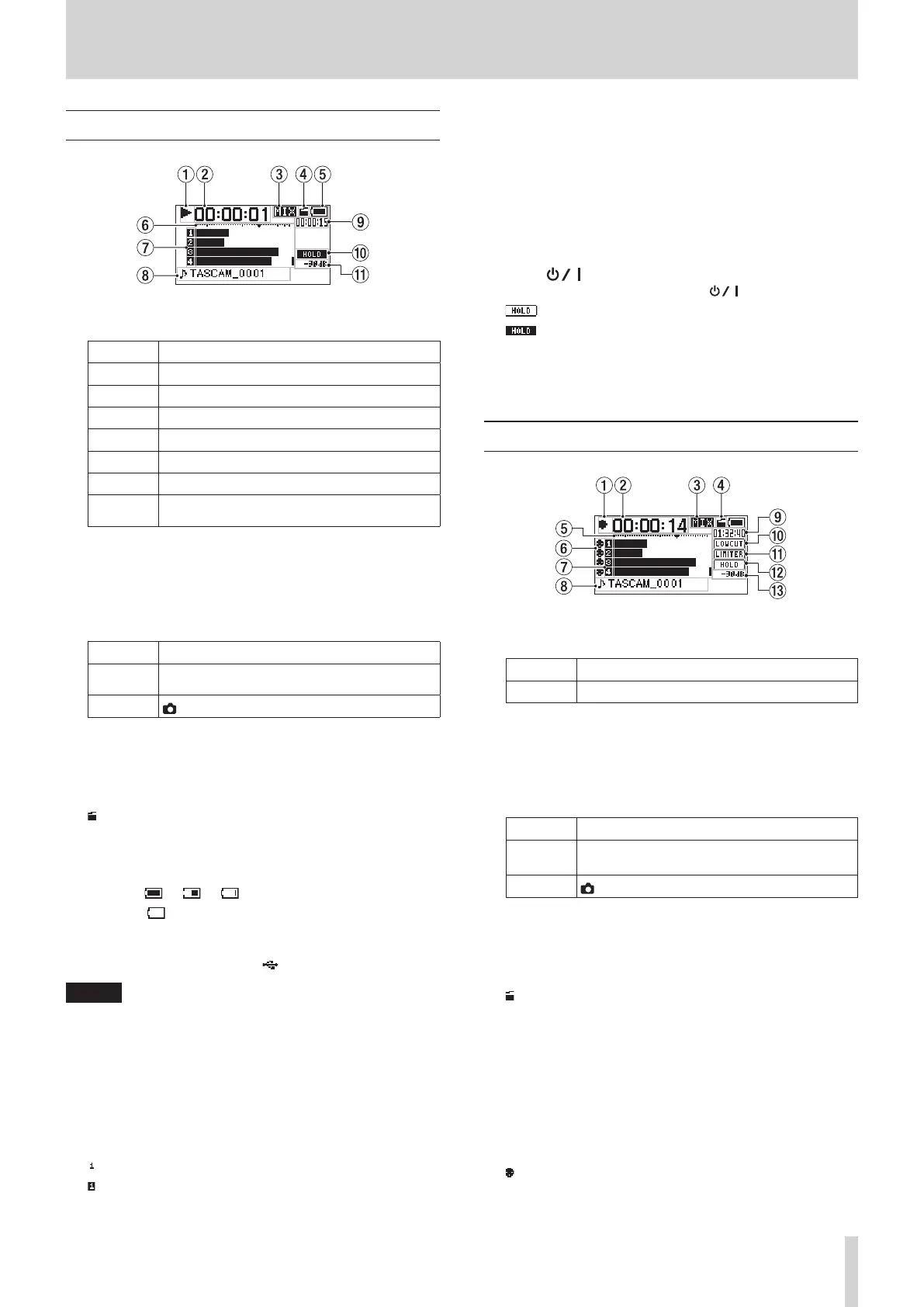
Home Screen
1 Recorder operation status
This icon shows the recorder operation status.
Indicator Meaning
8
Stopped
9
Paused
7
Playing back
,
Searching forward
m
Searching backward
/
Skipping to the beginning of the next track
.
Skipping to the beginning of the current or
previous track
2 Elapsed time
This shows the elapsed time (hours: minutes: seconds) of the
current file.
3 Monitoring mode
This shows what audio is now being monitored.
Indicator Meaning
MIX
CH1-4 mix sound or dual recording mode main
file
CAM
IN jack sound input
4 Auto tone function status
This icon shows whether the auto tone function is on or off.
(See “Using the auto tone function” on page 26.)
No icon: Auto tone off
: Auto tone on
5 Power supply status
A battery icon appears when power is supplied by batteries.
The battery icon shows the amount of power remaining with
10 levels ( e e ).
When the icon has no bars, the batteries are almost dead
and the unit will soon turn off (enter standby).
When using a TASCAM PS-P515U AC adapter (sold
separately) or USB bus power, appears.
NOTE
Sometimes a “Battery Low” warning appears when recording
or conducting other demanding operations even before the
battery power has been depleted.
6 Level meters
These show the levels of the input and playback signals.
7 Recording status
These show the recording on/off status of each channel. (See
“Setting the channels to record” on page 18.)
: Recording off
: Recording on
8 Project name
This shows the name of the project playing back.
A project is a group of files used for recording/playback.
9 Remaining time
This shows the elapsed time (hours: minutes: seconds) of the
current file.
When stopped, this shows the remaining recording time of
the SD card (hours: minutes: seconds).
0 HOLD/ switch status
This shows the status of the HOLD/ switch.
: HOLD switch off
: HOLD switch on
q Peak value in decibels (dB)
The maximum level that occurs in a fixed period of time is
displayed in decibels.
Recording Screen
1 Recorder operation status
This icon shows the recorder operation status.
Indicator Meaning
0
Recording
2 Elapsed recording time
The elapsed recording time of the file appears as hours:
minutes: seconds.
3 Monitoring mode
This shows what audio is now being monitored.
Indicator Meaning
MIX
CH1-4 mix sound or dual recording mode main
file
CAM
IN jack sound input
4 Auto tone function status
This icon shows whether the auto tone function is on or off.
(See “Using the auto tone function” on page 26.)
No icon: Auto tone off
: Auto tone on
5 Level meters
These show the input signal levels.
A b mark is shown at the −16dB position on the scale as a
guide for input level adjustment.
6 Phantom power status
This shows the phantom power on/off setting. (See “Using
phantom power” on page 21.)
No icon: Phantom power off
: Phantom power on


 To Next Page